> ## Documentation Index
> Fetch the complete documentation index at: https://koreai-content-gov.mintlify.site/llms.txt
> Use this file to discover all available pages before exploring further.
# Workflow Nodes
Workflows are built by connecting nodes on a visual canvas. Each node type serves a specific purpose — processing data, making decisions, integrating with external systems, or pausing for human review.
```
Start → API Call → Transform → Condition → End
↓
Error Handler
```
To open the workflow canvas: **Workflows** > select a workflow > **Go to Flow**.
***
## Node Types
| Node | Category | Purpose |
| - | - | - |
| [**Start**](#start-node) | Control | Entry point; defines inputs, triggers, and schedules |
| [**End**](#end-node) | Control | Exit point; returns output or error message |
| [**Delay**](#delay-node) | Control | Pauses execution for a set duration |
| [**API**](#api-node) | Integration | Makes REST or SOAP calls to external services |
| [**Integration**](#integration-node) | Integration | Connects to third-party services without code |
| [**Function**](#function-node) | Logic | Executes custom JavaScript or Python code |
| [**Condition**](#condition-node) | Logic | Branches based on IF / ELSE IF / ELSE logic |
| [**Loop**](#loop-node) | Logic | Iterates over arrays to process items one at a time |
| [**Text to Text**](#text-to-text-node) | AI | Transforms text using LLMs |
| [**Text to Image**](#text-to-image-node) | AI | Generates images from text prompts |
| [**Audio to Text**](#audio-to-text-node) | AI | Transcribes audio to text (ASR) |
| [**Image to Text**](#image-to-text-node) | AI | Extracts text or insights from images (OCR) |
| [**DocSearch**](#docsearch-node) | Data | RAG-powered retrieval from a Search AI app |
| [**Human**](#human-node) | Control | Pauses for human review or approval via Inbox |
| [**Agentic App**](#agentic-app-node) | AI | Delegates tasks to a deployed Agentic App |
| [**Browser Automation**](#browser-automation-node) | Automation | Runs a published browser automation in a workflow |
| [**Doc Intelligence**](#doc-intelligence-node) | AI | Extracts structured data from documents |
## Start Node
The Start node is the mandatory entry point for every workflow. It is added automatically when you create a workflow. Every node in the flow must connect back to the Start node.
### Key Capabilities
* **Input variables**: Define the data the workflow accepts at runtime.
* **Output variables**: Specify variables to capture workflow results.
* **Event triggers**: Automatically run the workflow when a specific event occurs in a connected app (for example, a new Gmail message).
* **Scheduled execution**: Run the workflow at a fixed time or on a recurring schedule.
### Add Event-Based Triggers
**Prerequisites:**
* Set up an integration connection in **Settings > Integrations**.
* Create an authorization profile in **Settings > Security & Control > Authorization Profiles**.
**Steps:**
1. Click **Add Trigger** in the Start node panel.
2. Select the integration app.
3. Enable the trigger and select a connection.
4. Choose the trigger event and configure its parameters.
5. Save and test the workflow.
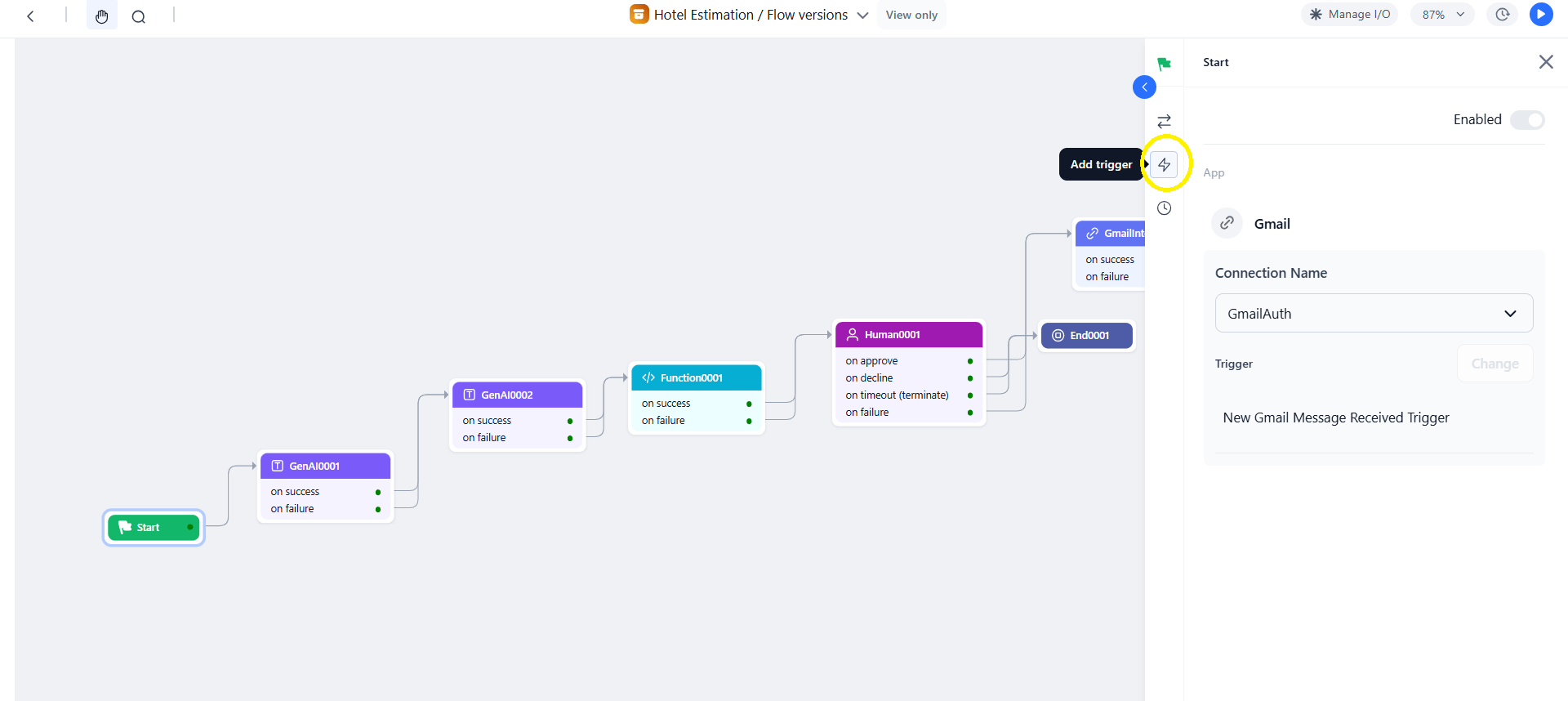 Trigger attachments are accessible via URL for 24 hours. Ensure the trigger is active before running the workflow.
### Supported Third-Party Services for Triggers
| Service | Triggers | Service | Triggers |
| - | - | - | - |
| Asana | 1 | Notion | 5 |
| Canvas | 6 | OneDrive | 8 |
| Coda | 4 | Outlook | 5 |
| Discord | 1 | Pipedrive | 3 |
| Fireflies | 1 | Salesforce | 7 |
| Gmail | 2 | Slack | 9 |
| GitHub | 6 | Slackbot | 9 |
| Google Calendar | 7 | Spotify | 3 |
| Google Docs | 3 | Stripe | 7 |
| Google Drive | 7 | TimelinesAI | 1 |
| Google Sheets | 2 | Todoist | 1 |
| Google Slides | 1 | Trello | 5 |
| Google Super | 16 | YouTube | 4 |
| Hubspot | 2 | Zendesk | 2 |
| Jira | 3 | Linear | 3 |
| Mailchimp | 4 | | |
### Configure a Schedule
1. Click the **Schedule** icon in the Start node panel and enable the scheduler.
2. Set the frequency.
3. Configure the start date, start time, and time zone.
Trigger attachments are accessible via URL for 24 hours. Ensure the trigger is active before running the workflow.
### Supported Third-Party Services for Triggers
| Service | Triggers | Service | Triggers |
| - | - | - | - |
| Asana | 1 | Notion | 5 |
| Canvas | 6 | OneDrive | 8 |
| Coda | 4 | Outlook | 5 |
| Discord | 1 | Pipedrive | 3 |
| Fireflies | 1 | Salesforce | 7 |
| Gmail | 2 | Slack | 9 |
| GitHub | 6 | Slackbot | 9 |
| Google Calendar | 7 | Spotify | 3 |
| Google Docs | 3 | Stripe | 7 |
| Google Drive | 7 | TimelinesAI | 1 |
| Google Sheets | 2 | Todoist | 1 |
| Google Slides | 1 | Trello | 5 |
| Google Super | 16 | YouTube | 4 |
| Hubspot | 2 | Zendesk | 2 |
| Jira | 3 | Linear | 3 |
| Mailchimp | 4 | | |
### Configure a Schedule
1. Click the **Schedule** icon in the Start node panel and enable the scheduler.
2. Set the frequency.
3. Configure the start date, start time, and time zone.
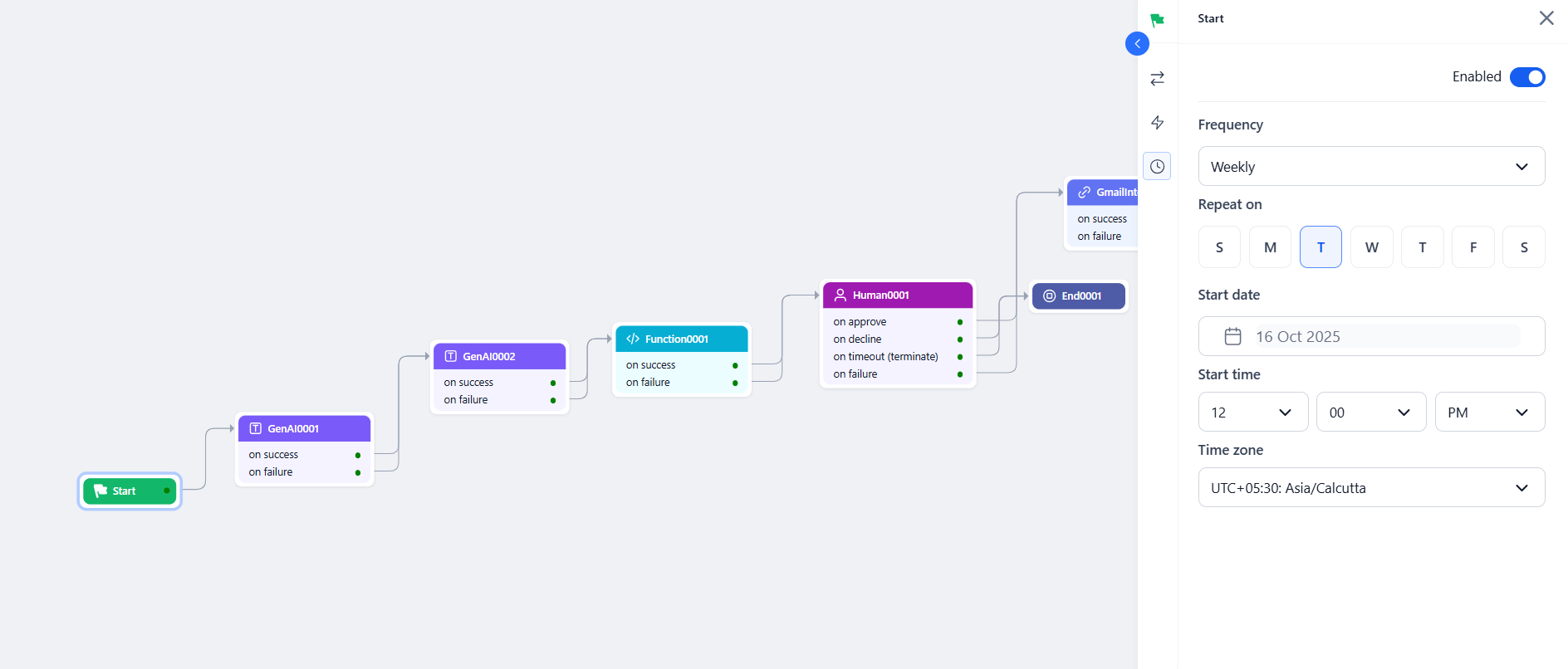 **Schedule Frequencies:**
| Frequency | Description |
| - | - |
| Daily | Runs every day. |
| Weekly | Runs on a selected day every 7 days. |
| Monthly | Runs on a specific date each month. |
| Once | Runs at a selected date and time. |
| Cron | Runs based on a custom cron expression. |
| Custom | Repeats every N days or weeks. |
### Accessing Inputs in Downstream Nodes
| Language | Syntax |
| - | - |
| JavaScript | `{{context.steps.Start.variable-name}}` |
| Python | `{{context["steps"]["Start"]["variable-name"]}}` |
### Troubleshooting
| Issue | Fix |
| - | - |
| Undefined output variables | Open the Start node, define all required output variables, save, and re-run. |
| Inactive trigger | Re-deploy the workflow, retest the auth profile in **Settings > Security & Control > Authorization Profiles**, and confirm the trigger is active. |
***
## End Node
The End node terminates the workflow and returns output to the caller, or displays an error message on failure.
### Configuration
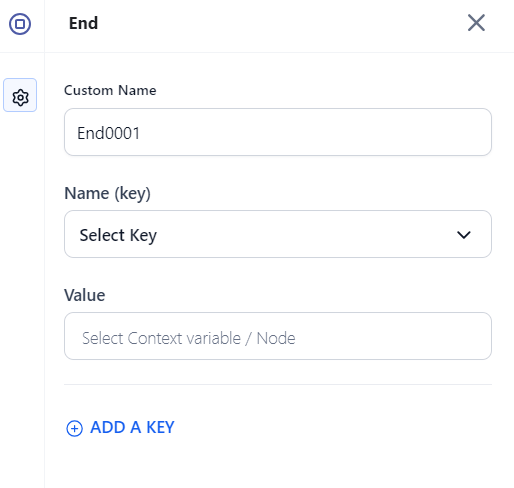
1. Click the **+** icon on any node or drag **End** from the Assets panel onto the canvas.
2. Click the node to open its properties.
3. Enter a **Custom Name**.
4. In **Name (key)**, select a key from the Manage Output section.
5. In **Value**, enter the context variable to map. Example: `{{context.steps.summarization.output}}`.
**Schedule Frequencies:**
| Frequency | Description |
| - | - |
| Daily | Runs every day. |
| Weekly | Runs on a selected day every 7 days. |
| Monthly | Runs on a specific date each month. |
| Once | Runs at a selected date and time. |
| Cron | Runs based on a custom cron expression. |
| Custom | Repeats every N days or weeks. |
### Accessing Inputs in Downstream Nodes
| Language | Syntax |
| - | - |
| JavaScript | `{{context.steps.Start.variable-name}}` |
| Python | `{{context["steps"]["Start"]["variable-name"]}}` |
### Troubleshooting
| Issue | Fix |
| - | - |
| Undefined output variables | Open the Start node, define all required output variables, save, and re-run. |
| Inactive trigger | Re-deploy the workflow, retest the auth profile in **Settings > Security & Control > Authorization Profiles**, and confirm the trigger is active. |
***
## End Node
The End node terminates the workflow and returns output to the caller, or displays an error message on failure.
### Configuration
1. Click the **+** icon on any node or drag **End** from the Assets panel onto the canvas.
2. Click the node to open its properties.
3. Enter a **Custom Name**.
4. In **Name (key)**, select a key from the Manage Output section.
5. In **Value**, enter the context variable to map. Example: `{{context.steps.summarization.output}}`.
 * At least one output variable is required for every End node.
* To return multiple outputs, click **Add a Key** and configure each additional key-value pair.
**Standard error**: When the output variable value is not defined, a list of unresolved outputs is displayed.
***
## Delay Node
The Delay node pauses workflow execution for a defined duration before proceeding to the next node. Use it to throttle processing, wait for an upstream system, or introduce a controlled interval between steps.
### Configuration
| Field | Description |
| - | - |
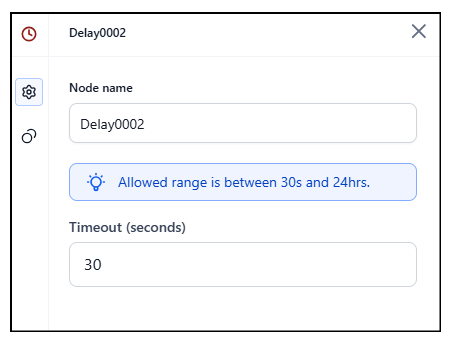
| **Node Name** | Descriptive label for the node. |
| **Timeout (seconds)** | Duration to pause. Must be between 30 and 86,400 seconds. |
* At least one output variable is required for every End node.
* To return multiple outputs, click **Add a Key** and configure each additional key-value pair.
**Standard error**: When the output variable value is not defined, a list of unresolved outputs is displayed.
***
## Delay Node
The Delay node pauses workflow execution for a defined duration before proceeding to the next node. Use it to throttle processing, wait for an upstream system, or introduce a controlled interval between steps.
### Configuration
| Field | Description |
| - | - |
| **Node Name** | Descriptive label for the node. |
| **Timeout (seconds)** | Duration to pause. Must be between 30 and 86,400 seconds. |
 ***
## API Node
Make HTTP requests to external services using REST or SOAP protocols.
### Key Capabilities
* **Protocols**: REST and SOAP.
* **Methods**: GET, POST, PUT, DELETE, PATCH.
* **Auth**: Pre-authorized tokens or per-user runtime authorization.
* **Modes**: Synchronous or asynchronous.
* **Body formats**: JSON, XML, Form URL Encoded, Custom.
* **Testing**: Preview API responses before finalizing the setup.
### Common Use Cases
* Data enrichment — fetch user, order, or product details.
* Document retrieval from third-party storage.
* Webhook triggers based on workflow decisions.
* Approval checks — identity verification, fraud checks, compliance validation.
* Sending alerts or updating external dashboards.
### Configuration
| Field | Description |
| - | - |
| **Node Name** | Name for the node. |
| **Type** | REST or SOAP. |
| **Integration Type** | **Synchronous**: waits for response (timeout: 5–180s, default 60s). **Asynchronous**: continues without waiting (timeout: 30–300s, default 60s; *No timeout* option available for indefinite wait). |
| **Request Definition** | API endpoint URL or cURL, auth profile, headers, and body. |
**Auth options:**
* **Pre-authorize the integration** — Use system-level credentials shared across all users.
* **Allow users to authorize** — Each user authenticates at runtime (for example, Google Drive access).
**Body content types (non-GET requests only):**
| Type | Description |
| - | - |
| `application/x-www-form-urlencoded` | Key-value pairs encoded by the platform. |
| `application/json` | JSON payload, transmitted without processing. |
| `application/xml` | XML payload for SOAP services. |
| Custom | Non-standard formats for custom variables or blogs. |
After configuring the request, click **Test** to preview the API response, then click **Save**.
**On Success / On Failure**: Configure downstream nodes for each path.
***
## API Node
Make HTTP requests to external services using REST or SOAP protocols.
### Key Capabilities
* **Protocols**: REST and SOAP.
* **Methods**: GET, POST, PUT, DELETE, PATCH.
* **Auth**: Pre-authorized tokens or per-user runtime authorization.
* **Modes**: Synchronous or asynchronous.
* **Body formats**: JSON, XML, Form URL Encoded, Custom.
* **Testing**: Preview API responses before finalizing the setup.
### Common Use Cases
* Data enrichment — fetch user, order, or product details.
* Document retrieval from third-party storage.
* Webhook triggers based on workflow decisions.
* Approval checks — identity verification, fraud checks, compliance validation.
* Sending alerts or updating external dashboards.
### Configuration
| Field | Description |
| - | - |
| **Node Name** | Name for the node. |
| **Type** | REST or SOAP. |
| **Integration Type** | **Synchronous**: waits for response (timeout: 5–180s, default 60s). **Asynchronous**: continues without waiting (timeout: 30–300s, default 60s; *No timeout* option available for indefinite wait). |
| **Request Definition** | API endpoint URL or cURL, auth profile, headers, and body. |
**Auth options:**
* **Pre-authorize the integration** — Use system-level credentials shared across all users.
* **Allow users to authorize** — Each user authenticates at runtime (for example, Google Drive access).
**Body content types (non-GET requests only):**
| Type | Description |
| - | - |
| `application/x-www-form-urlencoded` | Key-value pairs encoded by the platform. |
| `application/json` | JSON payload, transmitted without processing. |
| `application/xml` | XML payload for SOAP services. |
| Custom | Non-standard formats for custom variables or blogs. |
After configuring the request, click **Test** to preview the API response, then click **Save**.
**On Success / On Failure**: Configure downstream nodes for each path.
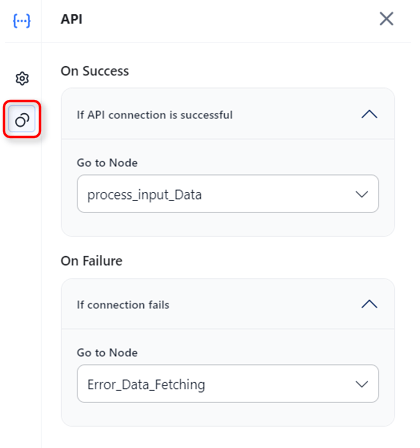 When using *No timeout* for asynchronous operations, enable it on both the API node and the parent workflow — otherwise timeout errors may still occur.
### Accessing Output
```javascript theme={null}
{{context.steps.APINodeName.output}}
{{context.steps.APINodeName.output.status}}
```
***
## Integration Node
Connect to pre-configured third-party services without writing code.
### Key Capabilities
* **No-code integration**: Embed prebuilt third-party actions without custom code.
* **Secure connections**: Uses tested and authenticated service connections.
* **Auto-generated JSON**: Prebuilt payloads from action parameters.
* **Visual configuration**: Configure directly on the canvas.
### Common Use Cases
* CRM and marketing automation — trigger campaigns when a lead is captured.
* Workflow automation across apps — create a project task when a ticket is raised.
* Payment gateway processing.
* SaaS tool integrations (CRM, email, e-commerce).
### Prerequisites
Add at least one service provider connection in **Settings > Integrations** before configuring this node. Test the connection in Settings to confirm it works.
### Configuration
1. Click **Integration > + New Integration** in the Assets panel, or drag the node onto the canvas.
2. Search or select the required service.
3. Click the node to open its properties. Enter a **Node Name** (letters and numbers only).
4. Select an active **Connection Name**.
5. Click **Add Action** and select one action (only one action per node is supported).
6. Fill in the action parameters and click **Save**.
7. Set **On Success** and **On Failure** paths under **Connections**.
### Managing Actions
| Action | How |
| - | - |
| **Edit** | Click the Edit icon and modify parameters. |
| **Change** | Click **Change Action** to swap to a different action. Existing config is lost. |
| **Delete** | Not supported — add a new node with a different action instead. |
| **View JSON** | Enable the **JSON switch** in the action config window to view and copy the action code. |
### Accessing Output
```javascript theme={null}
{{context.steps.IntegrationNodeName.output}}
```
***
## Function Node
Execute custom JavaScript or Python code for data transformation and business logic.
### Key Capabilities
* **Write Code**: Author inline scripts in the built-in editor.
* **Custom Function**: Invoke a function from a deployed script library.
* **Languages**: JavaScript (supports `async`/`await`) and Python (synchronous).
* **Memory access**: Read and write Agent Memory stores for stateful logic.
### Common Use Cases
* Data transformation and format conversion.
* Custom validation and business rule logic.
* Mathematical calculations and statistical analysis.
* String manipulation and regex operations.
### Option 1 — Write Code
1. Select **Write Code** and click the **Expand** icon to open the script editor.
2. Select JavaScript or Python.
3. Use context variables for dynamic inputs.
4. Click **Run** to test the script.
**Script editor tabs:**
| Tab | Description |
| - | - |
| **Context Input** | Dynamic inputs from the Start node or static values. |
| **Context Output** | Output generated by the script. |
| **Log** | Execution log with output or errors. |
**Context variable syntax:**
| Language | Syntax |
| - | - |
| JavaScript | `{{context.steps.Start.variable-name}}` |
| Python | `{{context["steps"]["Start"]["variable-name"]}}` |
**Static vs. dynamic inputs:**
* **Static inputs**: Type values directly in the script editor.
* **Dynamic inputs**: Use context variable syntax to reference inputs from the Start node or previous nodes.
**JavaScript example:**
```javascript theme={null}
const order = context.steps.FetchOrder.output;
const transformed = {
id: order.order_id,
total: order.items.reduce((sum, item) => sum + item.price, 0),
itemCount: order.items.length,
formattedDate: new Date(order.created_at).toLocaleDateString()
};
return transformed;
```
**Python example:**
```python theme={null}
order = context["steps"]["FetchOrder"]["output"]
transformed = {
"id": order["order_id"],
"total": sum(item["price"] for item in order["items"]),
"item_count": len(order["items"]),
"status": order["status"].upper()
}
return transformed
```
### Option 2 — Custom Function
Invoke a function from an imported and deployed script.
**Prerequisites**: Deploy scripts in **Settings > Manage Custom Scripts**.
**Steps:**
1. Select **Custom Function** and choose a deployed script from the **Script name** list. Only deployed scripts are listed.
2. Choose a function from the **Function name** list (one function per node).
3. Map input arguments — assign static or dynamic values to each argument. Select the correct data type (String, Number, JSON, Boolean). Type `{{` to trigger context variable suggestions.
4. Click **Test**, enter values in the Input panel, then click **Execute**.
Input argument mapping is required for deployment. You can test the function, but deployment is blocked until all mapping errors are resolved.
**Results panel:**
* **Output**: Shows the `result` key from the function and the function run ID.
* **Error**: Shows `stderr` logs if the execution fails.
* **Logs**: Shows `stdout` and `stderr` for debugging.
**Workflow import/export behavior:**
* On import, the Function node's configuration is fetched automatically.
* If the same script is already deployed in the target environment, the node links automatically.
* If the script isn't deployed, validation errors appear listing unresolved scripts.
* On export, the node configuration is included in `callflow.json`.
### Extending the Context Object
Function nodes can write custom keys directly to the context object, making values available to any downstream node.
```javascript theme={null}
// JavaScript
context.userTier = "premium";
context.enrichedOrder = {
orderId: context.steps.FetchOrder.output.id,
isHighValue: context.steps.FetchOrder.output.total > 1000,
processedAt: new Date().toISOString()
};
```
```python theme={null}
# Python
context['userTier'] = 'premium'
context['enrichedOrder'] = {
'orderId': context['steps']['FetchOrder']['output']['id'],
'isHighValue': context['steps']['FetchOrder']['output']['total'] > 1000
}
```
Reference the key in downstream nodes: `{{context.userTier}}`, `{{context.enrichedOrder.isHighValue}}`.
Do not override system-reserved keys in the context object.
### Agent Memory Access
Use memory stores to retain and share data across steps or sessions. Data is stored as JSON — always check the memory store schema for field names and types.
| Operation | Syntax |
| - | - |
| **Get** | `memory.get_content(memory_store_name=STORE_NAME, projections={"field": 1})` |
| **Set** | `memory.set_content(memory_store_name=STORE_NAME, content={...})` |
| **Delete** | `memory.delete_content(memory_store_name=STORE_NAME)` |
```python theme={null}
# Read from memory
retrieved = memory.get_content(memory_store_name="my-notes", projections={"note": 1})
# Write to memory
memory.set_content(memory_store_name="my-notes", content={"note": "Updated.", "timestamp": "2025-05-15T10:00:00Z"})
# Delete
memory.delete_content(memory_store_name="my-notes")
```
### Accessing Output
```javascript theme={null}
{{context.steps.FunctionNodeName.output}}
{{context.steps.FunctionNodeName.error}}
```
### Supported Script Libraries
The following libraries are pre-imported and available in the Function node's script editor (Python only):
| Category | Libraries |
| - | - |
| Data | `json`, `enum` |
| Numerical | `numpy`, `pandas`, `collections`, `math`, `cmath`, `statistics`, `random` |
| String | `re`, `textwrap` |
| Date/Time | `datetime`, `time`, `calendar` |
| Iteration | `itertools` |
For the full list of available functions per library, see the official Python docs: [numpy](https://numpy.org/doc/stable/reference/index.html), [pandas](https://pandas.pydata.org/docs/reference/index.html), [collections](https://docs.python.org/3/library/collections.html), [math](https://docs.python.org/3/library/math.html), [re](https://docs.python.org/3/library/re.html), [datetime](https://docs.python.org/3/library/datetime.html), [itertools](https://docs.python.org/3/library/itertools.html).
***
## Condition Node
Branch workflow execution based on logical conditions.
### Key Capabilities
* **Condition types**: `IF`, `ELSE IF`, and `ELSE`.
* **Operators**: `==`, `!=`, `>`, `<`, `>=`, `<=`, `contains`, `startsWith`, `endsWith`.
* **Logic combinators**: `AND` or `OR` for multi-criteria conditions.
* **Dynamic references**: Context variables and previous node outputs.
### Common Use Cases
* Route based on classification, type, or priority.
* Fallback logic when no match is found.
* Validate data before proceeding.
* Multi-step filtering with combined conditions.
### Configuration
1. Add the Condition node to the canvas.
2. Enter a descriptive **Node Name**.
3. Set the **IF** condition:
* Enter a context variable (example: `{{context.ambiguous_sub_categories}}`).
* Choose an operator.
* Enter a value or another variable (example: `{{context.steps.NodeName.output}}`).
* Optionally combine criteria with AND / OR.
4. Set routing:
* **Go To**: Node to execute if the IF condition is met.
* **ELSE**: Node to execute if no condition is met.
**Operators reference:**
| Operator | Description |
| - | - |
| `==` | Equals. |
| `!=` | Not equals. |
| `>` | Greater than. |
| `<` | Less than. |
| `>=` | Greater than or equal. |
| `<=` | Less than or equal. |
| `contains` | String contains. |
| `startsWith` | String starts with. |
| `endsWith` | String ends with. |
**Complex conditions:**
```javascript theme={null}
// AND
context.steps.Order.amount > 100 && context.steps.Order.status === "pending"
// OR
context.steps.User.tier === "premium" || context.steps.Order.amount > 500
```
A Condition node can be called a maximum of 10 times in a workflow. Exceeding this limit results in an error.
**Standard error**: If a condition path has no connected node, the error "Path not defined. Please check the flow." is displayed.
***
## Loop Node
Iterate over arrays to process multiple items, one at a time.
### Key Capabilities
* **Array iteration**: Execute child nodes once per item in an input array.
* **Flexible child nodes**: Add Function, API, AI, and Condition nodes inside the loop.
* **Output aggregation**: Collect per-iteration results into an output array.
* **Three error handling strategies**: Continue, Terminate, or Remove Failed.
* **Debug support**: Per-iteration inspection in the Debug panel.
### Common Use Cases
* Batch processing — invoices, documents, records.
* API calls on multiple inputs — fetch data per customer ID.
* Bulk notifications — personalized messages to a list.
* Report generation per item in a dataset.
* Automated testing across multiple input variations.
### Configuration
| Setting | Description |
| - | - |
| **Node Name** | Descriptive name for the loop. |
| **Loop Input Source** | Array to iterate over — a context variable (example: `context.invoices`) or a previous node's output. |
| **Output Field** | Variable to store aggregated results (example: `context.result`). |
**Adding nodes inside the loop:**
* Click the **+** on the loop start node.
* Drag nodes into the loop block on the canvas.
* Reference the current iteration item using `{{currentItem}}`.
Only nodes placed inside the loop block execute per iteration. Nodes connected outside run after the loop completes.
### Error Handling Options
| Strategy | Behavior |
| - | - |
| **Continue on error** (default) | Processes all items. Output includes both successes and errors. Follows the success path. |
| **Terminate execution** | Stops on the first failure. Follows the failure path with failed iteration details. |
| **Remove failed results** | Like "Continue" but filters failures from the final output. Only successes are returned. |
### Accessing Output
```javascript theme={null}
{{context.steps.LoopNodeName.output}}
// Returns: [result1, result2, result3, ...]
```
### Debug Logs
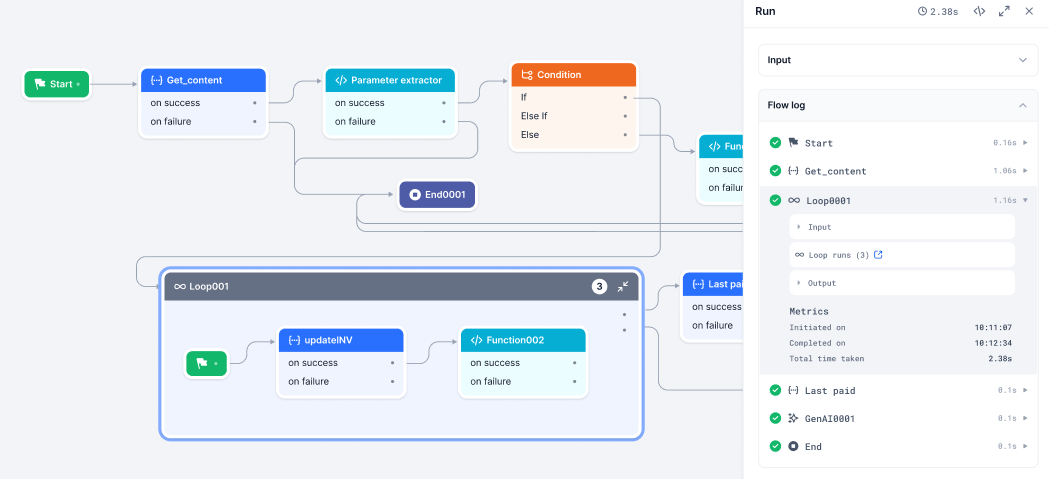
After running the workflow, open the **Debug** panel to inspect loop behavior. Click the icon next to the Loop node to open **Loop Runs** and view per-iteration statuses (*Running*, *Completed*, *Failed*). Failed iterations appear in red.
When using *No timeout* for asynchronous operations, enable it on both the API node and the parent workflow — otherwise timeout errors may still occur.
### Accessing Output
```javascript theme={null}
{{context.steps.APINodeName.output}}
{{context.steps.APINodeName.output.status}}
```
***
## Integration Node
Connect to pre-configured third-party services without writing code.
### Key Capabilities
* **No-code integration**: Embed prebuilt third-party actions without custom code.
* **Secure connections**: Uses tested and authenticated service connections.
* **Auto-generated JSON**: Prebuilt payloads from action parameters.
* **Visual configuration**: Configure directly on the canvas.
### Common Use Cases
* CRM and marketing automation — trigger campaigns when a lead is captured.
* Workflow automation across apps — create a project task when a ticket is raised.
* Payment gateway processing.
* SaaS tool integrations (CRM, email, e-commerce).
### Prerequisites
Add at least one service provider connection in **Settings > Integrations** before configuring this node. Test the connection in Settings to confirm it works.
### Configuration
1. Click **Integration > + New Integration** in the Assets panel, or drag the node onto the canvas.
2. Search or select the required service.
3. Click the node to open its properties. Enter a **Node Name** (letters and numbers only).
4. Select an active **Connection Name**.
5. Click **Add Action** and select one action (only one action per node is supported).
6. Fill in the action parameters and click **Save**.
7. Set **On Success** and **On Failure** paths under **Connections**.
### Managing Actions
| Action | How |
| - | - |
| **Edit** | Click the Edit icon and modify parameters. |
| **Change** | Click **Change Action** to swap to a different action. Existing config is lost. |
| **Delete** | Not supported — add a new node with a different action instead. |
| **View JSON** | Enable the **JSON switch** in the action config window to view and copy the action code. |
### Accessing Output
```javascript theme={null}
{{context.steps.IntegrationNodeName.output}}
```
***
## Function Node
Execute custom JavaScript or Python code for data transformation and business logic.
### Key Capabilities
* **Write Code**: Author inline scripts in the built-in editor.
* **Custom Function**: Invoke a function from a deployed script library.
* **Languages**: JavaScript (supports `async`/`await`) and Python (synchronous).
* **Memory access**: Read and write Agent Memory stores for stateful logic.
### Common Use Cases
* Data transformation and format conversion.
* Custom validation and business rule logic.
* Mathematical calculations and statistical analysis.
* String manipulation and regex operations.
### Option 1 — Write Code
1. Select **Write Code** and click the **Expand** icon to open the script editor.
2. Select JavaScript or Python.
3. Use context variables for dynamic inputs.
4. Click **Run** to test the script.
**Script editor tabs:**
| Tab | Description |
| - | - |
| **Context Input** | Dynamic inputs from the Start node or static values. |
| **Context Output** | Output generated by the script. |
| **Log** | Execution log with output or errors. |
**Context variable syntax:**
| Language | Syntax |
| - | - |
| JavaScript | `{{context.steps.Start.variable-name}}` |
| Python | `{{context["steps"]["Start"]["variable-name"]}}` |
**Static vs. dynamic inputs:**
* **Static inputs**: Type values directly in the script editor.
* **Dynamic inputs**: Use context variable syntax to reference inputs from the Start node or previous nodes.
**JavaScript example:**
```javascript theme={null}
const order = context.steps.FetchOrder.output;
const transformed = {
id: order.order_id,
total: order.items.reduce((sum, item) => sum + item.price, 0),
itemCount: order.items.length,
formattedDate: new Date(order.created_at).toLocaleDateString()
};
return transformed;
```
**Python example:**
```python theme={null}
order = context["steps"]["FetchOrder"]["output"]
transformed = {
"id": order["order_id"],
"total": sum(item["price"] for item in order["items"]),
"item_count": len(order["items"]),
"status": order["status"].upper()
}
return transformed
```
### Option 2 — Custom Function
Invoke a function from an imported and deployed script.
**Prerequisites**: Deploy scripts in **Settings > Manage Custom Scripts**.
**Steps:**
1. Select **Custom Function** and choose a deployed script from the **Script name** list. Only deployed scripts are listed.
2. Choose a function from the **Function name** list (one function per node).
3. Map input arguments — assign static or dynamic values to each argument. Select the correct data type (String, Number, JSON, Boolean). Type `{{` to trigger context variable suggestions.
4. Click **Test**, enter values in the Input panel, then click **Execute**.
Input argument mapping is required for deployment. You can test the function, but deployment is blocked until all mapping errors are resolved.
**Results panel:**
* **Output**: Shows the `result` key from the function and the function run ID.
* **Error**: Shows `stderr` logs if the execution fails.
* **Logs**: Shows `stdout` and `stderr` for debugging.
**Workflow import/export behavior:**
* On import, the Function node's configuration is fetched automatically.
* If the same script is already deployed in the target environment, the node links automatically.
* If the script isn't deployed, validation errors appear listing unresolved scripts.
* On export, the node configuration is included in `callflow.json`.
### Extending the Context Object
Function nodes can write custom keys directly to the context object, making values available to any downstream node.
```javascript theme={null}
// JavaScript
context.userTier = "premium";
context.enrichedOrder = {
orderId: context.steps.FetchOrder.output.id,
isHighValue: context.steps.FetchOrder.output.total > 1000,
processedAt: new Date().toISOString()
};
```
```python theme={null}
# Python
context['userTier'] = 'premium'
context['enrichedOrder'] = {
'orderId': context['steps']['FetchOrder']['output']['id'],
'isHighValue': context['steps']['FetchOrder']['output']['total'] > 1000
}
```
Reference the key in downstream nodes: `{{context.userTier}}`, `{{context.enrichedOrder.isHighValue}}`.
Do not override system-reserved keys in the context object.
### Agent Memory Access
Use memory stores to retain and share data across steps or sessions. Data is stored as JSON — always check the memory store schema for field names and types.
| Operation | Syntax |
| - | - |
| **Get** | `memory.get_content(memory_store_name=STORE_NAME, projections={"field": 1})` |
| **Set** | `memory.set_content(memory_store_name=STORE_NAME, content={...})` |
| **Delete** | `memory.delete_content(memory_store_name=STORE_NAME)` |
```python theme={null}
# Read from memory
retrieved = memory.get_content(memory_store_name="my-notes", projections={"note": 1})
# Write to memory
memory.set_content(memory_store_name="my-notes", content={"note": "Updated.", "timestamp": "2025-05-15T10:00:00Z"})
# Delete
memory.delete_content(memory_store_name="my-notes")
```
### Accessing Output
```javascript theme={null}
{{context.steps.FunctionNodeName.output}}
{{context.steps.FunctionNodeName.error}}
```
### Supported Script Libraries
The following libraries are pre-imported and available in the Function node's script editor (Python only):
| Category | Libraries |
| - | - |
| Data | `json`, `enum` |
| Numerical | `numpy`, `pandas`, `collections`, `math`, `cmath`, `statistics`, `random` |
| String | `re`, `textwrap` |
| Date/Time | `datetime`, `time`, `calendar` |
| Iteration | `itertools` |
For the full list of available functions per library, see the official Python docs: [numpy](https://numpy.org/doc/stable/reference/index.html), [pandas](https://pandas.pydata.org/docs/reference/index.html), [collections](https://docs.python.org/3/library/collections.html), [math](https://docs.python.org/3/library/math.html), [re](https://docs.python.org/3/library/re.html), [datetime](https://docs.python.org/3/library/datetime.html), [itertools](https://docs.python.org/3/library/itertools.html).
***
## Condition Node
Branch workflow execution based on logical conditions.
### Key Capabilities
* **Condition types**: `IF`, `ELSE IF`, and `ELSE`.
* **Operators**: `==`, `!=`, `>`, `<`, `>=`, `<=`, `contains`, `startsWith`, `endsWith`.
* **Logic combinators**: `AND` or `OR` for multi-criteria conditions.
* **Dynamic references**: Context variables and previous node outputs.
### Common Use Cases
* Route based on classification, type, or priority.
* Fallback logic when no match is found.
* Validate data before proceeding.
* Multi-step filtering with combined conditions.
### Configuration
1. Add the Condition node to the canvas.
2. Enter a descriptive **Node Name**.
3. Set the **IF** condition:
* Enter a context variable (example: `{{context.ambiguous_sub_categories}}`).
* Choose an operator.
* Enter a value or another variable (example: `{{context.steps.NodeName.output}}`).
* Optionally combine criteria with AND / OR.
4. Set routing:
* **Go To**: Node to execute if the IF condition is met.
* **ELSE**: Node to execute if no condition is met.
**Operators reference:**
| Operator | Description |
| - | - |
| `==` | Equals. |
| `!=` | Not equals. |
| `>` | Greater than. |
| `<` | Less than. |
| `>=` | Greater than or equal. |
| `<=` | Less than or equal. |
| `contains` | String contains. |
| `startsWith` | String starts with. |
| `endsWith` | String ends with. |
**Complex conditions:**
```javascript theme={null}
// AND
context.steps.Order.amount > 100 && context.steps.Order.status === "pending"
// OR
context.steps.User.tier === "premium" || context.steps.Order.amount > 500
```
A Condition node can be called a maximum of 10 times in a workflow. Exceeding this limit results in an error.
**Standard error**: If a condition path has no connected node, the error "Path not defined. Please check the flow." is displayed.
***
## Loop Node
Iterate over arrays to process multiple items, one at a time.
### Key Capabilities
* **Array iteration**: Execute child nodes once per item in an input array.
* **Flexible child nodes**: Add Function, API, AI, and Condition nodes inside the loop.
* **Output aggregation**: Collect per-iteration results into an output array.
* **Three error handling strategies**: Continue, Terminate, or Remove Failed.
* **Debug support**: Per-iteration inspection in the Debug panel.
### Common Use Cases
* Batch processing — invoices, documents, records.
* API calls on multiple inputs — fetch data per customer ID.
* Bulk notifications — personalized messages to a list.
* Report generation per item in a dataset.
* Automated testing across multiple input variations.
### Configuration
| Setting | Description |
| - | - |
| **Node Name** | Descriptive name for the loop. |
| **Loop Input Source** | Array to iterate over — a context variable (example: `context.invoices`) or a previous node's output. |
| **Output Field** | Variable to store aggregated results (example: `context.result`). |
**Adding nodes inside the loop:**
* Click the **+** on the loop start node.
* Drag nodes into the loop block on the canvas.
* Reference the current iteration item using `{{currentItem}}`.
Only nodes placed inside the loop block execute per iteration. Nodes connected outside run after the loop completes.
### Error Handling Options
| Strategy | Behavior |
| - | - |
| **Continue on error** (default) | Processes all items. Output includes both successes and errors. Follows the success path. |
| **Terminate execution** | Stops on the first failure. Follows the failure path with failed iteration details. |
| **Remove failed results** | Like "Continue" but filters failures from the final output. Only successes are returned. |
### Accessing Output
```javascript theme={null}
{{context.steps.LoopNodeName.output}}
// Returns: [result1, result2, result3, ...]
```
### Debug Logs
After running the workflow, open the **Debug** panel to inspect loop behavior. Click the icon next to the Loop node to open **Loop Runs** and view per-iteration statuses (*Running*, *Completed*, *Failed*). Failed iterations appear in red.
 ### Troubleshooting
| Issue | Cause | Fix |
| - | - | - |
| Loop input missing or empty | Input list is undefined or null. | Verify **Loop Input Source** is set to a valid array. Check the Debug Log. |
| Child nodes not executing | Nodes are placed outside the loop container. | Drag nodes into the loop block on the canvas. |
| Loop stops on one item failing | Error handling is set to **Terminate**. | Change to **Continue on error**. |
| Output variable conflicts | Output field name is reused elsewhere in the flow. | Use a unique name for the Output field. |
***
## AI Nodes
AI nodes are multimodal components that use LLMs to process text, images, and audio within a workflow.
| Node | Input | Output | Primary Use Cases |
| - | - | - | - |
| **Text to Text** | Text | Text | Summarization, translation, content generation |
| **Text to Image** | Text | Image (PNG URL) | Marketing visuals, concept art, variant testing |
| **Audio to Text** | Audio | Text | Transcription, voice processing, subtitles |
| **Image to Text** | Image | Text | OCR, document digitization, image Q\&A |
***
### Text to Text Node
Transform input text into desired text output using LLMs.
#### Key Capabilities
* **Prompt options**: Write your own prompt, or choose from the Prompt Hub with version selection.
* **Model selection**: Choose from pre-configured LLM models.
* **Hyperparameter tuning**: Temperature, Top-p, Top-k, Max Tokens.
* **Structured output**: Optional JSON schema for parseable responses.
* **Workflow calling**: Enable the model to call up to 3 workflows during execution.
* **Timeout**: 30–180 seconds (default: 60s).
#### Common Use Cases
* Summarization — transcripts, logs, documents.
* Tone or style adjustment.
* Keyword-based content generation.
* Content rewriting and reformatting.
* Error explanation and log analysis.
#### Configuration
| Field | Description |
| - | - |
| **Node Name** | Name for the node. |
| **Prompt options** | **Write your own**: Enter System Prompt (model role) and Human Prompt (task instructions). **Prompt Hub**: Select a saved prompt and version; optionally customize. |
| **Select Model** | Choose a configured LLM. |
| **Timeout** | 30–180 seconds (default: 60s). Timeout precedence: Workflow > Node > Model. |
| **Response JSON schema** | Optional. Supported types: String, Boolean, Number, Integer, Object, Array, Enum, anyOf. |
| **Model Configurations** | Temperature, Top-p, Top-k, Max Tokens. |
**System vs. Human prompts:**
* **System Prompt**: Sets the model's role. Example: *"You are a helpful assistant."*
* **Human Prompt**: The task or question. Example: *"Summarize this error log."* Use `{{context.variable_name}}` for dynamic values.
**Prompt Hub import notes:**
* If the prompt includes variables, map them in the **Map Variables** field.
* If the prompt has no variables, customize it manually — the **Map Variables** field does not appear.
* Importing a prompt also loads the preferred model and connection if specified at commit time.
**Workflow calling settings:**
| Setting | Description |
| - | - |
| **Add Workflows** | Select up to 3 workflows from your account. |
| **Exit node execution after** | Number of model calls before exiting to the failure path. |
| **Workflow choice** | *Auto* — model decides. *Required* — always calls a workflow. |
| **Parallel workflow calls** | *True* for simultaneous calls; *False* for sequential. |
When workflow calling is enabled, the model autonomously decides whether to use its internal knowledge or invoke a configured workflow.
#### Accessing Output
```javascript theme={null}
{{context.steps.AINodeName.output}}
```
**Standard error**: When the model is not selected or prompt details are missing, the error "Proper data needs to be provided in the LLM node" is displayed.
***
### Text to Image Node
Generate images from descriptive text prompts using AI image models.
#### Key Capabilities
* **Positive Prompt**: Define what the image should include — style, elements, setting.
* **Negative Prompt**: Specify what to exclude from the image.
* **Aspect Ratio**: Up to 2048 × 2048 pixels (GPU-dependent).
* **Steps**: Refinement iterations — 25–30 recommended for quality and performance.
* **Batch Count**: Up to 5 image variants per run, generated sequentially.
* **Output**: PNG format returned as URLs (no expiry).
#### Supported Models
| Provider | Models |
| - | - |
| **Stable Diffusion** | `stable-diffusion-xl-base-1.0`, `stable-diffusion-2-1`, `stable-diffusion-v1-5` |
| **OpenAI** | `dall-e-2`, `dall-e-3` |
#### Common Use Cases
* Marketing banners, ads, and promotional visuals.
* Content illustration for blogs or newsletters.
* Visual prototyping — UI mockups, storyboards.
* A/B testing with multiple image variants.
#### Configuration
| Field | Description |
| - | - |
| **Node Name** | Name for the node. |
| **Select Model** | Choose a Stable Diffusion or OpenAI variant. |
| **Positive Prompt** | Keywords and descriptions for what to generate. Use `{{context.variable_name}}` for dynamic input. |
| **Negative Prompt** | Keywords for elements to exclude. |
| **Aspect Ratio** | Width × Height in pixels (max 2048 × 2048). |
| **Steps** | Refinement passes; 25–30 recommended. More steps increase generation time and may cause hallucination. |
| **Batch Count** | Number of image variants to generate sequentially (max 5). |
The node uses an input scanner to detect banned words. Banned topics cause an error in the Debug window.
Performance metrics (images generated, input tokens) are tracked in **Settings > Model Analytics Dashboard > Open-source Models**.
#### Accessing Output
```javascript theme={null}
{{context.steps.TextToImageNodeName.output}}
// Returns PNG image URL(s)
```
***
### Audio to Text Node
Convert spoken audio into written text using Automatic Speech Recognition (ASR).
#### Prerequisites
Add an external LLM to your account before using this node.
#### Key Capabilities
* **Model**: OpenAI Whisper-1.
* **Multilingual**: Transcribes multiple languages; translates non-English audio to English.
* **Input**: Audio file URL only — direct file uploads are not supported. Max file size: 25 MB.
* **Timestamps**: Optional; records when each dialog segment was spoken.
* **Structured output**: Optional JSON schema.
#### Supported Formats
`M4a`, `Mp3`, `Webm`, `Mp4`, `Mpga`, `Wav`, `Mpeg`.
#### Configuration
| Field | Description |
| - | - |
| **Node Name** | Name for the node. |
| **Audio File** | Input variable with the audio file URL from the Start node. |
| **Select Model** | Choose from configured models. |
| **Translation** | Toggle on to translate non-English audio to English. |
| **Timestamps** | Toggle on to include time markers in the transcript. |
| **Prompt** | Transcription style instructions, terminology corrections, speaker labels. Max 224 tokens for Whisper. |
| **Response JSON schema** | Optional structured output definition. |
**Key constraints:**
* Files larger than 25 MB must be split at logical points — avoid mid-sentence breaks.
* Inverse translation (English to other languages) is not supported.
* Only URLs are supported as input — direct file uploads are not supported.
* Whisper automatically removes offensive and banned words during transcription.
Performance metrics (minutes transcribed, token usage) are tracked in **Settings > Model Analytics Dashboard > External Models**.
#### Accessing Output
```javascript theme={null}
{{context.steps.AudioToTextNodeName.output}}
```
***
### Image to Text Node
Extract text or generate insights from images using OCR and LLMs.
#### Prerequisites
Add an external LLM to your account before using this node.
#### Key Capabilities
* **OCR**: Extract embedded text from scanned documents, screenshots, and photos.
* **Image understanding**: Answer questions or generate descriptions from images using prompts.
* **Multi-model**: OpenAI and Anthropic models supported.
* **Structured output**: Optional JSON schema for parseable responses.
#### Supported Models
* **OpenAI**: `gpt-4o`, `gpt-4o-mini`
* **Anthropic**: Claude Sonnet Vision
#### Supported Image Formats
`PNG`, `JPEG`, `JPG`.
#### Configuration
| Field | Description |
| - | - |
| **Node Name** | Name for the node. |
| **Select Model** | Choose a supported OpenAI or Anthropic model. |
| **File URL** | Public URL of the image (PNG, JPEG, or JPG). Only one image URL at a time. |
| **System Prompt** | Define the model's role. Example: *"You are a vehicle insurance assistant."* |
| **Prompt** | Task instructions. Use `{{context.variable_name}}` for dynamic inputs. |
| **Response JSON schema** | Optional structured output definition. |
**Image input formats supported:**
* Anthropic: binary, base64-encoded.
* OpenAI: binary, base64-encoded, and image URLs.
**Standard error**: When the model is not selected or prompt details are missing, the error "Proper data needs to be provided in the LLM node" is displayed.
#### Accessing Output
```javascript theme={null}
{{context.steps.ImageToTextNodeName.output}}
```
***
## DocSearch Node
Retrieve context-aware information from a connected Search AI app using Retrieval-Augmented Generation (RAG).
### Key Capabilities
* **RAG-powered**: Combines document retrieval with LLM-generated responses.
* **Search AI integration**: Connects to a configured Search AI app to query indexed content.
* **Dynamic queries**: Accepts static text or context variables as input.
* **Meta filters**: Optionally narrow search scope to specific documents or sources.
* **User redirection**: Optionally redirect users to the full Search AI app for a more comprehensive search experience.
### Common Use Cases
* Retrieve relevant policies, manuals, or help articles based on user queries.
* Context-aware Q\&A grounded in indexed documents.
* Internal knowledge base search — wikis, technical docs, training material.
### Setup Prerequisites
Complete the following before configuring the node:
**1. Set up a Search AI app:**
* Configure a Search AI application and enable the **Answer Generation** API scope. See [Create and Manage JWT Apps](/ai-for-service/apis/automation/api-introduction).
**2. Link Search AI in AI for Process:**
* Go to **Settings > Integrations > Search AI > Add Connection**.
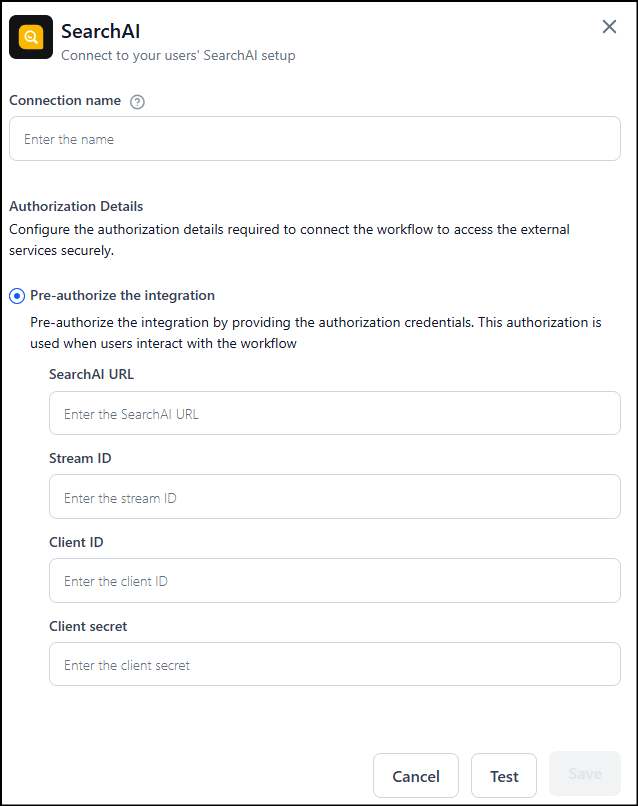
* Enter the Search AI app credentials (use `https://platform.kore.ai` for the Search AI URL).
* Click **Test** to verify the connection, then click **Save**.
### Troubleshooting
| Issue | Cause | Fix |
| - | - | - |
| Loop input missing or empty | Input list is undefined or null. | Verify **Loop Input Source** is set to a valid array. Check the Debug Log. |
| Child nodes not executing | Nodes are placed outside the loop container. | Drag nodes into the loop block on the canvas. |
| Loop stops on one item failing | Error handling is set to **Terminate**. | Change to **Continue on error**. |
| Output variable conflicts | Output field name is reused elsewhere in the flow. | Use a unique name for the Output field. |
***
## AI Nodes
AI nodes are multimodal components that use LLMs to process text, images, and audio within a workflow.
| Node | Input | Output | Primary Use Cases |
| - | - | - | - |
| **Text to Text** | Text | Text | Summarization, translation, content generation |
| **Text to Image** | Text | Image (PNG URL) | Marketing visuals, concept art, variant testing |
| **Audio to Text** | Audio | Text | Transcription, voice processing, subtitles |
| **Image to Text** | Image | Text | OCR, document digitization, image Q\&A |
***
### Text to Text Node
Transform input text into desired text output using LLMs.
#### Key Capabilities
* **Prompt options**: Write your own prompt, or choose from the Prompt Hub with version selection.
* **Model selection**: Choose from pre-configured LLM models.
* **Hyperparameter tuning**: Temperature, Top-p, Top-k, Max Tokens.
* **Structured output**: Optional JSON schema for parseable responses.
* **Workflow calling**: Enable the model to call up to 3 workflows during execution.
* **Timeout**: 30–180 seconds (default: 60s).
#### Common Use Cases
* Summarization — transcripts, logs, documents.
* Tone or style adjustment.
* Keyword-based content generation.
* Content rewriting and reformatting.
* Error explanation and log analysis.
#### Configuration
| Field | Description |
| - | - |
| **Node Name** | Name for the node. |
| **Prompt options** | **Write your own**: Enter System Prompt (model role) and Human Prompt (task instructions). **Prompt Hub**: Select a saved prompt and version; optionally customize. |
| **Select Model** | Choose a configured LLM. |
| **Timeout** | 30–180 seconds (default: 60s). Timeout precedence: Workflow > Node > Model. |
| **Response JSON schema** | Optional. Supported types: String, Boolean, Number, Integer, Object, Array, Enum, anyOf. |
| **Model Configurations** | Temperature, Top-p, Top-k, Max Tokens. |
**System vs. Human prompts:**
* **System Prompt**: Sets the model's role. Example: *"You are a helpful assistant."*
* **Human Prompt**: The task or question. Example: *"Summarize this error log."* Use `{{context.variable_name}}` for dynamic values.
**Prompt Hub import notes:**
* If the prompt includes variables, map them in the **Map Variables** field.
* If the prompt has no variables, customize it manually — the **Map Variables** field does not appear.
* Importing a prompt also loads the preferred model and connection if specified at commit time.
**Workflow calling settings:**
| Setting | Description |
| - | - |
| **Add Workflows** | Select up to 3 workflows from your account. |
| **Exit node execution after** | Number of model calls before exiting to the failure path. |
| **Workflow choice** | *Auto* — model decides. *Required* — always calls a workflow. |
| **Parallel workflow calls** | *True* for simultaneous calls; *False* for sequential. |
When workflow calling is enabled, the model autonomously decides whether to use its internal knowledge or invoke a configured workflow.
#### Accessing Output
```javascript theme={null}
{{context.steps.AINodeName.output}}
```
**Standard error**: When the model is not selected or prompt details are missing, the error "Proper data needs to be provided in the LLM node" is displayed.
***
### Text to Image Node
Generate images from descriptive text prompts using AI image models.
#### Key Capabilities
* **Positive Prompt**: Define what the image should include — style, elements, setting.
* **Negative Prompt**: Specify what to exclude from the image.
* **Aspect Ratio**: Up to 2048 × 2048 pixels (GPU-dependent).
* **Steps**: Refinement iterations — 25–30 recommended for quality and performance.
* **Batch Count**: Up to 5 image variants per run, generated sequentially.
* **Output**: PNG format returned as URLs (no expiry).
#### Supported Models
| Provider | Models |
| - | - |
| **Stable Diffusion** | `stable-diffusion-xl-base-1.0`, `stable-diffusion-2-1`, `stable-diffusion-v1-5` |
| **OpenAI** | `dall-e-2`, `dall-e-3` |
#### Common Use Cases
* Marketing banners, ads, and promotional visuals.
* Content illustration for blogs or newsletters.
* Visual prototyping — UI mockups, storyboards.
* A/B testing with multiple image variants.
#### Configuration
| Field | Description |
| - | - |
| **Node Name** | Name for the node. |
| **Select Model** | Choose a Stable Diffusion or OpenAI variant. |
| **Positive Prompt** | Keywords and descriptions for what to generate. Use `{{context.variable_name}}` for dynamic input. |
| **Negative Prompt** | Keywords for elements to exclude. |
| **Aspect Ratio** | Width × Height in pixels (max 2048 × 2048). |
| **Steps** | Refinement passes; 25–30 recommended. More steps increase generation time and may cause hallucination. |
| **Batch Count** | Number of image variants to generate sequentially (max 5). |
The node uses an input scanner to detect banned words. Banned topics cause an error in the Debug window.
Performance metrics (images generated, input tokens) are tracked in **Settings > Model Analytics Dashboard > Open-source Models**.
#### Accessing Output
```javascript theme={null}
{{context.steps.TextToImageNodeName.output}}
// Returns PNG image URL(s)
```
***
### Audio to Text Node
Convert spoken audio into written text using Automatic Speech Recognition (ASR).
#### Prerequisites
Add an external LLM to your account before using this node.
#### Key Capabilities
* **Model**: OpenAI Whisper-1.
* **Multilingual**: Transcribes multiple languages; translates non-English audio to English.
* **Input**: Audio file URL only — direct file uploads are not supported. Max file size: 25 MB.
* **Timestamps**: Optional; records when each dialog segment was spoken.
* **Structured output**: Optional JSON schema.
#### Supported Formats
`M4a`, `Mp3`, `Webm`, `Mp4`, `Mpga`, `Wav`, `Mpeg`.
#### Configuration
| Field | Description |
| - | - |
| **Node Name** | Name for the node. |
| **Audio File** | Input variable with the audio file URL from the Start node. |
| **Select Model** | Choose from configured models. |
| **Translation** | Toggle on to translate non-English audio to English. |
| **Timestamps** | Toggle on to include time markers in the transcript. |
| **Prompt** | Transcription style instructions, terminology corrections, speaker labels. Max 224 tokens for Whisper. |
| **Response JSON schema** | Optional structured output definition. |
**Key constraints:**
* Files larger than 25 MB must be split at logical points — avoid mid-sentence breaks.
* Inverse translation (English to other languages) is not supported.
* Only URLs are supported as input — direct file uploads are not supported.
* Whisper automatically removes offensive and banned words during transcription.
Performance metrics (minutes transcribed, token usage) are tracked in **Settings > Model Analytics Dashboard > External Models**.
#### Accessing Output
```javascript theme={null}
{{context.steps.AudioToTextNodeName.output}}
```
***
### Image to Text Node
Extract text or generate insights from images using OCR and LLMs.
#### Prerequisites
Add an external LLM to your account before using this node.
#### Key Capabilities
* **OCR**: Extract embedded text from scanned documents, screenshots, and photos.
* **Image understanding**: Answer questions or generate descriptions from images using prompts.
* **Multi-model**: OpenAI and Anthropic models supported.
* **Structured output**: Optional JSON schema for parseable responses.
#### Supported Models
* **OpenAI**: `gpt-4o`, `gpt-4o-mini`
* **Anthropic**: Claude Sonnet Vision
#### Supported Image Formats
`PNG`, `JPEG`, `JPG`.
#### Configuration
| Field | Description |
| - | - |
| **Node Name** | Name for the node. |
| **Select Model** | Choose a supported OpenAI or Anthropic model. |
| **File URL** | Public URL of the image (PNG, JPEG, or JPG). Only one image URL at a time. |
| **System Prompt** | Define the model's role. Example: *"You are a vehicle insurance assistant."* |
| **Prompt** | Task instructions. Use `{{context.variable_name}}` for dynamic inputs. |
| **Response JSON schema** | Optional structured output definition. |
**Image input formats supported:**
* Anthropic: binary, base64-encoded.
* OpenAI: binary, base64-encoded, and image URLs.
**Standard error**: When the model is not selected or prompt details are missing, the error "Proper data needs to be provided in the LLM node" is displayed.
#### Accessing Output
```javascript theme={null}
{{context.steps.ImageToTextNodeName.output}}
```
***
## DocSearch Node
Retrieve context-aware information from a connected Search AI app using Retrieval-Augmented Generation (RAG).
### Key Capabilities
* **RAG-powered**: Combines document retrieval with LLM-generated responses.
* **Search AI integration**: Connects to a configured Search AI app to query indexed content.
* **Dynamic queries**: Accepts static text or context variables as input.
* **Meta filters**: Optionally narrow search scope to specific documents or sources.
* **User redirection**: Optionally redirect users to the full Search AI app for a more comprehensive search experience.
### Common Use Cases
* Retrieve relevant policies, manuals, or help articles based on user queries.
* Context-aware Q\&A grounded in indexed documents.
* Internal knowledge base search — wikis, technical docs, training material.
### Setup Prerequisites
Complete the following before configuring the node:
**1. Set up a Search AI app:**
* Configure a Search AI application and enable the **Answer Generation** API scope. See [Create and Manage JWT Apps](/ai-for-service/apis/automation/api-introduction).
**2. Link Search AI in AI for Process:**
* Go to **Settings > Integrations > Search AI > Add Connection**.
* Enter the Search AI app credentials (use `https://platform.kore.ai` for the Search AI URL).
* Click **Test** to verify the connection, then click **Save**.
 ### Configuration
| Field | Description |
| - | - |
| **Node Name** | Unique name for the node. |
| **Query** | Static text or dynamic input variable (example: `{{context.steps.Start.userQuery}}`). |
| **Search AI Connection** | Select the linked connection configured in Settings. |
| **Meta Filters** | Optional JSON rules or context variable to narrow results to specific files or sources. If omitted, applies to all documents. |
Canvas-level errors appear when the node is misconfigured. Click the **warning icon** on the node to view and fix them.
### Accessing Output
The output path is dynamic and depends on the Search AI API response:
```javascript theme={null}
{{context.steps.DocSearch.response.response.answer}}
// Path may vary — check the sample Search AI response for the correct key.
```
***
## Human Node
Pause workflow execution to collect human input, approval, or review before proceeding.
### Key Capabilities
* **Inbox-based routing**: Sends approval requests to the reviewer's Inbox (Personal or Group tab).
* **Reviewer assignment**: Route to all workspace members or specific users.
* **Timeout handling**: Set a timeout duration or wait indefinitely.
* **Four outcome paths**: On Approval, On Decline, On Timeout, On Failure.
### Common Use Cases
* Approval workflows — expenses, leave requests, procurement.
* Quality assurance checkpoints before publishing AI-generated output.
* Compliance review for sensitive or regulated steps.
* Exception handling and escalation for edge cases.
### How It Works
When the workflow reaches the Human node, it sends an approval request to the assigned reviewer's Inbox. Execution pauses until the reviewer responds, times out, or a delivery failure occurs.
* **Sync mode**: Workflow pauses and waits for a reviewer response within the endpoint timeout.
* **Async mode**: Workflow sends an immediate acknowledgement, continues execution, and resumes once the reviewer responds or the timeout is reached.
### Configuration
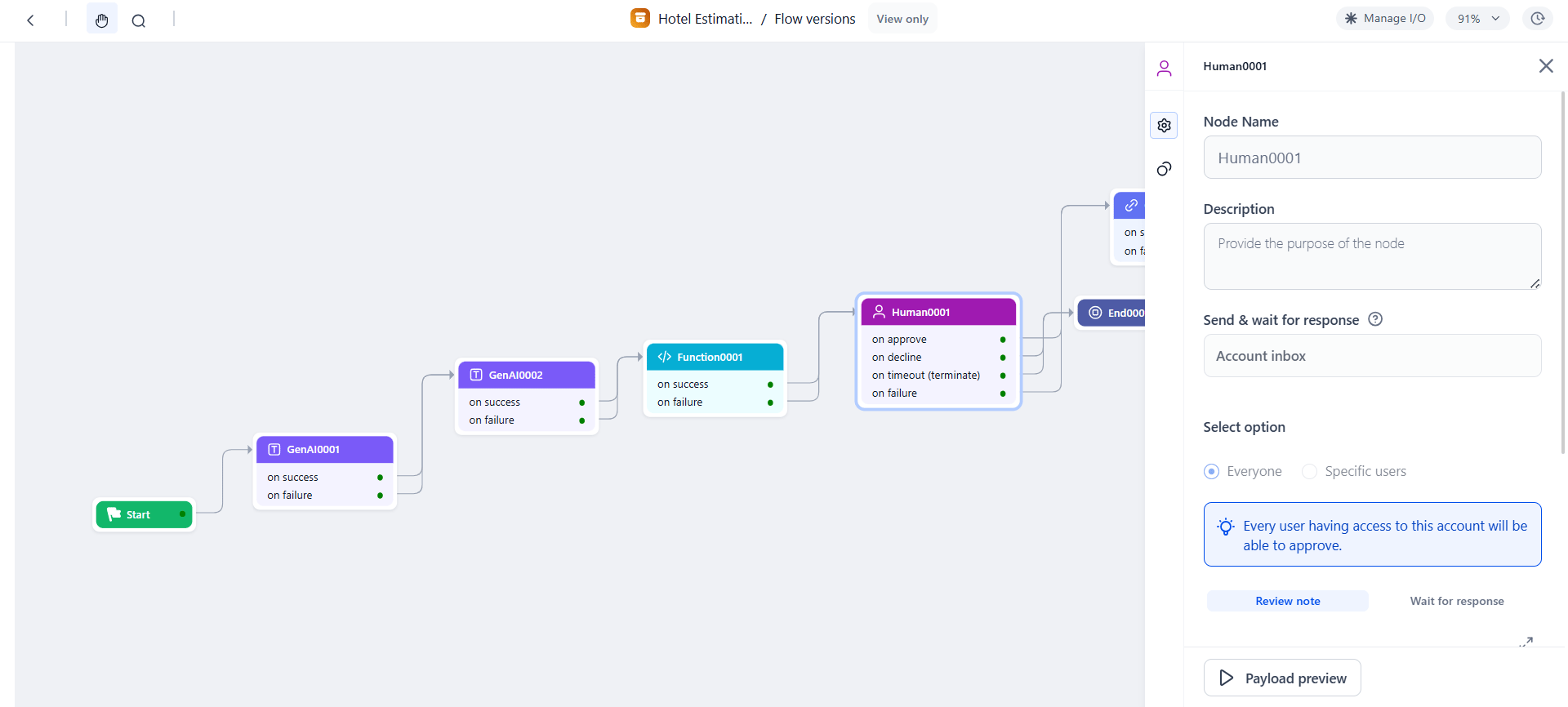
**1. Select Request Destination:**
In **Send & wait for response**, select **Account Inbox**, then choose:
* **Everyone** — sends the request to all workspace members.
* **Specific Users** — enter the email addresses of specific members within the current workspace.
### Configuration
| Field | Description |
| - | - |
| **Node Name** | Unique name for the node. |
| **Query** | Static text or dynamic input variable (example: `{{context.steps.Start.userQuery}}`). |
| **Search AI Connection** | Select the linked connection configured in Settings. |
| **Meta Filters** | Optional JSON rules or context variable to narrow results to specific files or sources. If omitted, applies to all documents. |
Canvas-level errors appear when the node is misconfigured. Click the **warning icon** on the node to view and fix them.
### Accessing Output
The output path is dynamic and depends on the Search AI API response:
```javascript theme={null}
{{context.steps.DocSearch.response.response.answer}}
// Path may vary — check the sample Search AI response for the correct key.
```
***
## Human Node
Pause workflow execution to collect human input, approval, or review before proceeding.
### Key Capabilities
* **Inbox-based routing**: Sends approval requests to the reviewer's Inbox (Personal or Group tab).
* **Reviewer assignment**: Route to all workspace members or specific users.
* **Timeout handling**: Set a timeout duration or wait indefinitely.
* **Four outcome paths**: On Approval, On Decline, On Timeout, On Failure.
### Common Use Cases
* Approval workflows — expenses, leave requests, procurement.
* Quality assurance checkpoints before publishing AI-generated output.
* Compliance review for sensitive or regulated steps.
* Exception handling and escalation for edge cases.
### How It Works
When the workflow reaches the Human node, it sends an approval request to the assigned reviewer's Inbox. Execution pauses until the reviewer responds, times out, or a delivery failure occurs.
* **Sync mode**: Workflow pauses and waits for a reviewer response within the endpoint timeout.
* **Async mode**: Workflow sends an immediate acknowledgement, continues execution, and resumes once the reviewer responds or the timeout is reached.
### Configuration
**1. Select Request Destination:**
In **Send & wait for response**, select **Account Inbox**, then choose:
* **Everyone** — sends the request to all workspace members.
* **Specific Users** — enter the email addresses of specific members within the current workspace.
 **2. Configure the Review Note:**
| Field | Description |
| - | - |
| **Subject line** | Email subject or message title. |
| **Message body** | Instructions or context for the reviewer. Resolved at runtime. |
**3. Configure Timeout Behavior:**
* **No timeout** — waits indefinitely until the reviewer responds.
* **Set timeout** — default 120 seconds; configurable in seconds, minutes, hours, or days.
**4. Define Node Outcomes:**
| Path | Description | Trigger |
| - | - | - |
| **On Approval** | Workflow continues to the next node. | Reviewer selects **Accept**. |
| **On Decline** | Workflow follows the rejection path. | Reviewer selects **Decline**. |
| **On Timeout - Terminate flow** | Flow ends via the End node. | No response within the timeout. |
| **On Timeout - Skip** | Continues with `null` output to the next node. | No response within the timeout. |
| **On Failure** | Follows a fallback node. Supports parallel branching. | Request delivery or system error. |
### Testing the Flow with Inbox Approvals
1. Click **Run Flow** in the workflow builder. The Debug Panel opens.
2. When the workflow reaches the Human node, an approval request is sent to the reviewer's Inbox:
* **Personal tab** — requests assigned to yourself.
* **Group tab** — requests assigned to a set of users or the whole workspace. Group members must assign the request to themselves before acting on it.
3. In the **Inbox**, find the request under **Pending for Approval**. Review the details and click **Approve** or **Decline**.
4. Verify results in **Workflow Monitor** — confirm the Human node shows the correct approval status and the flow followed the expected path.
### Accessing Reviewer Responses
```javascript theme={null}
// Full response payload
{{context.steps.NodeName.output}}
// Specific field
{{context.steps.NodeName.output.Approval}}
{{context.steps.NodeName.output.Comments}}
```
**Inside loops**: The loop does not advance to the next iteration until the Human node receives a response.
**In parallel branches**: The branch merge waits for the Human node to complete before continuing.
***
## Agentic App Node
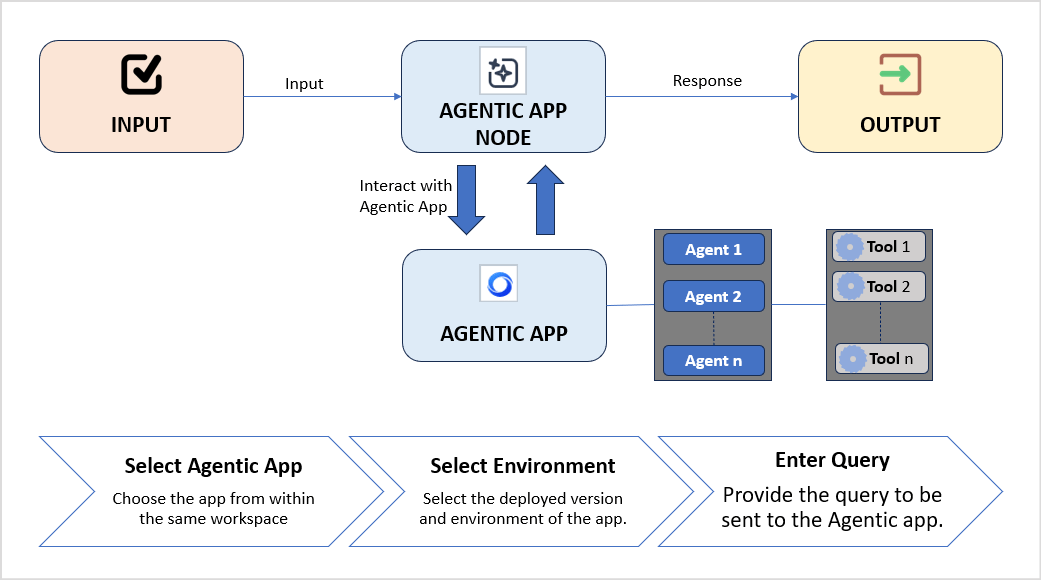
Integrate a deployed Agentic App into a workflow to handle decisions based on unstructured data or complex tasks.
### Key Capabilities
* **Native integration**: Connect workflows to any Agentic App within the same workspace.
* **Contextual data exchange**: Pass workflow inputs to the Agentic App and retrieve its response dynamically.
* **Single-turn execution**: Performs one turn of communication per execution. For multi-step interactions, add multiple Agentic App nodes.
### Common Use Cases
* **Incident triage**: Pass incident details to the Agentic App to identify probable root causes and return remediation steps.
* **Invoice processing**: Send invoice details to determine the expense category, detect duplicates, or route for approval.
### Prerequisites
* The Agentic App must be deployed.
* The Agentic App must belong to the same workspace as the workflow.
* The user configuring the node must have access to the Agentic App.
### Configuration
**Settings tab:**
| Field | Description |
| - | - |
| **Node Name** | Unique identifier for the node. |
| **Add Agentic App** | Select the Agentic App and its deployment environment from the same workspace. |
| **Input** | Text sent to the Agentic App as a query. Can include context variables: `{{context.inputKey}}`. |
**Connections tab:**
* **On Success**: Node to execute after the Agentic App responds.
* **On Failure**: Node to execute if the Agentic App call fails.
**2. Configure the Review Note:**
| Field | Description |
| - | - |
| **Subject line** | Email subject or message title. |
| **Message body** | Instructions or context for the reviewer. Resolved at runtime. |
**3. Configure Timeout Behavior:**
* **No timeout** — waits indefinitely until the reviewer responds.
* **Set timeout** — default 120 seconds; configurable in seconds, minutes, hours, or days.
**4. Define Node Outcomes:**
| Path | Description | Trigger |
| - | - | - |
| **On Approval** | Workflow continues to the next node. | Reviewer selects **Accept**. |
| **On Decline** | Workflow follows the rejection path. | Reviewer selects **Decline**. |
| **On Timeout - Terminate flow** | Flow ends via the End node. | No response within the timeout. |
| **On Timeout - Skip** | Continues with `null` output to the next node. | No response within the timeout. |
| **On Failure** | Follows a fallback node. Supports parallel branching. | Request delivery or system error. |
### Testing the Flow with Inbox Approvals
1. Click **Run Flow** in the workflow builder. The Debug Panel opens.
2. When the workflow reaches the Human node, an approval request is sent to the reviewer's Inbox:
* **Personal tab** — requests assigned to yourself.
* **Group tab** — requests assigned to a set of users or the whole workspace. Group members must assign the request to themselves before acting on it.
3. In the **Inbox**, find the request under **Pending for Approval**. Review the details and click **Approve** or **Decline**.
4. Verify results in **Workflow Monitor** — confirm the Human node shows the correct approval status and the flow followed the expected path.
### Accessing Reviewer Responses
```javascript theme={null}
// Full response payload
{{context.steps.NodeName.output}}
// Specific field
{{context.steps.NodeName.output.Approval}}
{{context.steps.NodeName.output.Comments}}
```
**Inside loops**: The loop does not advance to the next iteration until the Human node receives a response.
**In parallel branches**: The branch merge waits for the Human node to complete before continuing.
***
## Agentic App Node
Integrate a deployed Agentic App into a workflow to handle decisions based on unstructured data or complex tasks.
### Key Capabilities
* **Native integration**: Connect workflows to any Agentic App within the same workspace.
* **Contextual data exchange**: Pass workflow inputs to the Agentic App and retrieve its response dynamically.
* **Single-turn execution**: Performs one turn of communication per execution. For multi-step interactions, add multiple Agentic App nodes.
### Common Use Cases
* **Incident triage**: Pass incident details to the Agentic App to identify probable root causes and return remediation steps.
* **Invoice processing**: Send invoice details to determine the expense category, detect duplicates, or route for approval.
### Prerequisites
* The Agentic App must be deployed.
* The Agentic App must belong to the same workspace as the workflow.
* The user configuring the node must have access to the Agentic App.
### Configuration
**Settings tab:**
| Field | Description |
| - | - |
| **Node Name** | Unique identifier for the node. |
| **Add Agentic App** | Select the Agentic App and its deployment environment from the same workspace. |
| **Input** | Text sent to the Agentic App as a query. Can include context variables: `{{context.inputKey}}`. |
**Connections tab:**
* **On Success**: Node to execute after the Agentic App responds.
* **On Failure**: Node to execute if the Agentic App call fails.
 ### Accessing Output
```javascript theme={null}
{{context.steps.AgenticAppNodeName.output}}
```
The Agentic App response is asynchronous. The workflow receives the output only after the Agentic App has fully completed execution.
***
## Browser Automation Node
Run a published browser automation as part of a workflow. The node performs human-like browser actions — navigating pages, clicking elements, typing text, extracting data, and uploading files — in a secure, isolated environment.
### Key Capabilities
* **Run deployed automations**: Select from the list of published browser automations in your workspace.
* **Input and output mapping**: Provide static values or map context variables. Outputs are stored automatically in the workflow context.
* **Built-in reliability**: Retries, timeouts, and visual validation for consistent execution.
* **Secure credential handling**: Uses secure browser sessions without exposing sensitive data.
### Common Use Cases
* Form filling and data entry across web-based systems.
* Portal-based processes — claims submission, onboarding, invoice updates.
* Web data extraction — capturing tables and values from pages.
* File uploads and downloads across internal or external websites.
* Routine account actions — login, status checks (MFA not required).
### Setup Overview
Browser automation has three stages:
1. **[Deploy the hardware](/ai-for-process/settings/deployment#browser-automation-deployment)** in **Settings > Browser Automation > Deployment**. This pod is the execution environment for both Playground testing and workflow runtime.
2. **[Create the automation](/ai-for-process/settings/playground)** in **Settings > Browser Automation > Playground**. Validate the flow step by step, then publish the automation to a pod.
3. **[Integrate in a workflow](/ai-for-process/nodes#browser-automation-node)** using the Browser Automation Node.
### Accessing Output
```javascript theme={null}
{{context.steps.AgenticAppNodeName.output}}
```
The Agentic App response is asynchronous. The workflow receives the output only after the Agentic App has fully completed execution.
***
## Browser Automation Node
Run a published browser automation as part of a workflow. The node performs human-like browser actions — navigating pages, clicking elements, typing text, extracting data, and uploading files — in a secure, isolated environment.
### Key Capabilities
* **Run deployed automations**: Select from the list of published browser automations in your workspace.
* **Input and output mapping**: Provide static values or map context variables. Outputs are stored automatically in the workflow context.
* **Built-in reliability**: Retries, timeouts, and visual validation for consistent execution.
* **Secure credential handling**: Uses secure browser sessions without exposing sensitive data.
### Common Use Cases
* Form filling and data entry across web-based systems.
* Portal-based processes — claims submission, onboarding, invoice updates.
* Web data extraction — capturing tables and values from pages.
* File uploads and downloads across internal or external websites.
* Routine account actions — login, status checks (MFA not required).
### Setup Overview
Browser automation has three stages:
1. **[Deploy the hardware](/ai-for-process/settings/deployment#browser-automation-deployment)** in **Settings > Browser Automation > Deployment**. This pod is the execution environment for both Playground testing and workflow runtime.
2. **[Create the automation](/ai-for-process/settings/playground)** in **Settings > Browser Automation > Playground**. Validate the flow step by step, then publish the automation to a pod.
3. **[Integrate in a workflow](/ai-for-process/nodes#browser-automation-node)** using the Browser Automation Node.
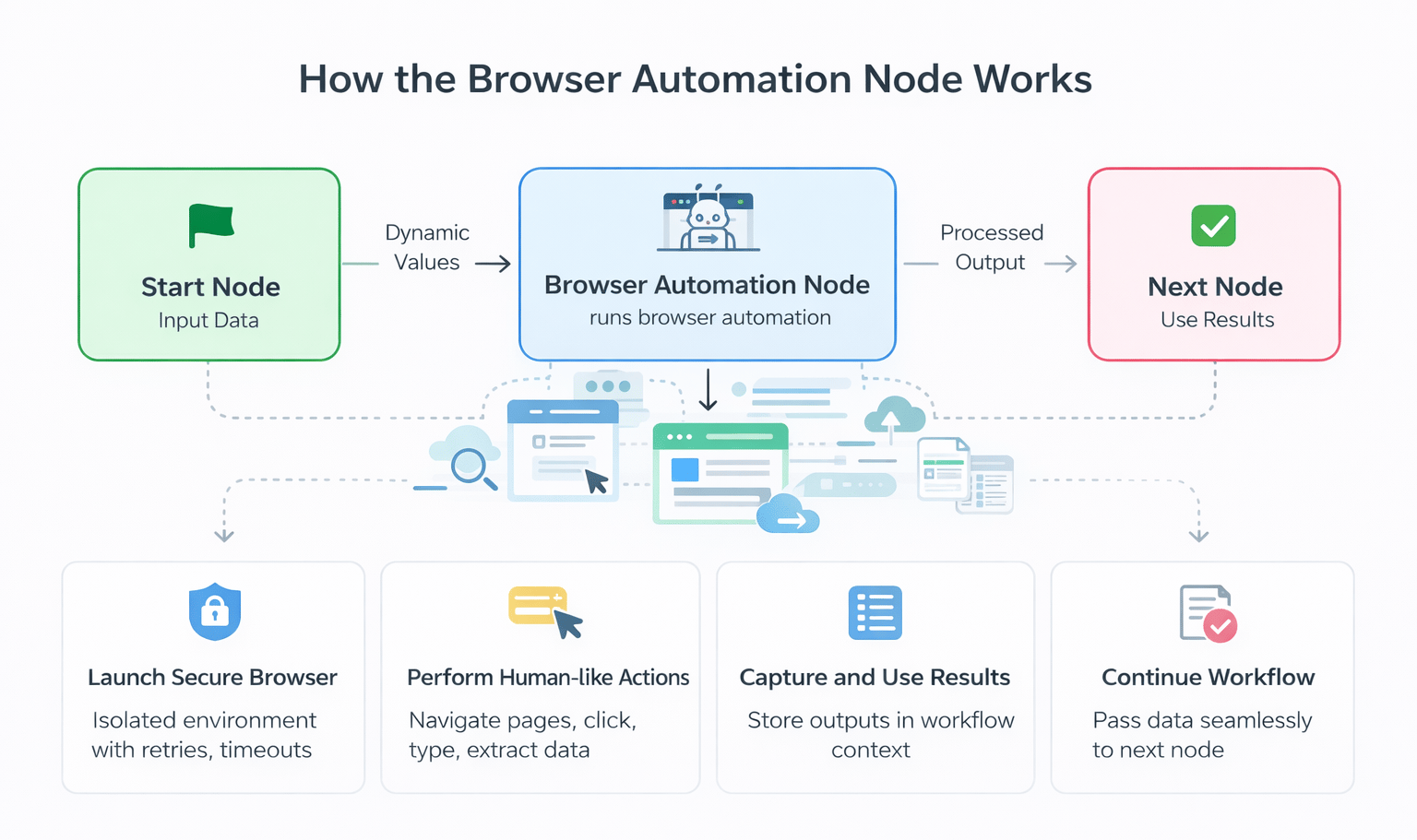 ### Configuration
**1. Select an Automation:**
* In **Automation name**, choose from the list of published browser automations in your workspace.
* Only one automation per node. If none are deployed, you are prompted to create one first.
**2. Provide Input Variables:**
* After selecting an automation, the required input fields appear based on the automation's design.
* Each field accepts a static value or a mapped context variable from the workflow.
**3. Configure Node Options:**
| Option | Description |
| - | - |
| **Model** | The model used by the automation. Fixed — cannot be changed at runtime. |
| **Connection** | The model connection configured at design time. Only the connection name can be changed at runtime. |
| **Disable Cache** | Turns off cached agent state for a fresh browser session. Use when the automation requires updated credentials or a full login flow. |
| **Auto-Healing** | Uses the LLM to repair failed UI actions when a page changes. |
### Configuration
**1. Select an Automation:**
* In **Automation name**, choose from the list of published browser automations in your workspace.
* Only one automation per node. If none are deployed, you are prompted to create one first.
**2. Provide Input Variables:**
* After selecting an automation, the required input fields appear based on the automation's design.
* Each field accepts a static value or a mapped context variable from the workflow.
**3. Configure Node Options:**
| Option | Description |
| - | - |
| **Model** | The model used by the automation. Fixed — cannot be changed at runtime. |
| **Connection** | The model connection configured at design time. Only the connection name can be changed at runtime. |
| **Disable Cache** | Turns off cached agent state for a fresh browser session. Use when the automation requires updated credentials or a full login flow. |
| **Auto-Healing** | Uses the LLM to repair failed UI actions when a page changes. |
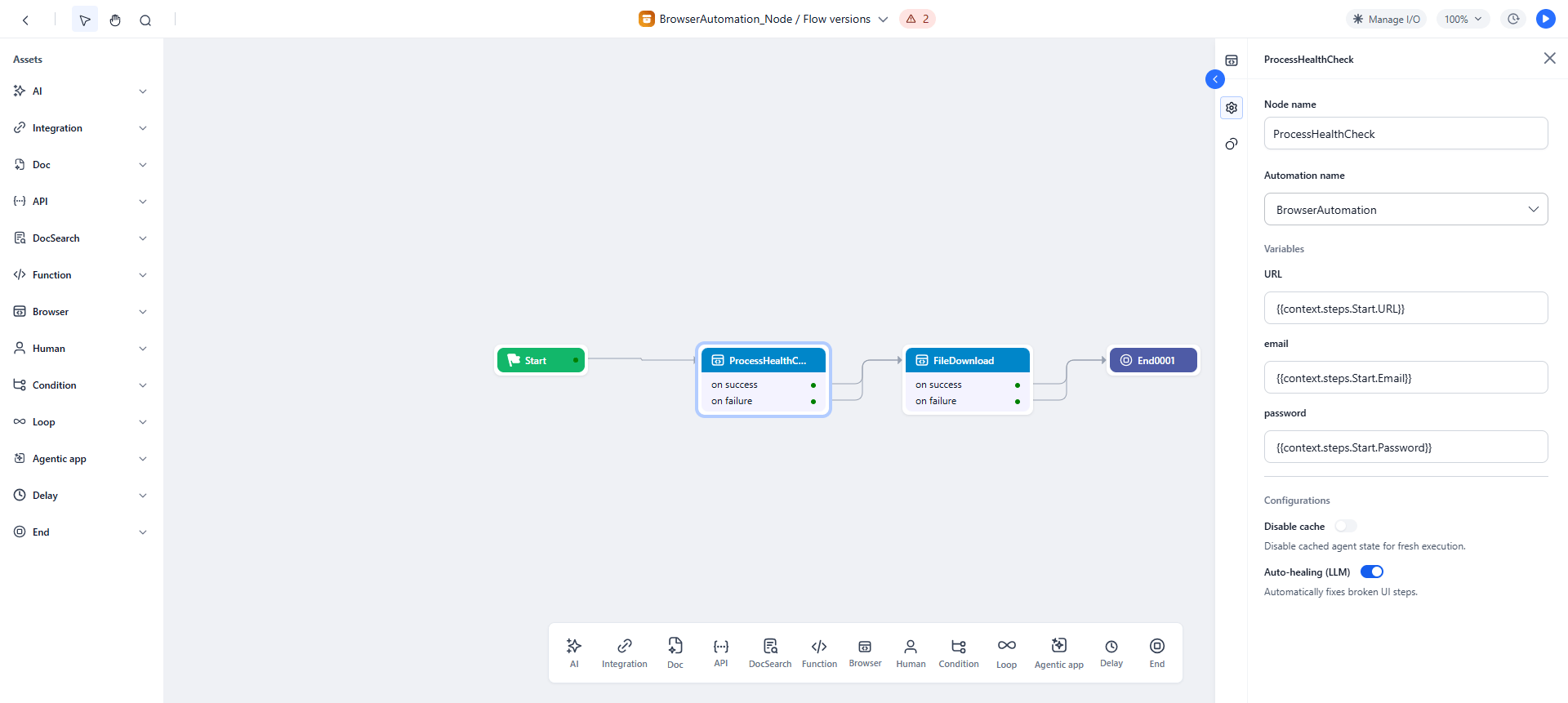 ### Accessing Output
```javascript theme={null}
{{context.steps.BrowserNodeName.output}}
```
### Testing the Flow
1. **Test in Playground first**: Go to **Settings > Browser Automation > Playground**, run the automation, and validate browser actions and outputs.
2. **Run the workflow**: Verify inputs are passed correctly, the automation triggers, and outputs are captured in the context.
3. **Review Debug Logs**: Check the Browser Automation Node section for step-by-step execution details, output values, and errors.
### Accessing Output
```javascript theme={null}
{{context.steps.BrowserNodeName.output}}
```
### Testing the Flow
1. **Test in Playground first**: Go to **Settings > Browser Automation > Playground**, run the automation, and validate browser actions and outputs.
2. **Run the workflow**: Verify inputs are passed correctly, the automation triggers, and outputs are captured in the context.
3. **Review Debug Logs**: Check the Browser Automation Node section for step-by-step execution details, output values, and errors.
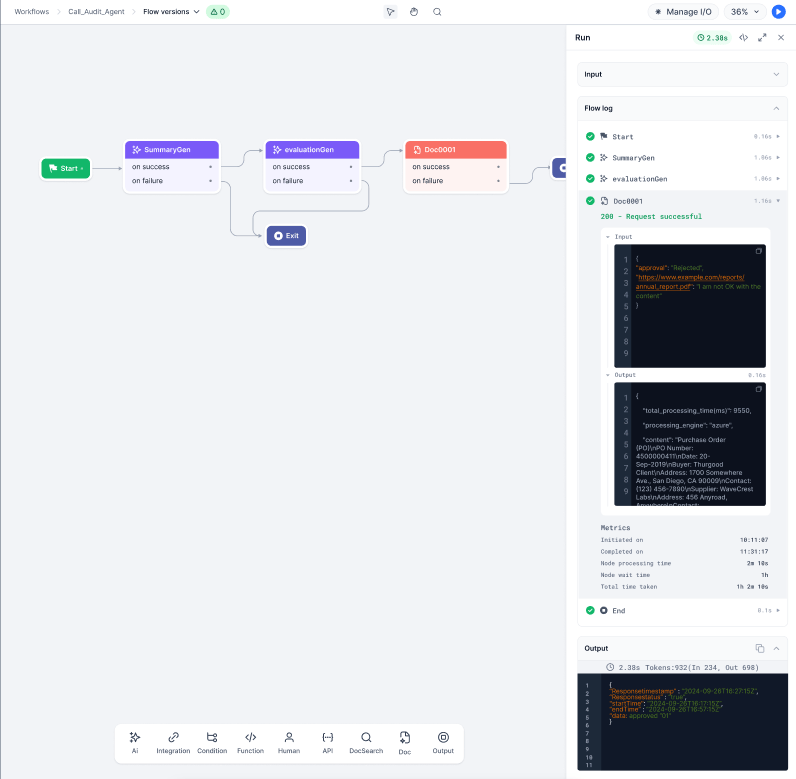 ***
## Doc Intelligence Node
Analyze documents and extract structured data within a workflow using AI engines.
### Key Capabilities
* **Engine selection**: Choose between Docling, OpenAI, Anthropic, or Azure.
* **File input flexibility**: Static URL or dynamic workflow context variable.
* **Async processing**: Processes documents in the background without blocking the workflow (engine support may vary).
* **Structured data extraction**: Generates machine-readable output for downstream nodes (engine support may vary).
### Common Use Cases
* Invoice and receipt processing — extract amounts, dates, and vendor information.
* Identity document verification — extract data from IDs, passports, or business cards.
* Contract analysis — identify key clauses, dates, or parties.
* Compliance checks — ensure sensitive documents are analyzed and key fields are captured.
### Configuration
**Before you begin**: Ensure at least one AI engine (Docling, OpenAI, Anthropic, or Azure) is configured in your workspace.
**Steps:**
1. Give the node a descriptive name (example: `InvoiceProcessing`, `IDExtraction`).
2. Enter the **File URL** — a static URL or a context variable from an upstream step.
3. Select the **Engine**.
4. Configure engine-specific options.
**Engine Settings:**
| Engine | Async | Structured Output | File Types | Max Size |
| - | - | - | - | - |
| **Docling** | Enabled | Optional | PDF, DOCX, PPTX | 100 MB (extendable) |
| **OpenAI** | Enabled | Optional | PDF | 512 MB |
| **Anthropic** | Enabled | Optional | PDF | 32 MB |
| **Azure Doc Intelligence** | Enabled | Always enabled | PDF, DOCX, PPTX | 50 MB |
**Supported Models:**
| Engine | Default Model | Available Models |
| - | - | - |
| **Azure** | `prebuilt-layout` | Azure prebuilt models |
| **OpenAI** | `gpt-4o-mini` | `gpt-4o`, `gpt-4o-mini`, `gpt-4.1` |
| **Anthropic** | `claude-3-5-sonnet-20241022` | `claude-sonnet-4-20250514`, `claude-3-5-sonnet-20241022` |
| **Docling** | Service-managed | No model selection |
***
## Doc Intelligence Node
Analyze documents and extract structured data within a workflow using AI engines.
### Key Capabilities
* **Engine selection**: Choose between Docling, OpenAI, Anthropic, or Azure.
* **File input flexibility**: Static URL or dynamic workflow context variable.
* **Async processing**: Processes documents in the background without blocking the workflow (engine support may vary).
* **Structured data extraction**: Generates machine-readable output for downstream nodes (engine support may vary).
### Common Use Cases
* Invoice and receipt processing — extract amounts, dates, and vendor information.
* Identity document verification — extract data from IDs, passports, or business cards.
* Contract analysis — identify key clauses, dates, or parties.
* Compliance checks — ensure sensitive documents are analyzed and key fields are captured.
### Configuration
**Before you begin**: Ensure at least one AI engine (Docling, OpenAI, Anthropic, or Azure) is configured in your workspace.
**Steps:**
1. Give the node a descriptive name (example: `InvoiceProcessing`, `IDExtraction`).
2. Enter the **File URL** — a static URL or a context variable from an upstream step.
3. Select the **Engine**.
4. Configure engine-specific options.
**Engine Settings:**
| Engine | Async | Structured Output | File Types | Max Size |
| - | - | - | - | - |
| **Docling** | Enabled | Optional | PDF, DOCX, PPTX | 100 MB (extendable) |
| **OpenAI** | Enabled | Optional | PDF | 512 MB |
| **Anthropic** | Enabled | Optional | PDF | 32 MB |
| **Azure Doc Intelligence** | Enabled | Always enabled | PDF, DOCX, PPTX | 50 MB |
**Supported Models:**
| Engine | Default Model | Available Models |
| - | - | - |
| **Azure** | `prebuilt-layout` | Azure prebuilt models |
| **OpenAI** | `gpt-4o-mini` | `gpt-4o`, `gpt-4o-mini`, `gpt-4.1` |
| **Anthropic** | `claude-3-5-sonnet-20241022` | `claude-sonnet-4-20250514`, `claude-3-5-sonnet-20241022` |
| **Docling** | Service-managed | No model selection |
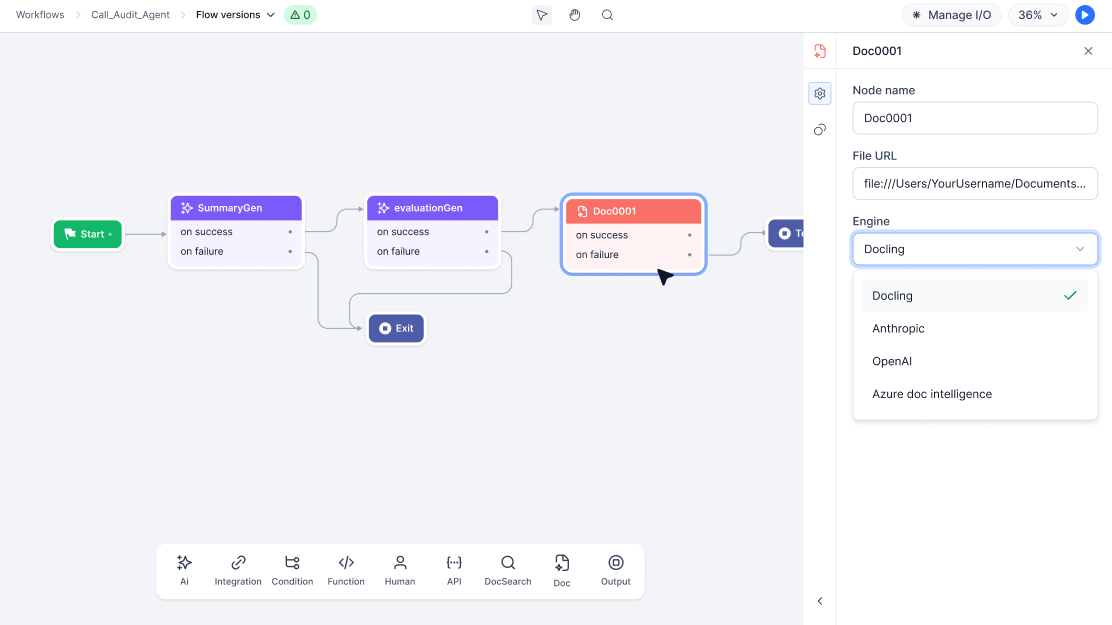 ### Accessing Output
```javascript theme={null}
{{context.steps.DocNodeName.output}}
```
Output may include extracted text, structured data (if enabled), and page or document metadata.
The Debug panel displays logs, extracted text, structured data, and metadata based on your node configuration.
***
## Related Topics
* [Supported Libraries](/ai-for-process/supported-libraries) - List of supported libraries in the script editor of the Function node.
***
### Accessing Output
```javascript theme={null}
{{context.steps.DocNodeName.output}}
```
Output may include extracted text, structured data (if enabled), and page or document metadata.
The Debug panel displays logs, extracted text, structured data, and metadata based on your node configuration.
***
## Related Topics
* [Supported Libraries](/ai-for-process/supported-libraries) - List of supported libraries in the script editor of the Function node.
***