> ## Documentation Index
> Fetch the complete documentation index at: https://koreai-content-gov.mintlify.site/llms.txt
> Use this file to discover all available pages before exploring further.
# Scheduled Reports
[Back to Reports List](/ai-for-service/analytics/quality-ai/reports/qm-reports-list)
Scheduled Reporting enables supervisors to create, schedule, and manage reports for agent performance, interaction evaluations, conversation analytics, and evaluation form summaries.
Reports can be generated on demand or on a recurring schedule. Supervisors can configure report-specific filters and optional fields, then deliver reports by email or download them as CSV files from a centralized **Reports** dashboard.
Depending on the report type, exported reports can include:
* Interaction details
* Evaluation outcomes
* Quality metrics
* Conversation Intelligence insights
* Metric-level evaluation results
* Optional fields
* Organization-specific custom fields
You can filter reports by evaluation forms, scorecards, channels, queues, agents, contact direction, processing status, duration status, and other supported criteria.
## Supported Report Types
Scheduled Reporting supports the following report types:
* [Agent Performance Report](/ai-for-service/analytics/quality-ai/reports/agent-performance-report)
* [Interaction Evaluation and Conversation Analytics Report](/ai-for-service/analytics/quality-ai/reports/interaction-conversation-analytics-report)
* [Evaluation Form Summary Report](/ai-for-service/analytics/quality-ai/reports/evaluation-form-summary-report)
***
## Reports Tab
The **Reports** tab displays all generated reports. Users can create new reports, view report details, download report files, edit configurations, manage schedules, and delete reports based on their permissions.
***
## Access Reports
Navigate to **Quality AI** > **Analytics** > **Reports**
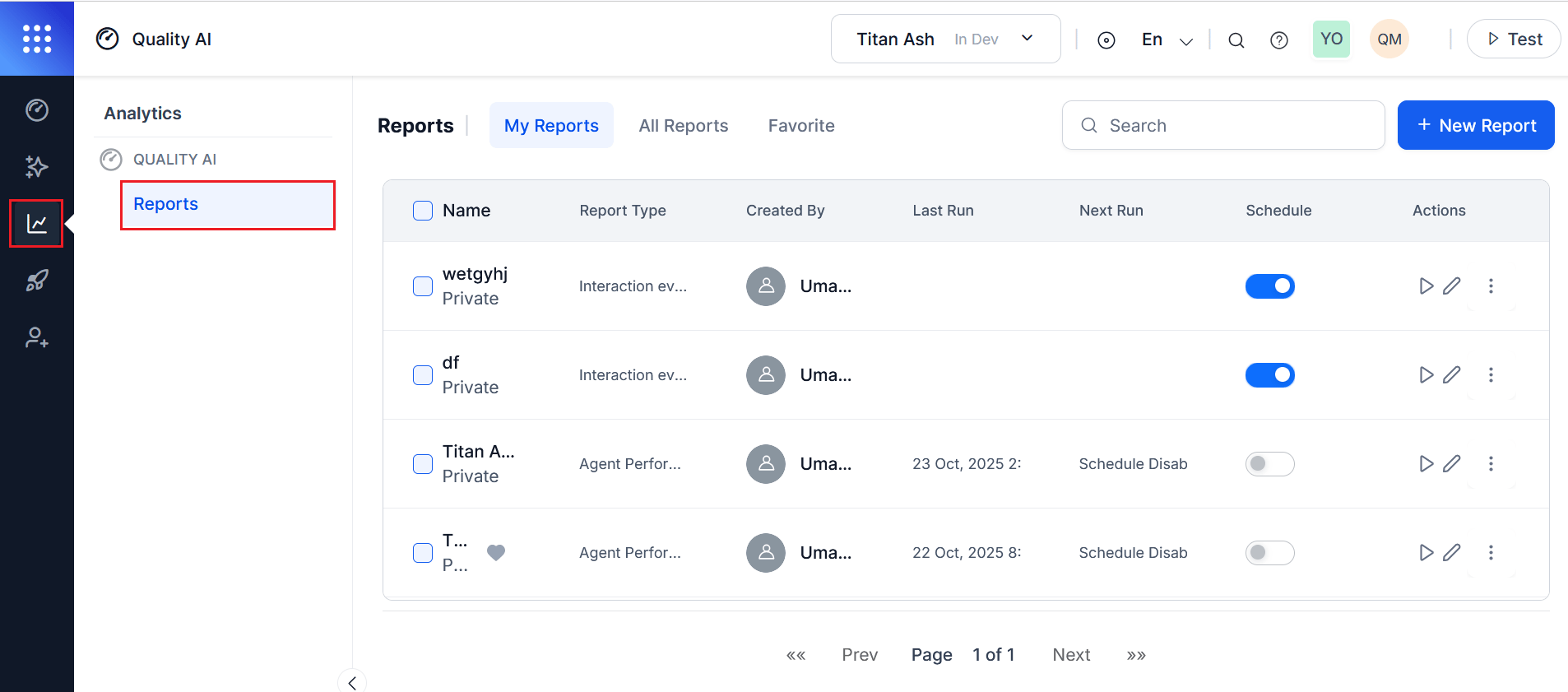 > The **Quality AI Reporting** permission is required to access reports. This permission is enabled by default for **App Owners** and **Supervisors**.
***
## Reports Dashboard
The Reports dashboard displays all reports created by or shared with the current user.
### Dashboard Tabs
| Tab | Description |
| --------------- | --------------------------------------------------------- |
| **My Reports** | Displays reports created by the current user. |
| **All Reports** | Displays all reports available based on user permissions. |
| **Favorites** | Displays reports marked as favorites. |
***
### Reports Columns List
| Column | Description |
| ------------------- | ---------------------------------------------------------------------------------------------------- |
| **Name** | Displays the report name and its visibility (Public or Private). |
| **Report Type** | Displays the report type, such as Agent Performance, Interaction Evaluation, or Evaluation Summary. |
| **Created By** | Displays the report owner. |
| **Last Run** | Displays the date and time the report was last generated. |
| **Next Run** | Displays the next scheduled execution time. |
| **Schedule Toggle** | Enables or disables the scheduled execution. |
| **Actions** | Provides options to Run, Edit, View History, Clone, Favorite, Change Visibility, or Delete a report. |
***
### Search and Bulk Actions
Use the search bar to locate reports by name or report type.
To perform bulk actions:
1. Select one or more reports.
2. The bulk action menu appears.
3. Select one of the following actions:
* **Bulk Run**: Runs the selected reports immediately.
* **Delete**: Deletes the selected reports.
4. Confirm the action.
Deleting a report permanently removes the report and all associated data. You can't undo this action, and the system requires confirmation before proceeding.
***
## Report Configuration
With Quality AI, you can create, filter, and schedule reports for automated or on-demand delivery with customizable formats, bulk actions, and secure, role-based access.
### Create a Report
To create a new report, follow these steps:
1. Navigate to **Quality AI** > **Analytics** > **Reports** > **+ New Report**.
2. Select **+ New Report**.
3. Select a report type.
4. Select **Next** to proceed.
You must select one report type before proceeding.
All report types follow the same three-step workflow:
1. General
2. Configuration
3. Schedule
***
#### General
The **General** step captures basic report information.
| Field | Description |
| --------------- | -------------------------------------------------------- |
| **Name** | Unique report name. |
| **Description** | Description of the report purpose and intended audience. |
Select **Next** to continue.
***
#### Configuration
The **Configuration** step defines the report scope, filters, optional fields, and delivery settings.
Available options depend on the selected report type.
**Data Source**
Depending on the report type, select one or more **Evaluation Forms** or **Agent Scorecards**.
At least one evaluation form or scorecard is required. Reports include only data matching the selected configuration.
**Date Range**
Select the reporting period using: Today, Yesterday, Last 7, 30, or 90 days, and Custom date range.
**Time Zone**
Select the timezone used for report data. By default, the report uses the device's local timezone.
**Filters**
Select +Add Filter to add filters and refine report results. Available filters depend on the selected report type.
Common filters include:
| Filter | Description |
| --------------------- | ---------------------------------------------------------------------------------------------- |
| **Queue** | Filters interactions by one or more queues. |
| **Channel** | Filters interactions by Voice or Chat. |
| **Agents** | Filters data for specific agents. |
| **Agent Groups** | Filters by agent groups. |
| **Language** | Filters by the configured Quality AI language. Defaults to the application's default language. |
| **Contact Direction** | Filters inbound or outbound interactions. |
| **Duration Status** | Filters interactions based on evaluation eligibility. |
| **Processing Status** | Filters conversations by processing state. |
Report-specific filters are described in the corresponding report documentation.
***
**Optional Fields**
Optional Fields add additional columns to the exported CSV report. Available fields depend on the report type, selected evaluation forms or scorecards, date range, and available metadata. Changing the date range may affect the available custom fields.
Optional fields include standard system fields and custom organization-defined fields. Selected fields are appended as additional columns in the generated CSV export.
**Email Recipients**
Enter one or more email addresses in the **Send Email to** field. At least one recipient with the required permissions is required for scheduled delivery.
***
#### Schedule
You can generate reports immediately or on a recurring schedule.
Choose one of the following execution methods.
* **Run on Demand (manual)**: Generates the report immediately using the current configuration. When Run on Demand is selected: Instant Run is enabled and Scheduling is disabled.
* **Schedule (automated)**: Generates reports automatically according to the configured schedule.
**Supported Frequencies**
| Frequency | Description |
| ------------- | ------------------------------------------------------- |
| **Hourly** | Runs every hour at a specified minute (0–59). |
| **Daily** | Runs every day at a specified time. |
| **Weekly** | Runs on selected weekdays at a specified time. |
| **Monthly** | Runs monthly on a selected day (1–28). |
| **Quarterly** | Runs every three months on a selected day (1–31). |
| **Yearly** | Runs once each year on a selected month, day, and time. |
**Additional Schedule Settings**
Configure the following settings:
| Setting | Description |
| --------------- | ------------------------------------------------------------------------------ |
| **Start Date** | Date on which the schedule becomes active. |
| **Time Zone** | Time zone used for report execution. Defaults to the device's local time zone. |
| **Instant Run** | Generates the report immediately. Available only for Run on Demand. |
Select **Save** to create or update the report. The generated report appears in **My Reports**.
***
## Manage Reports
### Edit Reports
To edit a report,
1. Select **Edit** from the **Actions** column.
2. Modify the required fields.
3. Select **Save** to activate the changes or reschedule the configuration.
***
### View and Download Report History
1. From the **Actions** column, select the three-dot (⋮) menu.
2. Select **History** to view the last five report runs.
> The **Quality AI Reporting** permission is required to access reports. This permission is enabled by default for **App Owners** and **Supervisors**.
***
## Reports Dashboard
The Reports dashboard displays all reports created by or shared with the current user.
### Dashboard Tabs
| Tab | Description |
| --------------- | --------------------------------------------------------- |
| **My Reports** | Displays reports created by the current user. |
| **All Reports** | Displays all reports available based on user permissions. |
| **Favorites** | Displays reports marked as favorites. |
***
### Reports Columns List
| Column | Description |
| ------------------- | ---------------------------------------------------------------------------------------------------- |
| **Name** | Displays the report name and its visibility (Public or Private). |
| **Report Type** | Displays the report type, such as Agent Performance, Interaction Evaluation, or Evaluation Summary. |
| **Created By** | Displays the report owner. |
| **Last Run** | Displays the date and time the report was last generated. |
| **Next Run** | Displays the next scheduled execution time. |
| **Schedule Toggle** | Enables or disables the scheduled execution. |
| **Actions** | Provides options to Run, Edit, View History, Clone, Favorite, Change Visibility, or Delete a report. |
***
### Search and Bulk Actions
Use the search bar to locate reports by name or report type.
To perform bulk actions:
1. Select one or more reports.
2. The bulk action menu appears.
3. Select one of the following actions:
* **Bulk Run**: Runs the selected reports immediately.
* **Delete**: Deletes the selected reports.
4. Confirm the action.
Deleting a report permanently removes the report and all associated data. You can't undo this action, and the system requires confirmation before proceeding.
***
## Report Configuration
With Quality AI, you can create, filter, and schedule reports for automated or on-demand delivery with customizable formats, bulk actions, and secure, role-based access.
### Create a Report
To create a new report, follow these steps:
1. Navigate to **Quality AI** > **Analytics** > **Reports** > **+ New Report**.
2. Select **+ New Report**.
3. Select a report type.
4. Select **Next** to proceed.
You must select one report type before proceeding.
All report types follow the same three-step workflow:
1. General
2. Configuration
3. Schedule
***
#### General
The **General** step captures basic report information.
| Field | Description |
| --------------- | -------------------------------------------------------- |
| **Name** | Unique report name. |
| **Description** | Description of the report purpose and intended audience. |
Select **Next** to continue.
***
#### Configuration
The **Configuration** step defines the report scope, filters, optional fields, and delivery settings.
Available options depend on the selected report type.
**Data Source**
Depending on the report type, select one or more **Evaluation Forms** or **Agent Scorecards**.
At least one evaluation form or scorecard is required. Reports include only data matching the selected configuration.
**Date Range**
Select the reporting period using: Today, Yesterday, Last 7, 30, or 90 days, and Custom date range.
**Time Zone**
Select the timezone used for report data. By default, the report uses the device's local timezone.
**Filters**
Select +Add Filter to add filters and refine report results. Available filters depend on the selected report type.
Common filters include:
| Filter | Description |
| --------------------- | ---------------------------------------------------------------------------------------------- |
| **Queue** | Filters interactions by one or more queues. |
| **Channel** | Filters interactions by Voice or Chat. |
| **Agents** | Filters data for specific agents. |
| **Agent Groups** | Filters by agent groups. |
| **Language** | Filters by the configured Quality AI language. Defaults to the application's default language. |
| **Contact Direction** | Filters inbound or outbound interactions. |
| **Duration Status** | Filters interactions based on evaluation eligibility. |
| **Processing Status** | Filters conversations by processing state. |
Report-specific filters are described in the corresponding report documentation.
***
**Optional Fields**
Optional Fields add additional columns to the exported CSV report. Available fields depend on the report type, selected evaluation forms or scorecards, date range, and available metadata. Changing the date range may affect the available custom fields.
Optional fields include standard system fields and custom organization-defined fields. Selected fields are appended as additional columns in the generated CSV export.
**Email Recipients**
Enter one or more email addresses in the **Send Email to** field. At least one recipient with the required permissions is required for scheduled delivery.
***
#### Schedule
You can generate reports immediately or on a recurring schedule.
Choose one of the following execution methods.
* **Run on Demand (manual)**: Generates the report immediately using the current configuration. When Run on Demand is selected: Instant Run is enabled and Scheduling is disabled.
* **Schedule (automated)**: Generates reports automatically according to the configured schedule.
**Supported Frequencies**
| Frequency | Description |
| ------------- | ------------------------------------------------------- |
| **Hourly** | Runs every hour at a specified minute (0–59). |
| **Daily** | Runs every day at a specified time. |
| **Weekly** | Runs on selected weekdays at a specified time. |
| **Monthly** | Runs monthly on a selected day (1–28). |
| **Quarterly** | Runs every three months on a selected day (1–31). |
| **Yearly** | Runs once each year on a selected month, day, and time. |
**Additional Schedule Settings**
Configure the following settings:
| Setting | Description |
| --------------- | ------------------------------------------------------------------------------ |
| **Start Date** | Date on which the schedule becomes active. |
| **Time Zone** | Time zone used for report execution. Defaults to the device's local time zone. |
| **Instant Run** | Generates the report immediately. Available only for Run on Demand. |
Select **Save** to create or update the report. The generated report appears in **My Reports**.
***
## Manage Reports
### Edit Reports
To edit a report,
1. Select **Edit** from the **Actions** column.
2. Modify the required fields.
3. Select **Save** to activate the changes or reschedule the configuration.
***
### View and Download Report History
1. From the **Actions** column, select the three-dot (⋮) menu.
2. Select **History** to view the last five report runs.
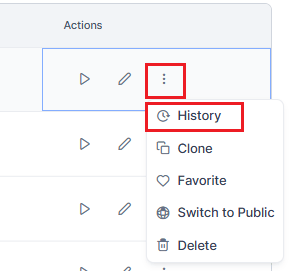 3. Select **Download** to save a report run as a CSV file.
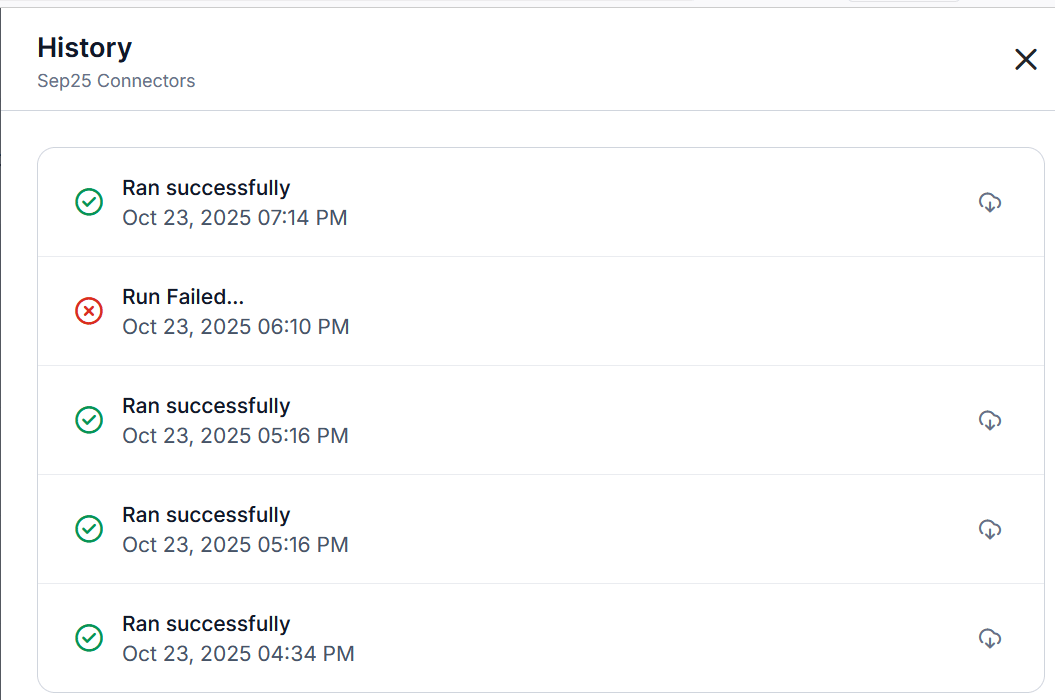 4. The generated reports show their status: run success (green) or run failed (red).
Reports are downloaded as CSV files. Exported columns vary depending on the selected report type, evaluation form, optional fields, custom fields, processing status, and report configuration.
Reports are available for download in CSV format only, with headers translated to the selected language.
### Clone a Report
1. Select the three-dot (⋮) menu.
2. Select **Clone** to create a copy of the report configuration.
### Favorite or Unfavorite a Report
1. Select the three-dot (⋮) menu.
2. Select **Favorite** or **Unfavorite**.
3. All tagged favorite reports appear in the **Favorites** tab.
### Change Report Visibility
Reports are **Public** by default.
1. Select the three-dot (⋮) menu.
2. Select **Switch to Public** or **Switch to Private**.
Switching to **Private** restricts access to the report creator or specific users.
Private reports are accessible only to the report creator or users/groups explicitly granted access. >
### Delete Report
Deleting a report permanently removes its configuration, associated schedule, and all history.
1. Select the three-dot (⋮) menu.
2. Select **Delete** to remove the report.
3. Select **Confirm**.
Deleting a report removes: Report configuration, Schedule, and Report history.
***
### Report Output Format
Reports are exported as CSV files.
* **File Name**: `[ReportName]-YYYY-MM-DD-HH-MM-SS.csv`
* **Headers**: Headers are translated based on the selected report language.
4. The generated reports show their status: run success (green) or run failed (red).
Reports are downloaded as CSV files. Exported columns vary depending on the selected report type, evaluation form, optional fields, custom fields, processing status, and report configuration.
Reports are available for download in CSV format only, with headers translated to the selected language.
### Clone a Report
1. Select the three-dot (⋮) menu.
2. Select **Clone** to create a copy of the report configuration.
### Favorite or Unfavorite a Report
1. Select the three-dot (⋮) menu.
2. Select **Favorite** or **Unfavorite**.
3. All tagged favorite reports appear in the **Favorites** tab.
### Change Report Visibility
Reports are **Public** by default.
1. Select the three-dot (⋮) menu.
2. Select **Switch to Public** or **Switch to Private**.
Switching to **Private** restricts access to the report creator or specific users.
Private reports are accessible only to the report creator or users/groups explicitly granted access. >
### Delete Report
Deleting a report permanently removes its configuration, associated schedule, and all history.
1. Select the three-dot (⋮) menu.
2. Select **Delete** to remove the report.
3. Select **Confirm**.
Deleting a report removes: Report configuration, Schedule, and Report history.
***
### Report Output Format
Reports are exported as CSV files.
* **File Name**: `[ReportName]-YYYY-MM-DD-HH-MM-SS.csv`
* **Headers**: Headers are translated based on the selected report language.
 ***
### Email Delivery
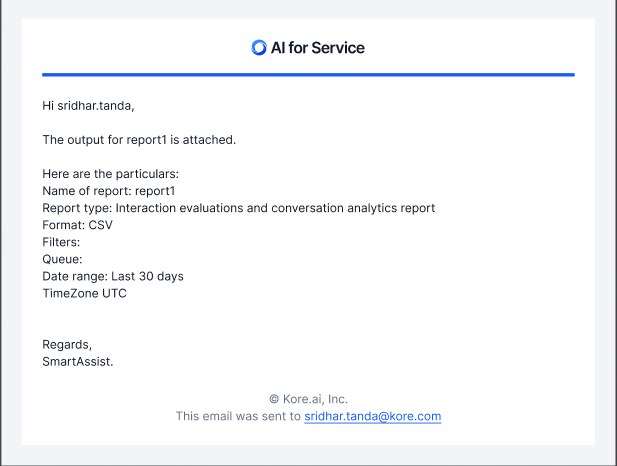
The system delivers all scheduled reports by email in the following standard format.
***
### Email Delivery
The system delivers all scheduled reports by email in the following standard format.
 ***
### Report Behavior
Reports calculate metrics using evaluated interactions only.
| Interaction Type | Behavior |
| ---------------------- | ---------------------------------------------------------------------------------------- |
| **Evaluated** | Included in scores, adherence calculations, and aggregates. |
| **Below Threshold** | Excluded by default. Include these interactions by using the **Duration Status** filter. |
| **Manually Evaluated** | Always treated as evaluated and included in calculations. |
### Data Availability Behavior
* **Partial Data**: Reports include all available conversation metadata. Pending and Validation Failed conversations contain only the metadata available when the report is generated because evaluation processing hasn't completed.
* **No Matching Data**: An empty CSV with header rows is generated, and the email indicates that no data matches the criteria with suggestions for alternative filter configurations.
***
## Access Control
The following table describes report-related permissions based on user roles.
| Role | Create | Edit Own | Edit Public | Delete Own | Delete Public | Schedule | View History |
| ----------------------------------------- | :----: | :------: | :---------: | :--------: | :-----------: | :------: | :------------------: |
| App Owner | ✓ | ✓ | ✓ | ✓ | ✓ | ✓ | ✓ |
| Supervisor | ✓ | ✓ | ✓ | ✓ | ✓ | ✓ | ✓ |
| User with Quality AI Reporting Permission | ✓ | ✓ | ✓ | ✓ | ✗ | ✓ | ✓ (own reports only) |
| User without Permission | ✗ | ✗ | ✗ | ✗ | ✗ | ✗ | ✗ |
Users without the Quality AI Reporting permission can't access the Reports section, view any reports, create reports, receive scheduled report emails, or download historical reports.
For more information on role-based access control, see [Other Modules](/ai-for-service/user-management/users-and-role#other-modules) under the **Roles and Permissions**.
***
***
### Report Behavior
Reports calculate metrics using evaluated interactions only.
| Interaction Type | Behavior |
| ---------------------- | ---------------------------------------------------------------------------------------- |
| **Evaluated** | Included in scores, adherence calculations, and aggregates. |
| **Below Threshold** | Excluded by default. Include these interactions by using the **Duration Status** filter. |
| **Manually Evaluated** | Always treated as evaluated and included in calculations. |
### Data Availability Behavior
* **Partial Data**: Reports include all available conversation metadata. Pending and Validation Failed conversations contain only the metadata available when the report is generated because evaluation processing hasn't completed.
* **No Matching Data**: An empty CSV with header rows is generated, and the email indicates that no data matches the criteria with suggestions for alternative filter configurations.
***
## Access Control
The following table describes report-related permissions based on user roles.
| Role | Create | Edit Own | Edit Public | Delete Own | Delete Public | Schedule | View History |
| ----------------------------------------- | :----: | :------: | :---------: | :--------: | :-----------: | :------: | :------------------: |
| App Owner | ✓ | ✓ | ✓ | ✓ | ✓ | ✓ | ✓ |
| Supervisor | ✓ | ✓ | ✓ | ✓ | ✓ | ✓ | ✓ |
| User with Quality AI Reporting Permission | ✓ | ✓ | ✓ | ✓ | ✗ | ✓ | ✓ (own reports only) |
| User without Permission | ✗ | ✗ | ✗ | ✗ | ✗ | ✗ | ✗ |
Users without the Quality AI Reporting permission can't access the Reports section, view any reports, create reports, receive scheduled report emails, or download historical reports.
For more information on role-based access control, see [Other Modules](/ai-for-service/user-management/users-and-role#other-modules) under the **Roles and Permissions**.
***