> ## Documentation Index
> Fetch the complete documentation index at: https://koreai-content-gov.mintlify.site/llms.txt
> Use this file to discover all available pages before exploring further.
# Using the ServiceNow Action Templates
[Back to Actions Integrations](/ai-for-service/integrations/overview#actions)
Use prebuilt ServiceNow action templates to auto-create dialog tasks for managing incidents and requests.
**To access templates:**
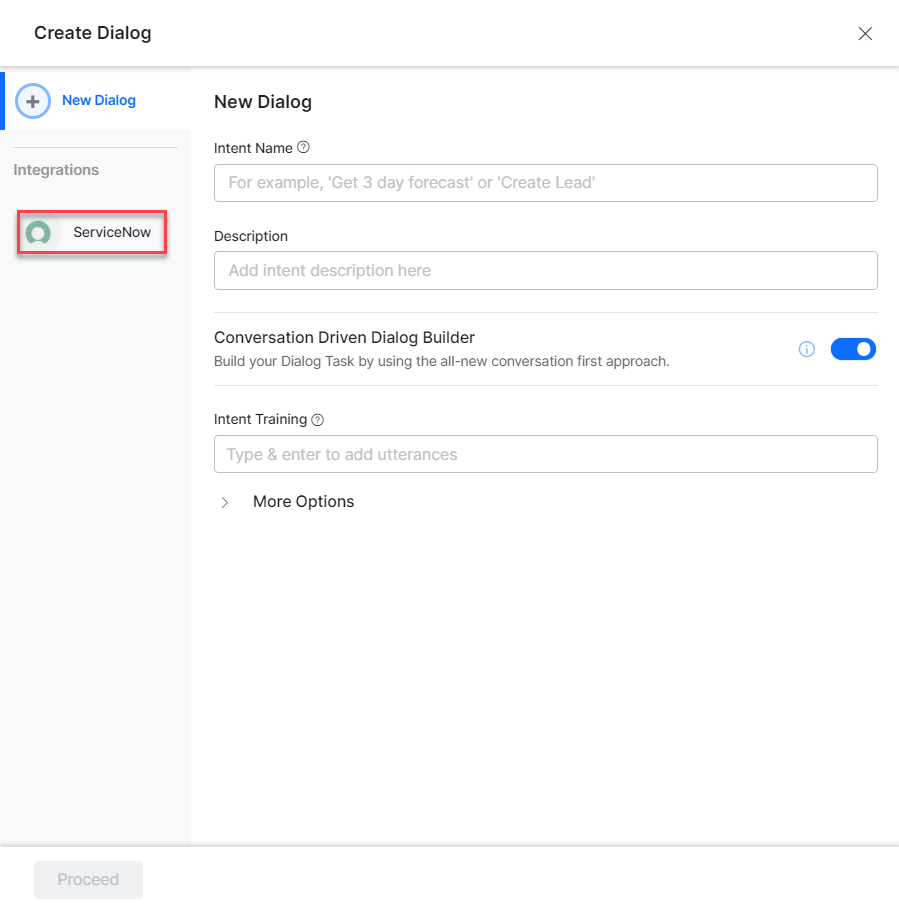
1. Go to **Automation AI** > **Use Cases** > **Dialogs** and click **Create a Dialog Task**.
2. Under **Integration**, select **ServiceNow**.
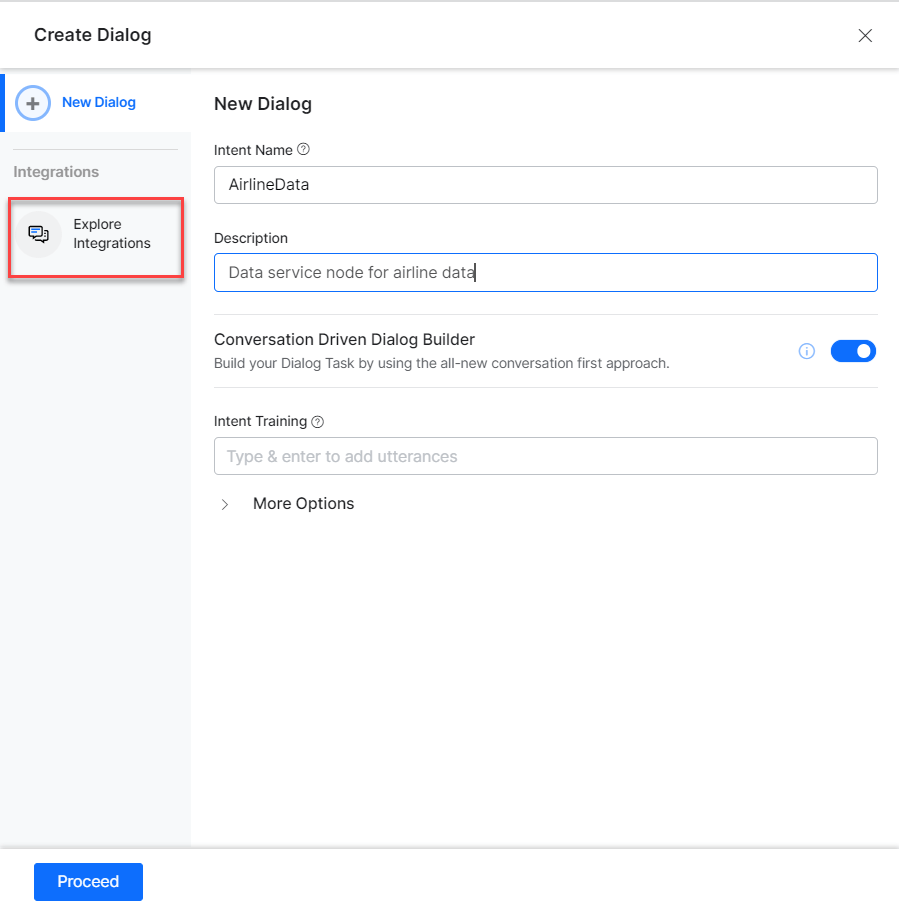
 3. If no integration is configured, click **Explore Integrations** to set one up. See [Actions Overview](/ai-for-service/integrations/overview#actions).
 ***
## Supported Actions
| Task | Description | Method |
| ------------------ | -------------------------------------------- | ------ |
| Create an Incident | Creates a new incident in the system. | POST |
| Update an Incident | Updates the incident details. | GET |
| List All Incidents | Retrieves all incidents from the system. | PUT |
| Find an Incident | Searches all incidents that match a keyword. | GET |
| Delete Incident | Deletes an incident. | DELETE |
| Create a Request | Creates a request in the system. | POST |
| Update a Request | Updates a request in the system. | GET |
| List All Requests | Retrieves all requests from the system. | GET |
| Find a Request | Searches all requests that match a keyword. | GET |
| Delete Request | Deletes a request. | DELETE |
***
### Create an Incident
1. Install the template from [ServiceNow Action Templates](/ai-for-service/integrations/actions/configuring-the-servicenow-action#step-2-install-the-servicenow-action-templates).
2. The **Create a Incident** dialog task is added with the following components:
***
## Supported Actions
| Task | Description | Method |
| ------------------ | -------------------------------------------- | ------ |
| Create an Incident | Creates a new incident in the system. | POST |
| Update an Incident | Updates the incident details. | GET |
| List All Incidents | Retrieves all incidents from the system. | PUT |
| Find an Incident | Searches all incidents that match a keyword. | GET |
| Delete Incident | Deletes an incident. | DELETE |
| Create a Request | Creates a request in the system. | POST |
| Update a Request | Updates a request in the system. | GET |
| List All Requests | Retrieves all requests from the system. | GET |
| Find a Request | Searches all requests that match a keyword. | GET |
| Delete Request | Deletes a request. | DELETE |
***
### Create an Incident
1. Install the template from [ServiceNow Action Templates](/ai-for-service/integrations/actions/configuring-the-servicenow-action#step-2-install-the-servicenow-action-templates).
2. The **Create a Incident** dialog task is added with the following components:
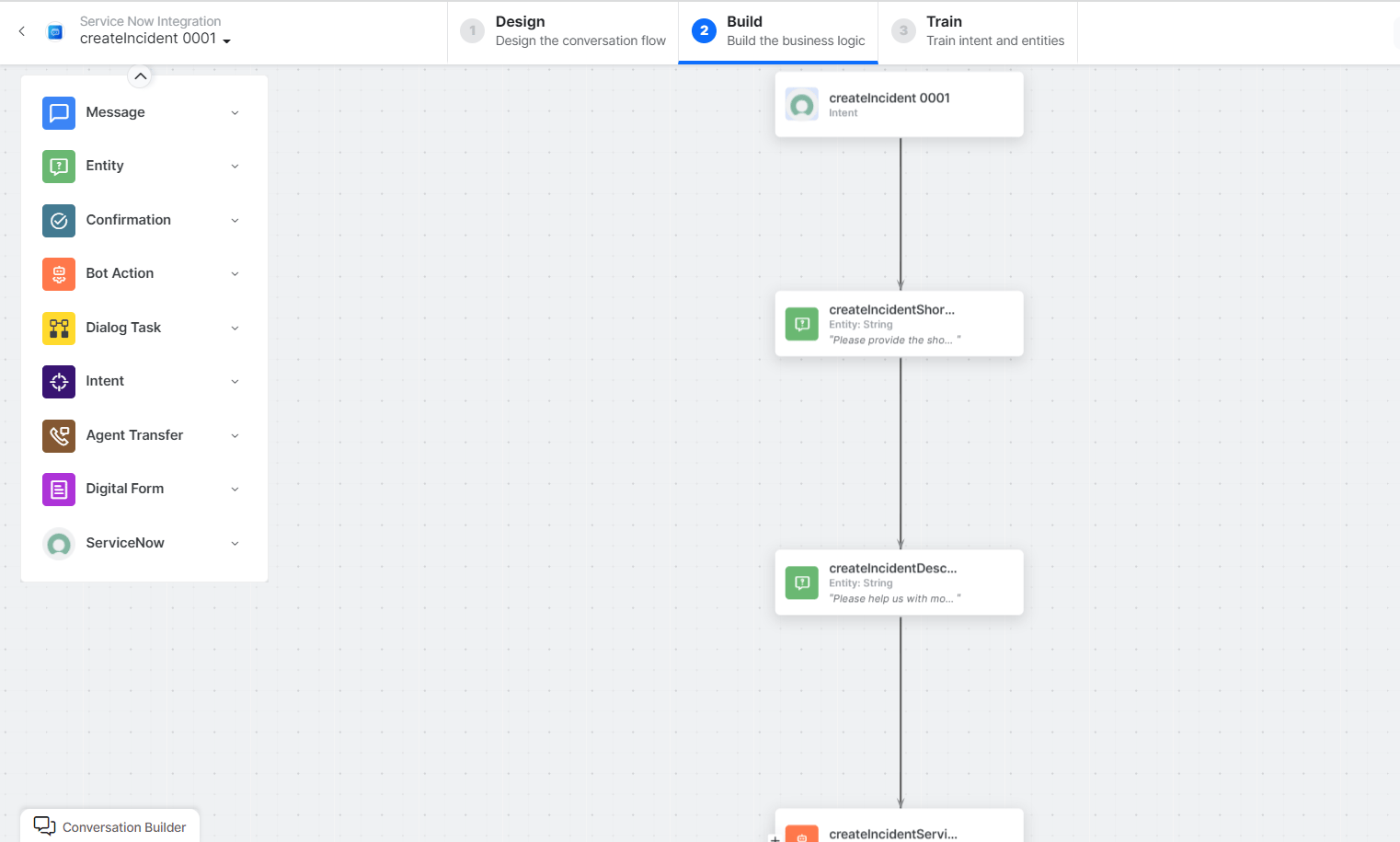 * **createIncident** - User intent to create an incident.
* **createIncidentShortDescription** and **createIncidentDescription** - Entity nodes for incident details.
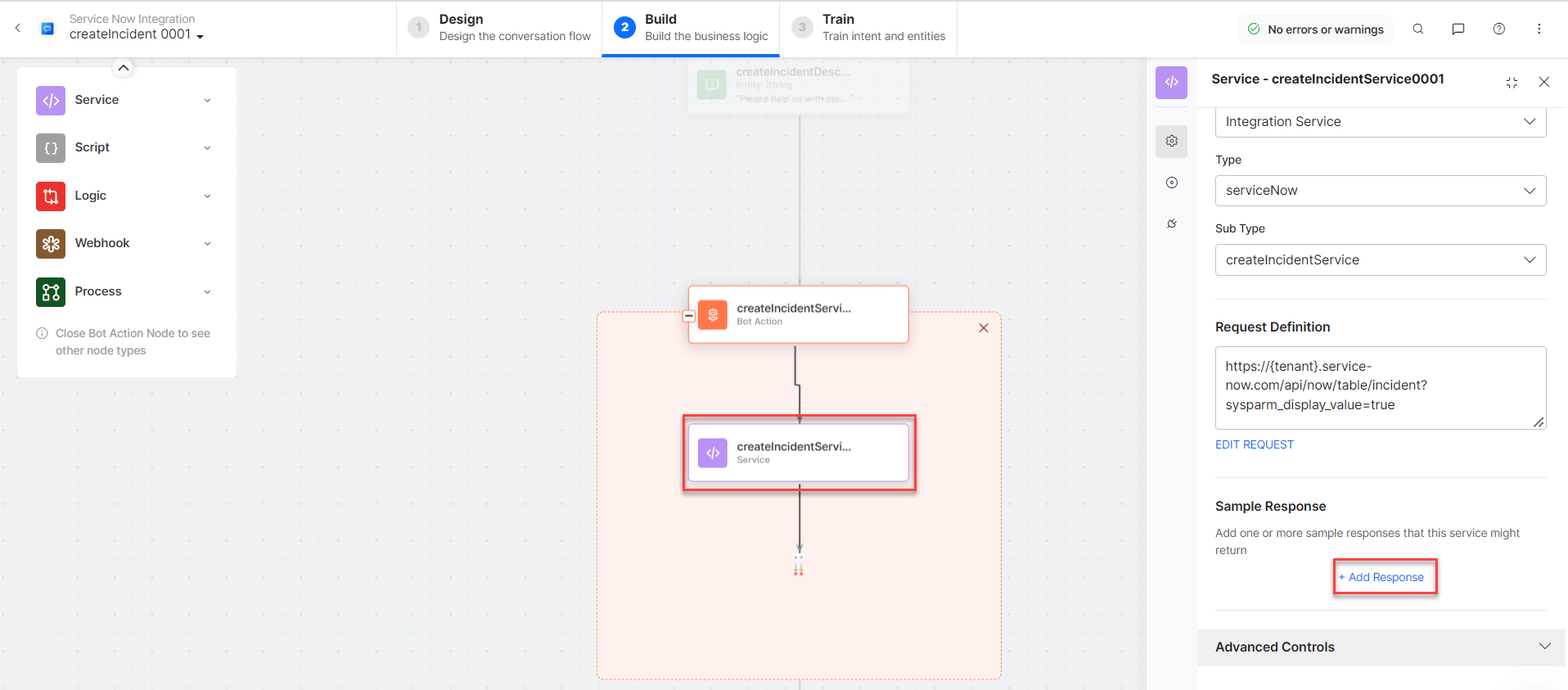
* **createIncidentService** - Bot action service to create an incident. Click **Edit Request**:
* **createIncident** - User intent to create an incident.
* **createIncidentShortDescription** and **createIncidentDescription** - Entity nodes for incident details.
* **createIncidentService** - Bot action service to create an incident. Click **Edit Request**:
 **Sample Request:**
```json theme={null}
{
"short_description": "Unable to log in to my mail app",
"description": "I see an error stating user with this mail id doesn't exist"
}
```
Click **+Add Response**:
**Sample Request:**
```json theme={null}
{
"short_description": "Unable to log in to my mail app",
"description": "I see an error stating user with this mail id doesn't exist"
}
```
Click **+Add Response**:
 **Sample Response:** (truncated)
```json theme={null}
{
"result": {
"number": "INC0011182",
"sys_id": "e0f70482478e11105474f088436d4xxx",
"state": "1",
"incident_state": "1",
"short_description": "21-sept-2022",
"sys_class_name": "incident",
"category": "inquiry"
}
}
```
* **setCallerService** - Bot action service to set a caller node.
* **createIncidentMessage** - Message node to display responses.
3. Click **Train**, then **Talk to Bot** to test:
**Sample Response:** (truncated)
```json theme={null}
{
"result": {
"number": "INC0011182",
"sys_id": "e0f70482478e11105474f088436d4xxx",
"state": "1",
"incident_state": "1",
"short_description": "21-sept-2022",
"sys_class_name": "incident",
"category": "inquiry"
}
}
```
* **setCallerService** - Bot action service to set a caller node.
* **createIncidentMessage** - Message node to display responses.
3. Click **Train**, then **Talk to Bot** to test:
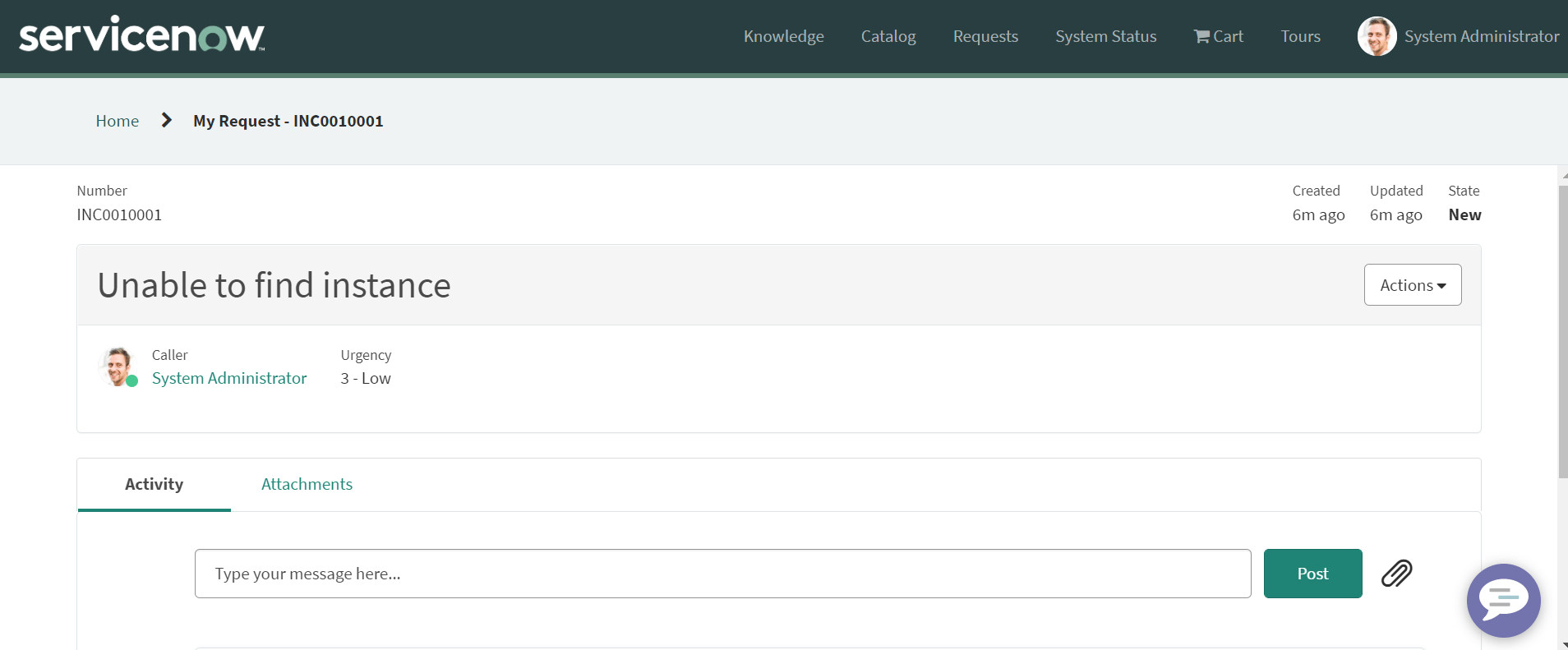
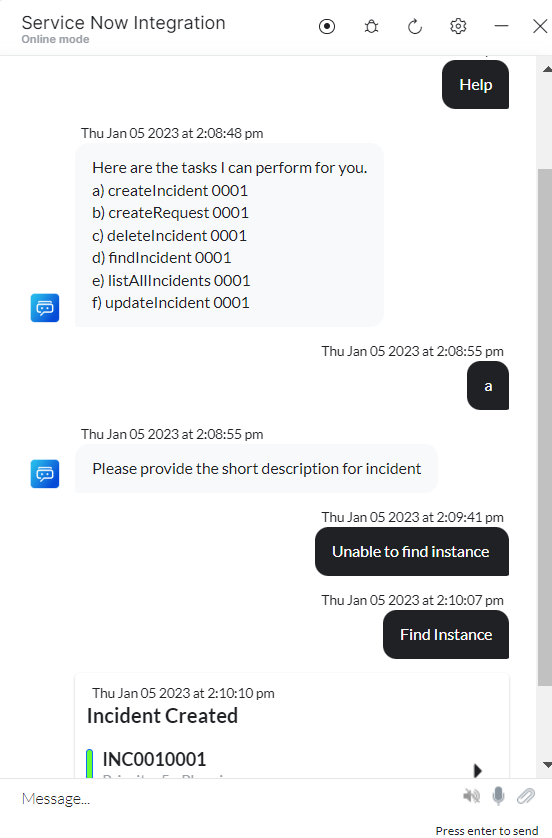 4. The new incident is created in ServiceNow:
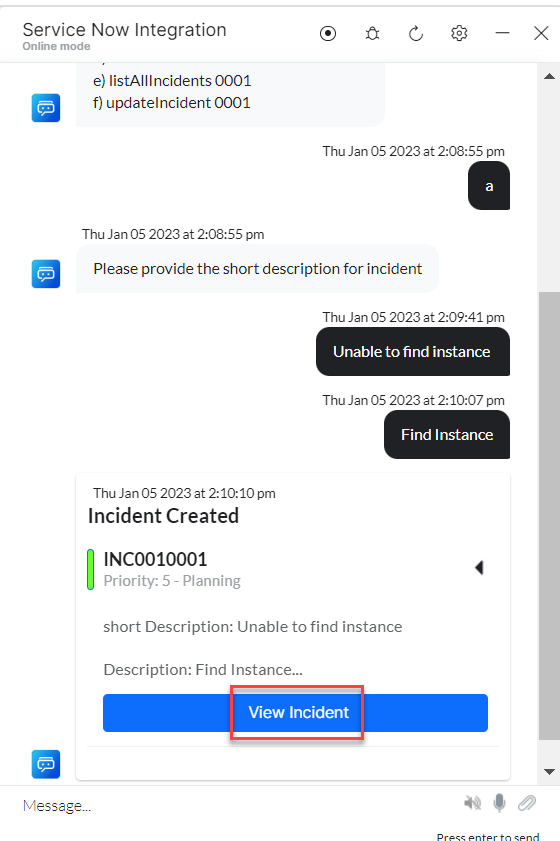 5. Click **View Incident** to see incident details:
 ***
### Update an Incident
1. Install the template from [ServiceNow Action Templates](/ai-for-service/integrations/actions/configuring-the-servicenow-action#step-2-install-the-servicenow-action-templates).
2. The **Update an Incident** dialog task is added with the following components:
***
### Update an Incident
1. Install the template from [ServiceNow Action Templates](/ai-for-service/integrations/actions/configuring-the-servicenow-action#step-2-install-the-servicenow-action-templates).
2. The **Update an Incident** dialog task is added with the following components:
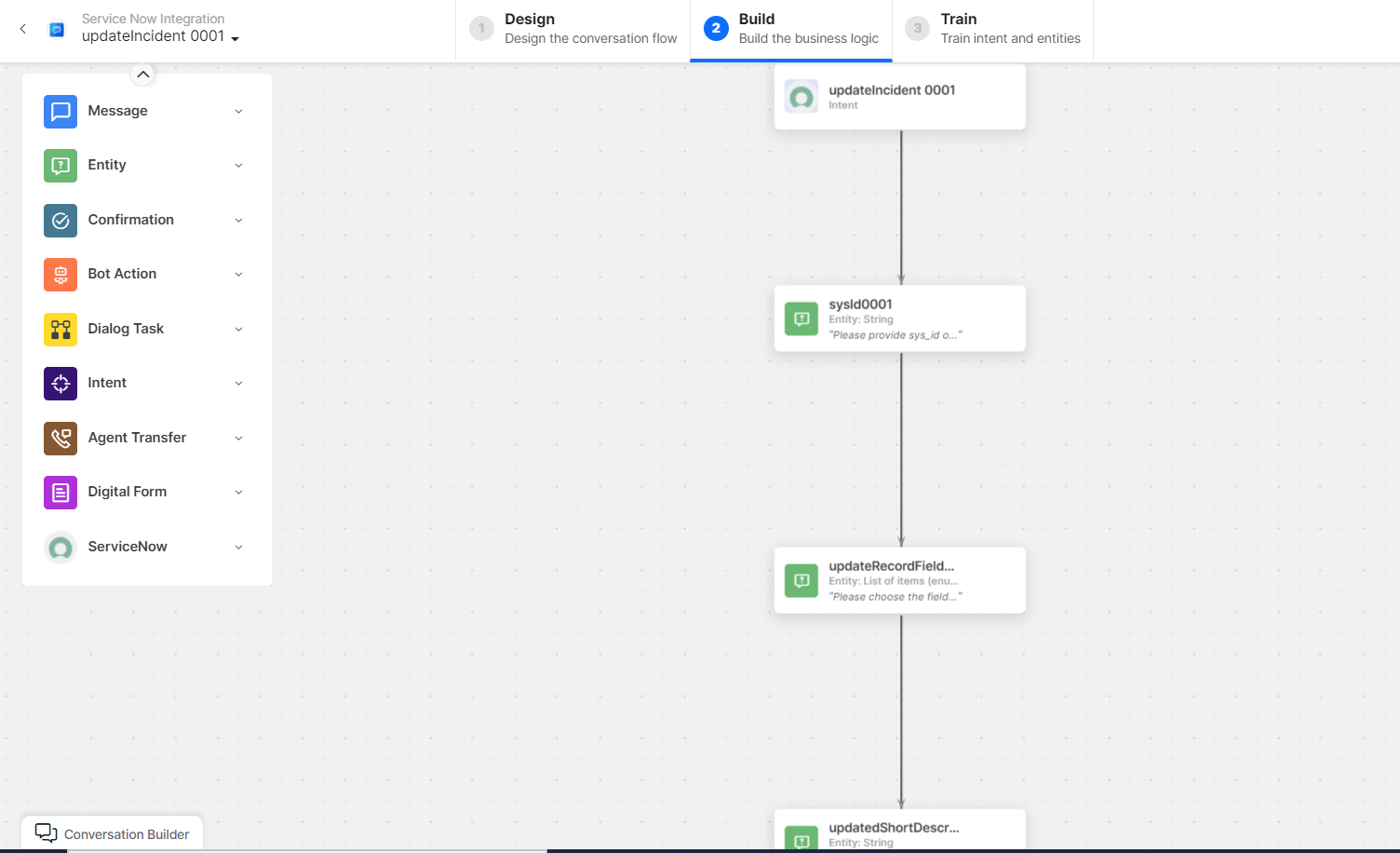 * **Update Incident** - User intent to update an incident.
* **SysId**, **updateRecordFields**, **updatedShortDescription**, **updatedDescription** - Entity nodes for update details.
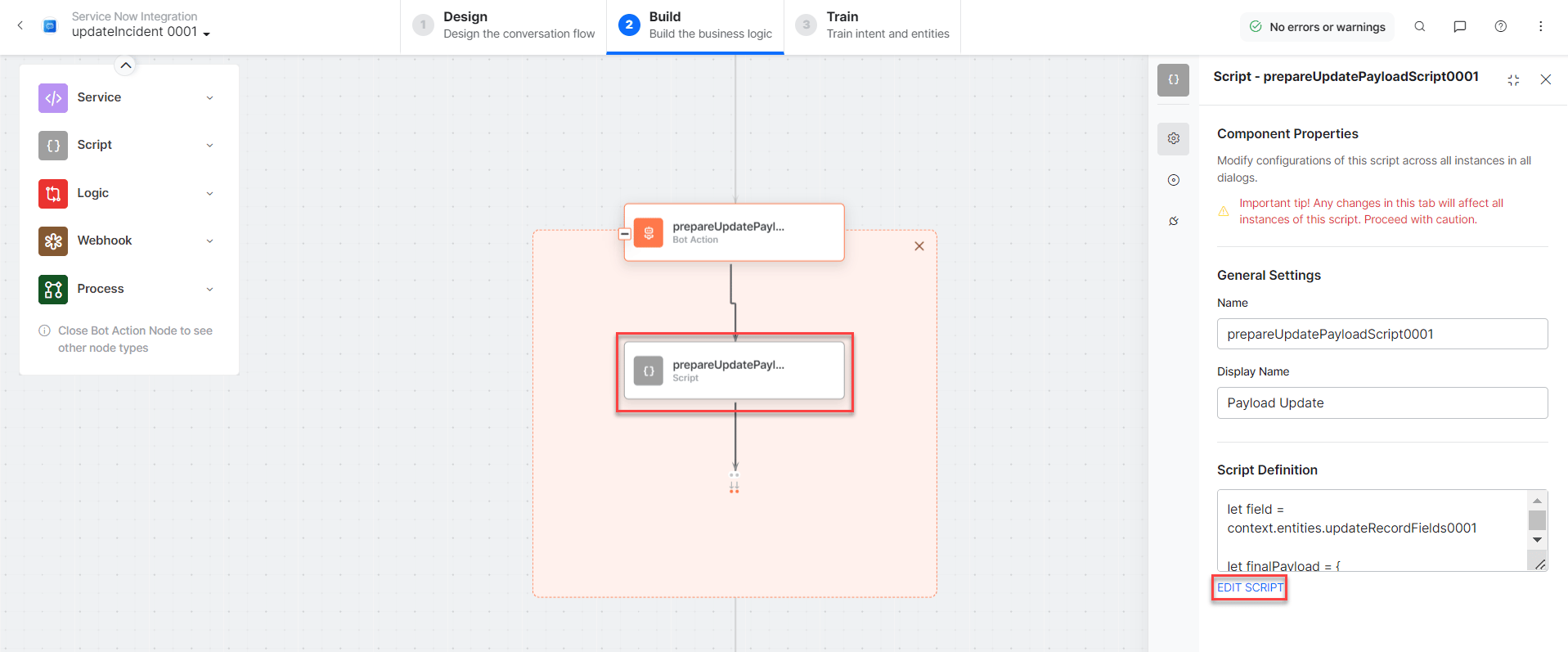
* **prepareUpdatePayloadScript** - Bot action script to update an incident.
* **Update Incident** - User intent to update an incident.
* **SysId**, **updateRecordFields**, **updatedShortDescription**, **updatedDescription** - Entity nodes for update details.
* **prepareUpdatePayloadScript** - Bot action script to update an incident.
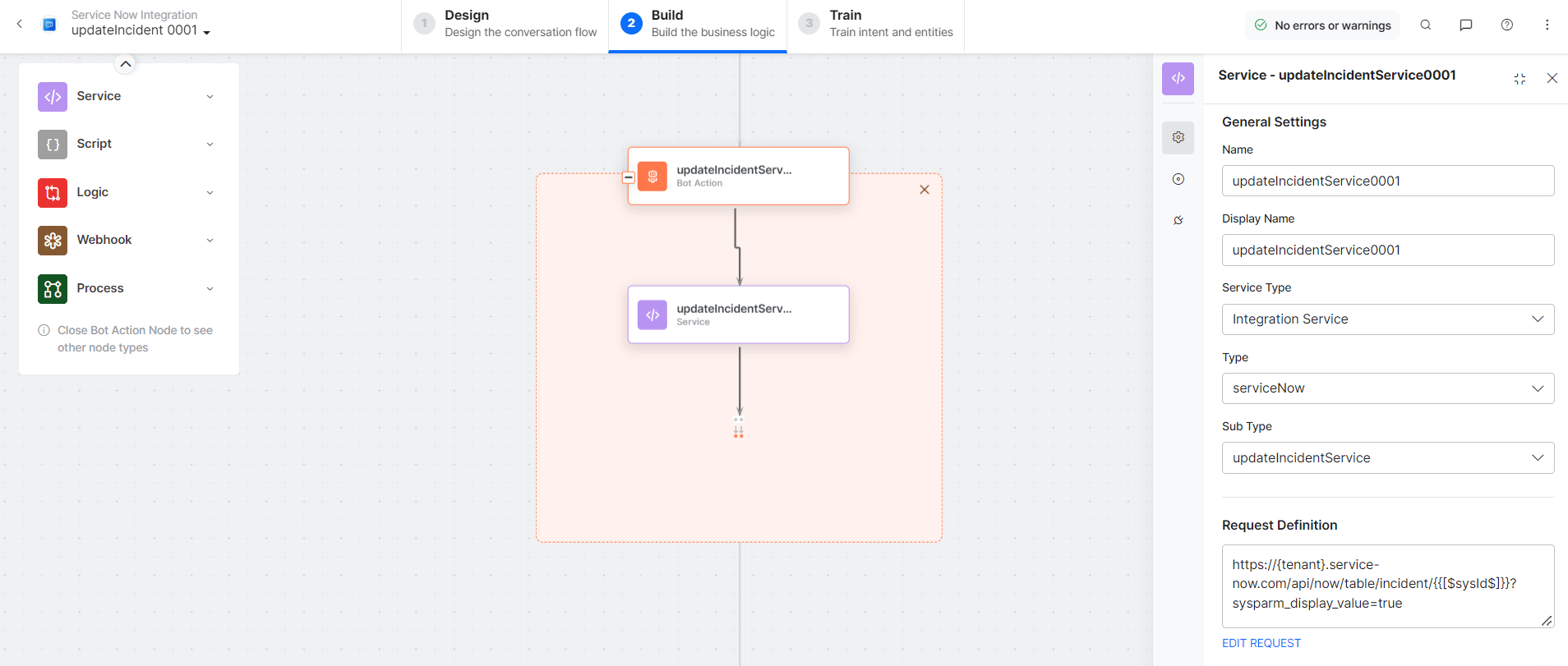
 * **updateIncidentService** - Bot action service to update an incident.
 * **updateIncidentMessage** - Message node to display responses.
3. Click **Train**, then **Talk to Bot** to test:
* **updateIncidentMessage** - Message node to display responses.
3. Click **Train**, then **Talk to Bot** to test:
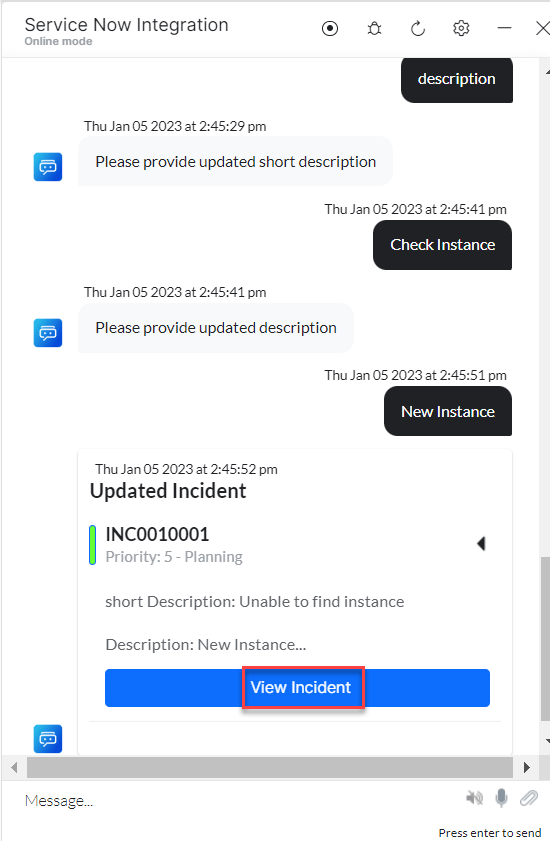
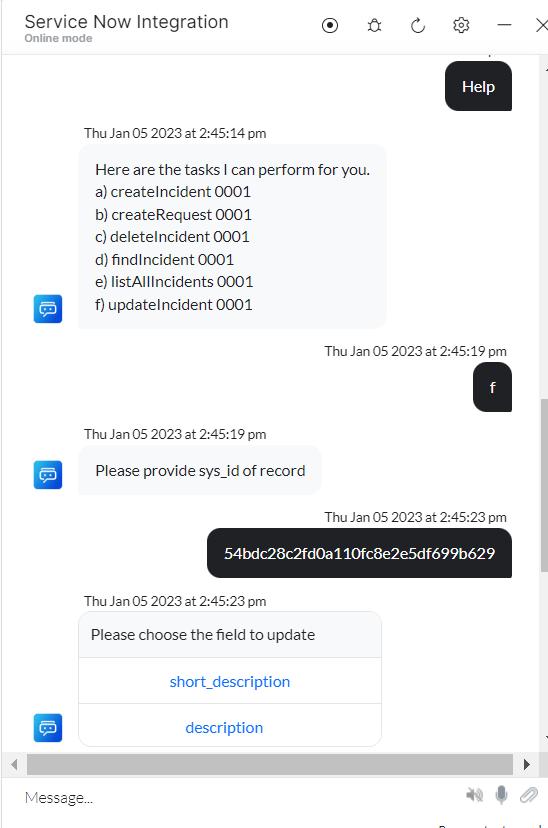 4. Enter all incident update details when prompted. The incident is updated in ServiceNow:
 ***
### List All Incidents
1. Install the template from [ServiceNow Action Templates](/ai-for-service/integrations/actions/configuring-the-servicenow-action#step-2-install-the-servicenow-action-templates).
2. The **List All Incidents** dialog task is added with the following components:
***
### List All Incidents
1. Install the template from [ServiceNow Action Templates](/ai-for-service/integrations/actions/configuring-the-servicenow-action#step-2-install-the-servicenow-action-templates).
2. The **List All Incidents** dialog task is added with the following components:
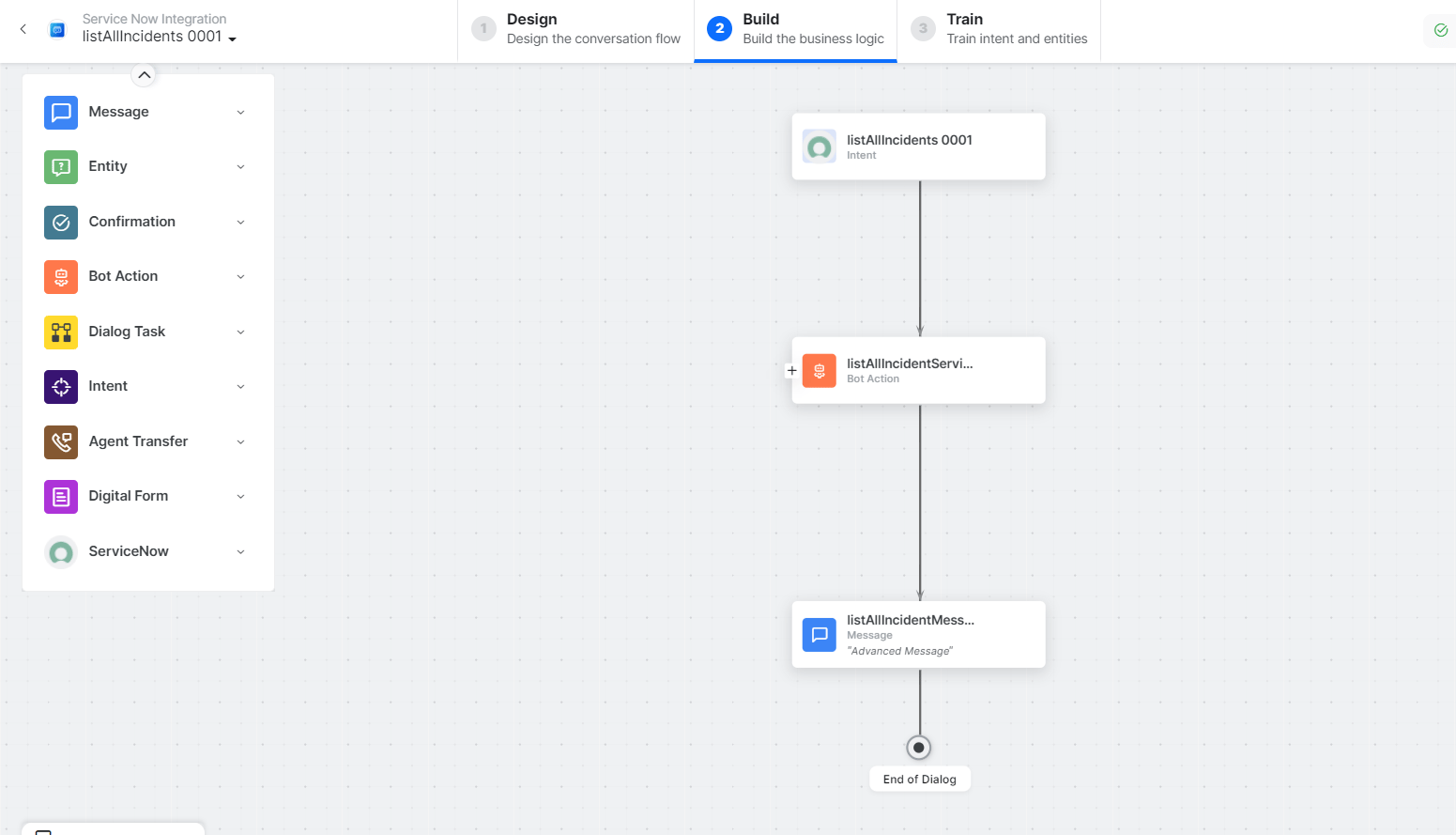 * **List All Incidents** - User intent to list all incidents.
* **listAllIncidentsService** - Bot action service to fetch all incidents. Click **+Add Response**:
* **List All Incidents** - User intent to list all incidents.
* **listAllIncidentsService** - Bot action service to fetch all incidents. Click **+Add Response**:
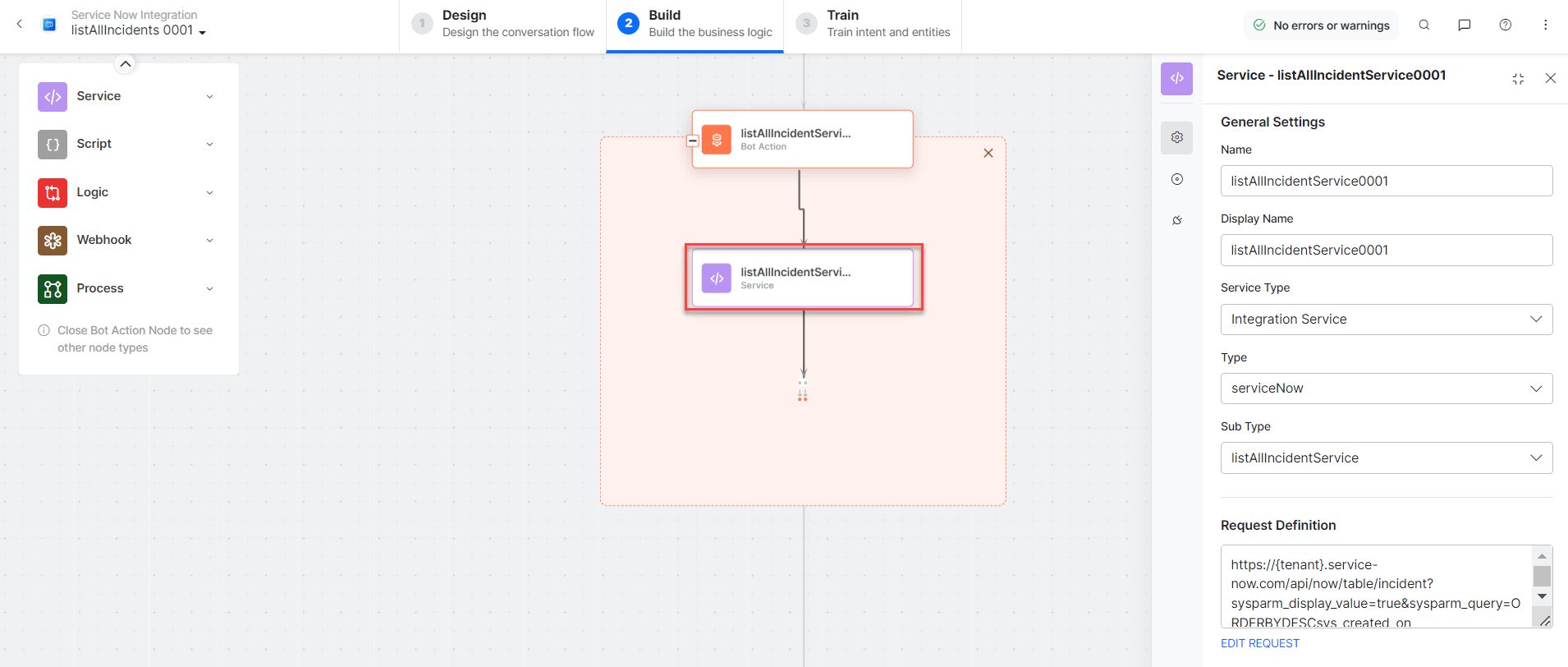 * **listAllIncidentsMessage** - Message node to display responses.
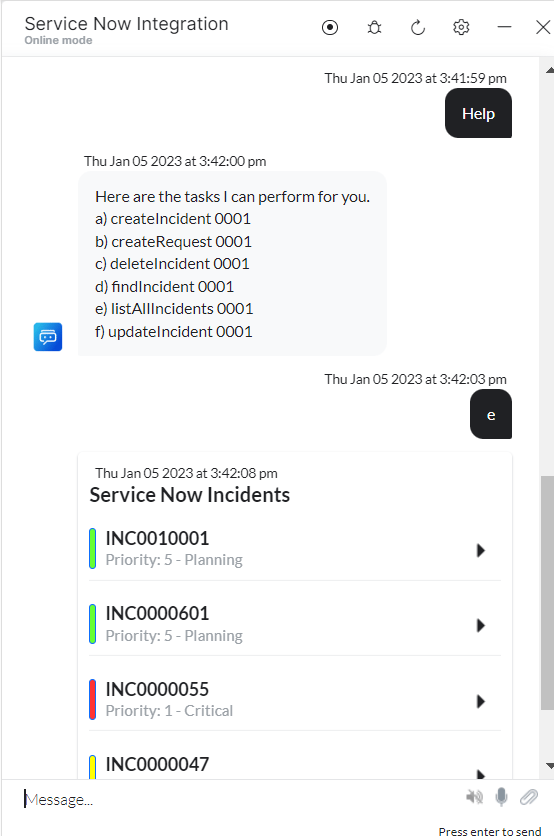
3. Click **Train**, then **Talk to Bot** to test:
* **listAllIncidentsMessage** - Message node to display responses.
3. Click **Train**, then **Talk to Bot** to test:
 ***
### Find an Incident
1. Install the template from [ServiceNow Action Templates](/ai-for-service/integrations/actions/configuring-the-servicenow-action#step-2-install-the-servicenow-action-templates).
2. The **Find an Incident** dialog task is added with the following components:
***
### Find an Incident
1. Install the template from [ServiceNow Action Templates](/ai-for-service/integrations/actions/configuring-the-servicenow-action#step-2-install-the-servicenow-action-templates).
2. The **Find an Incident** dialog task is added with the following components:
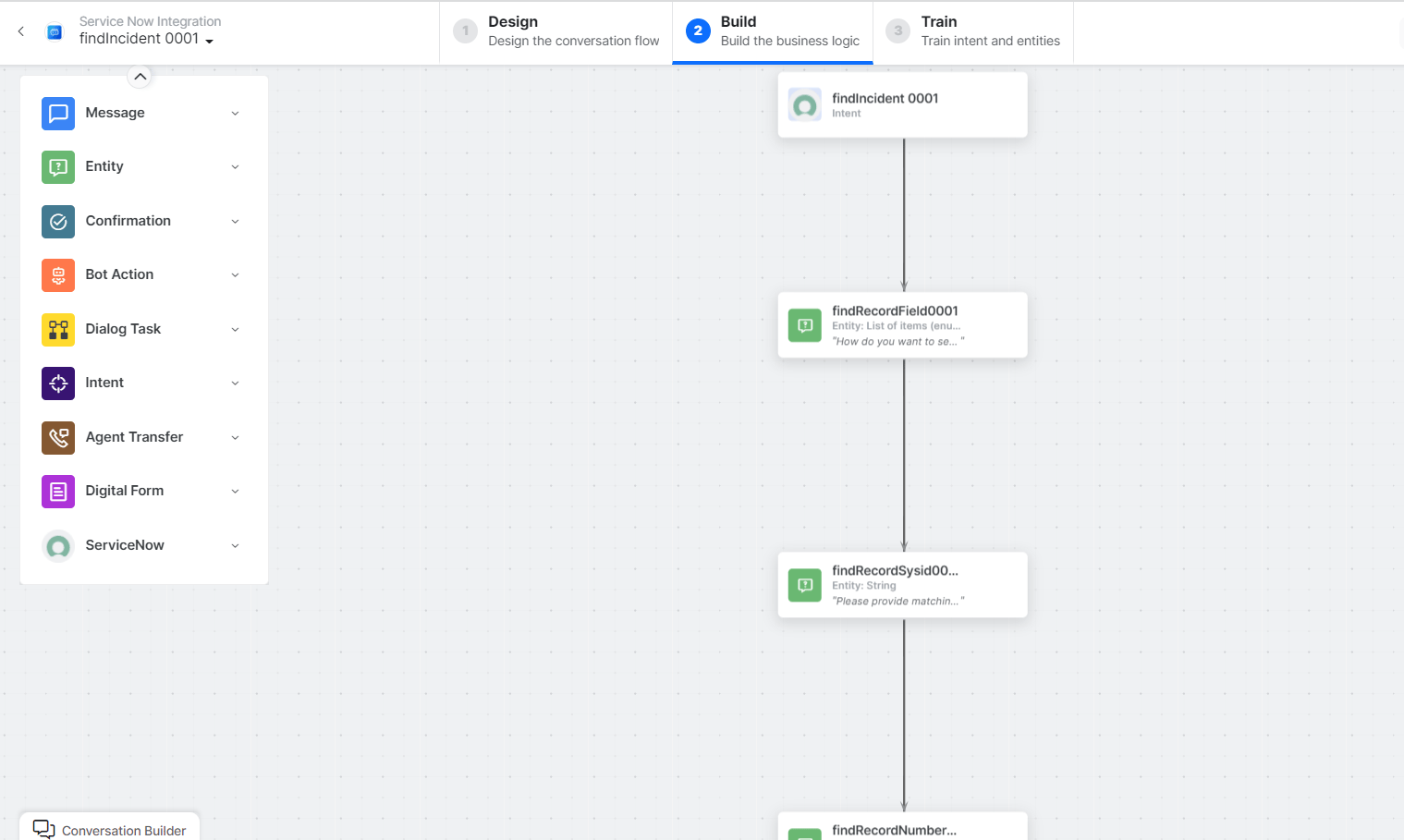 * **Find Incident** - User intent to find an incident.
* **findRecordFields**, **findRecordSysId**, **findRecordNumber**, **findShortDescription**, **findDescription** - Entity nodes for finding an incident.
* **prepareSearchingFieldScript** - Bot action script to prepare search fields.
* **Find Incident** - User intent to find an incident.
* **findRecordFields**, **findRecordSysId**, **findRecordNumber**, **findShortDescription**, **findDescription** - Entity nodes for finding an incident.
* **prepareSearchingFieldScript** - Bot action script to prepare search fields.
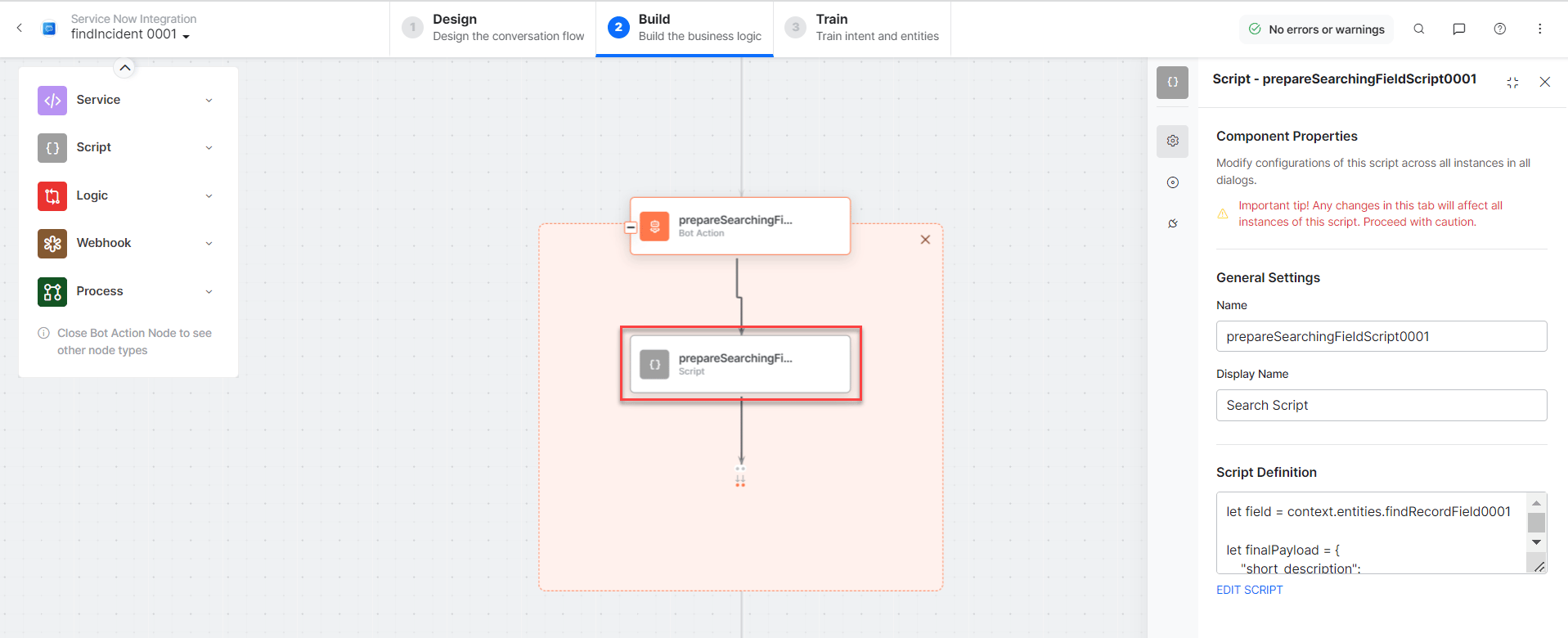 * **findSearchingFieldScript** - Bot action service to search incidents.
* **findIncidentMessage** - Message node to display responses.
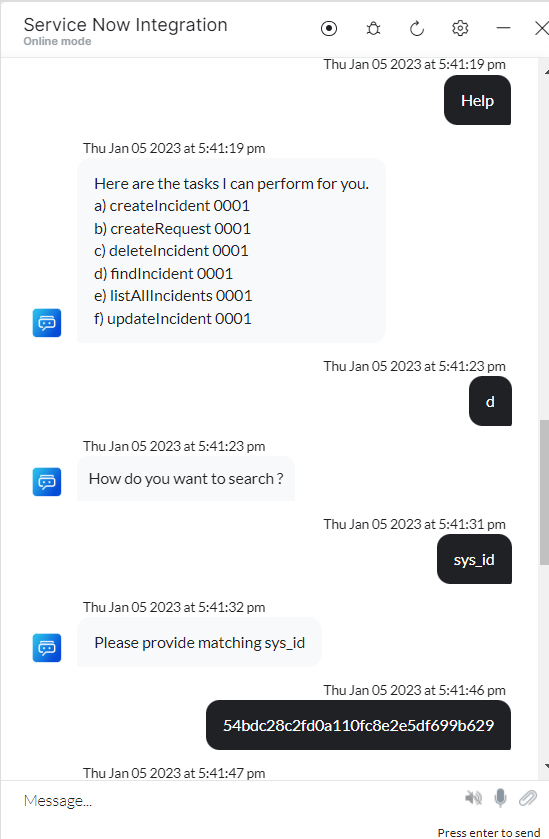
3. Click **Train**, then **Talk to Bot** to test:
* **findSearchingFieldScript** - Bot action service to search incidents.
* **findIncidentMessage** - Message node to display responses.
3. Click **Train**, then **Talk to Bot** to test:
 ***
### Delete an Incident
1. Install the template from [ServiceNow Action Templates](/ai-for-service/integrations/actions/configuring-the-servicenow-action#step-2-install-the-servicenow-action-templates).
2. The **Delete an Incident** dialog task is added with the following components:
***
### Delete an Incident
1. Install the template from [ServiceNow Action Templates](/ai-for-service/integrations/actions/configuring-the-servicenow-action#step-2-install-the-servicenow-action-templates).
2. The **Delete an Incident** dialog task is added with the following components:
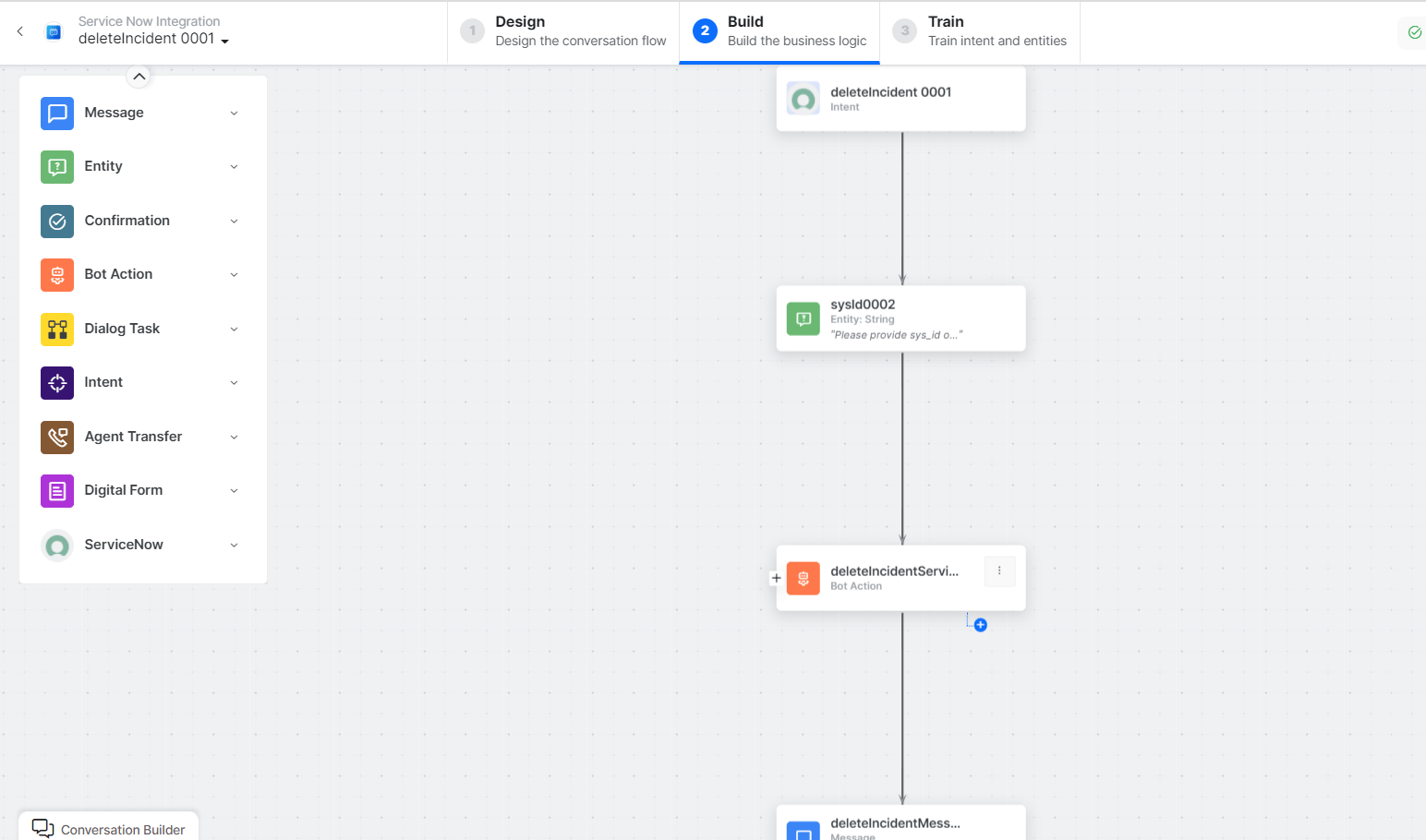 * **Delete Incident** - User intent to delete an incident.
* **SysId** - Entity node for the incident ID.
* **deleteIncidentService** - Bot action service to delete an incident.
* **deleteIncidentMessage** - Message node to display responses.
3. Click **Train**, then **Talk to Bot** to test:
* **Delete Incident** - User intent to delete an incident.
* **SysId** - Entity node for the incident ID.
* **deleteIncidentService** - Bot action service to delete an incident.
* **deleteIncidentMessage** - Message node to display responses.
3. Click **Train**, then **Talk to Bot** to test:
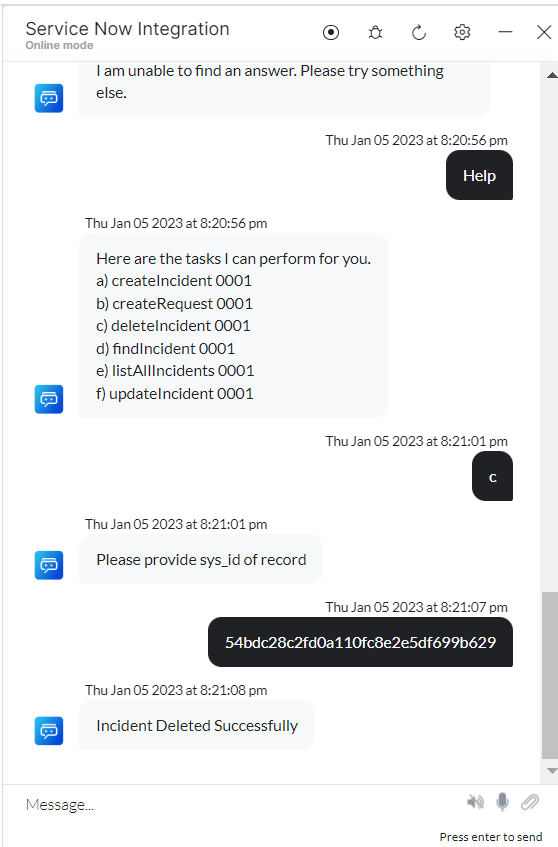 If you enter an incorrect ID, the **404 - No Record Found** error message is displayed.
***
### Create a Request
1. Install the template from [ServiceNow Action Templates](/ai-for-service/integrations/actions/configuring-the-servicenow-action#step-2-install-the-servicenow-action-templates).
2. The **Create Request** dialog task is added with the following components:
If you enter an incorrect ID, the **404 - No Record Found** error message is displayed.
***
### Create a Request
1. Install the template from [ServiceNow Action Templates](/ai-for-service/integrations/actions/configuring-the-servicenow-action#step-2-install-the-servicenow-action-templates).
2. The **Create Request** dialog task is added with the following components:
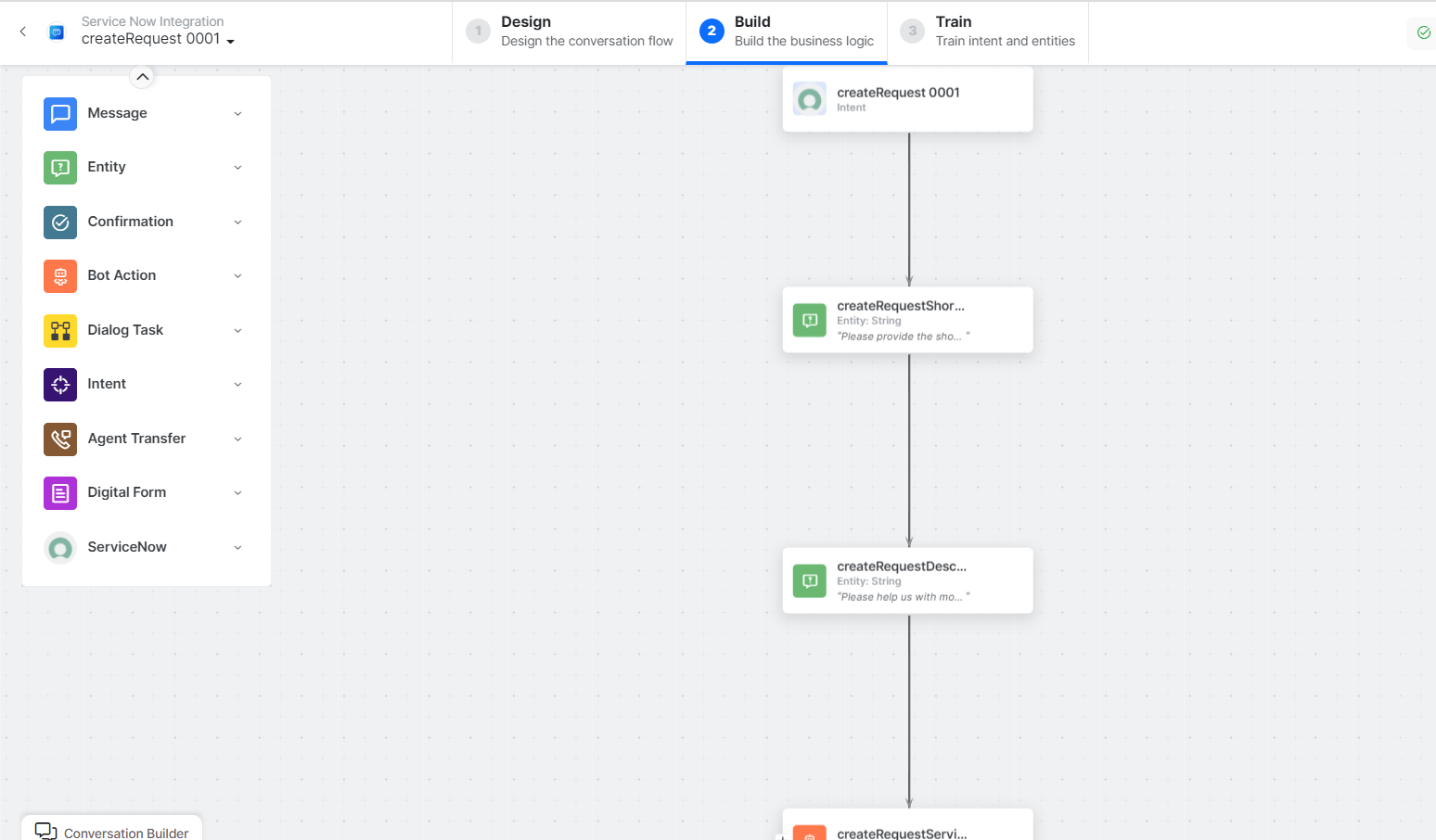 * **Create Request** - User intent to create a request.
* **createRequestShortDescription** and **createRequestDescription** - Entity nodes for request details.
* **createRequestService** - Bot action service to create a request. Click **Edit Request**:
* **Create Request** - User intent to create a request.
* **createRequestShortDescription** and **createRequestDescription** - Entity nodes for request details.
* **createRequestService** - Bot action service to create a request. Click **Edit Request**:
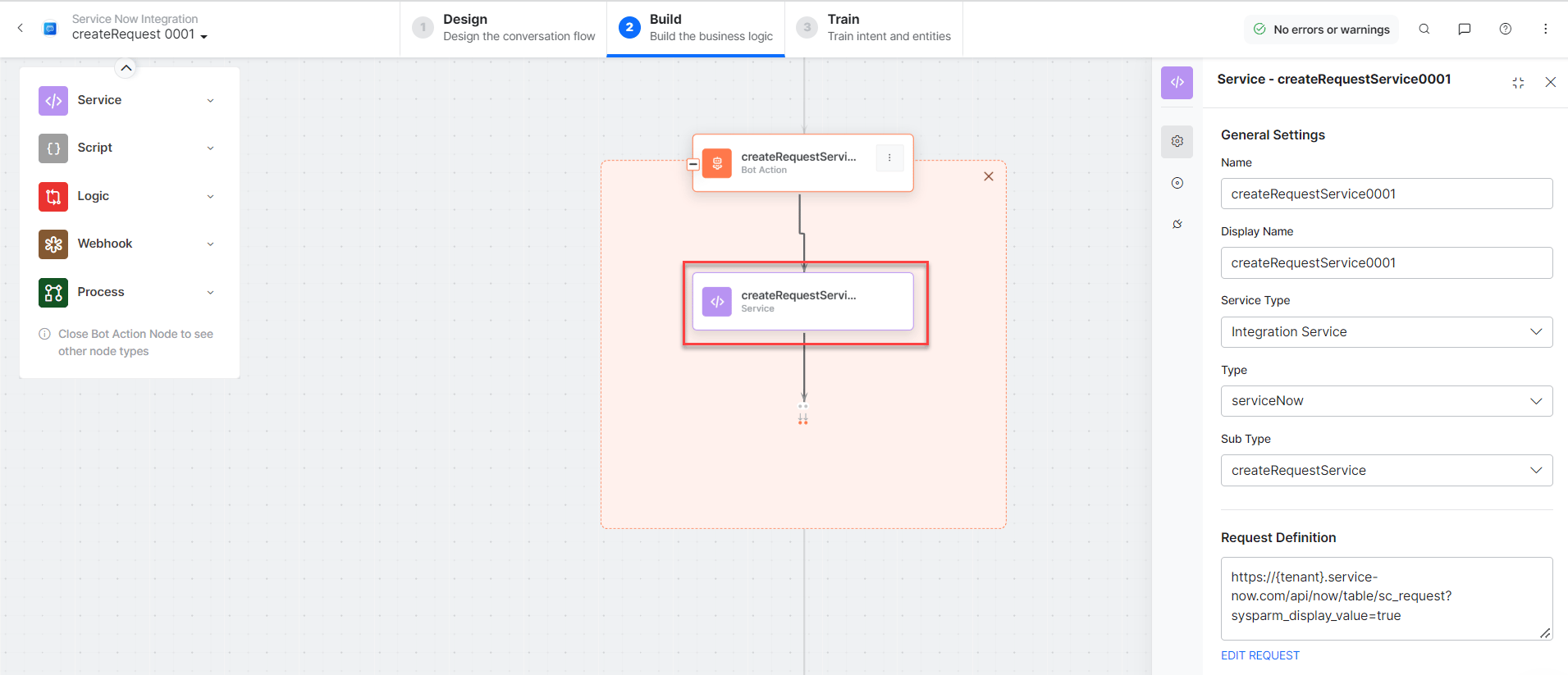 **Sample Request:**
```json theme={null}
{
"short_description": "Need a new device",
"description": "old one not working"
}
```
* **createRequestMessage** - Message node to display responses.
3. Click **Train**, then **Talk to Bot** to test:
**Sample Request:**
```json theme={null}
{
"short_description": "Need a new device",
"description": "old one not working"
}
```
* **createRequestMessage** - Message node to display responses.
3. Click **Train**, then **Talk to Bot** to test:
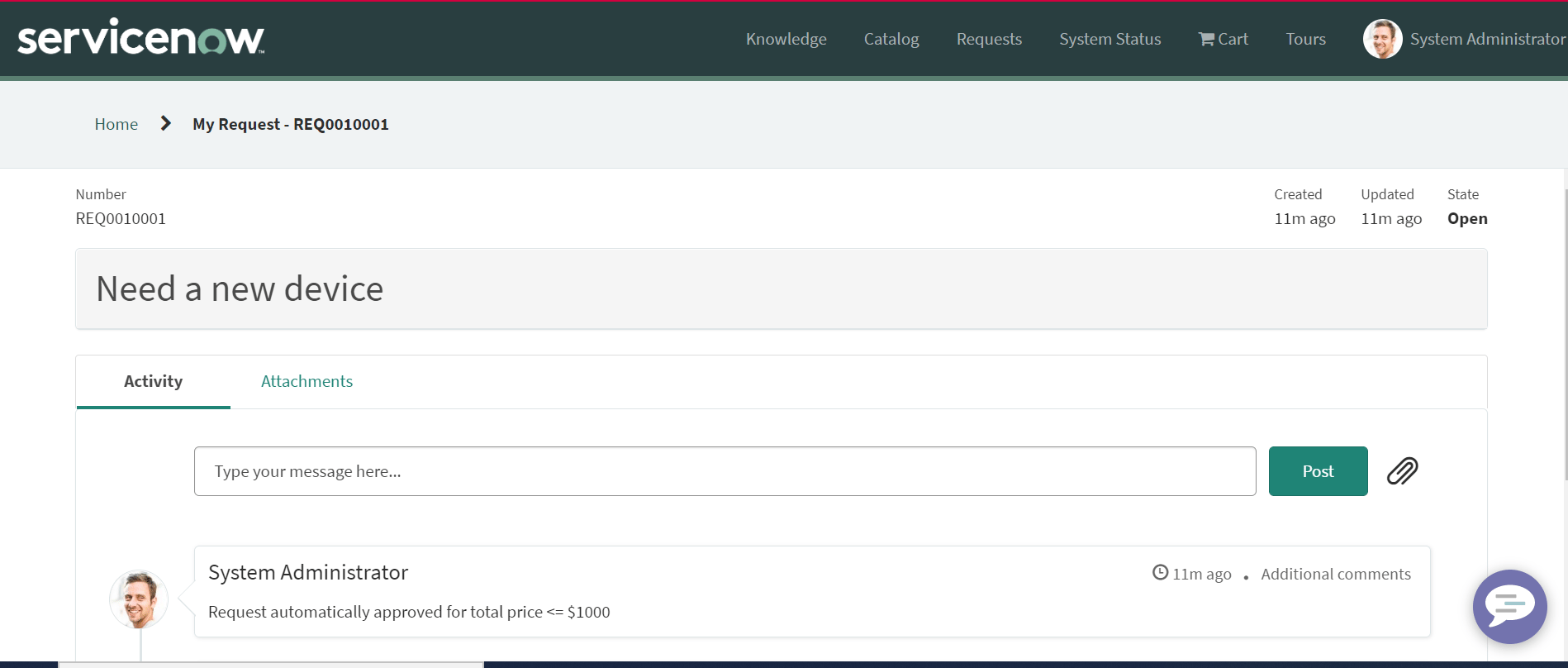
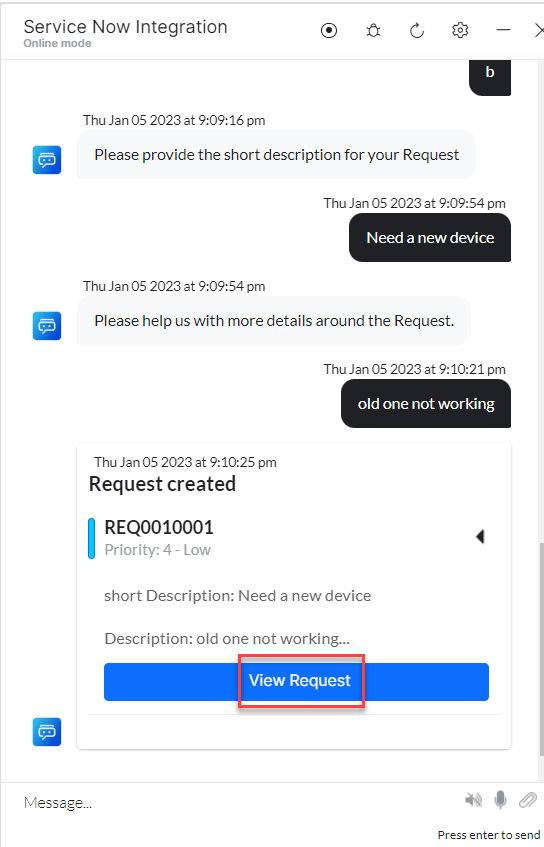 4. Click **View Request** to see request details in ServiceNow:
 ***
### Update a Request
1. Install the template from [ServiceNow Action Templates](/ai-for-service/integrations/actions/configuring-the-servicenow-action#step-2-install-the-servicenow-action-templates).
2. The **Update a Request** dialog task is added with the following components:
***
### Update a Request
1. Install the template from [ServiceNow Action Templates](/ai-for-service/integrations/actions/configuring-the-servicenow-action#step-2-install-the-servicenow-action-templates).
2. The **Update a Request** dialog task is added with the following components:
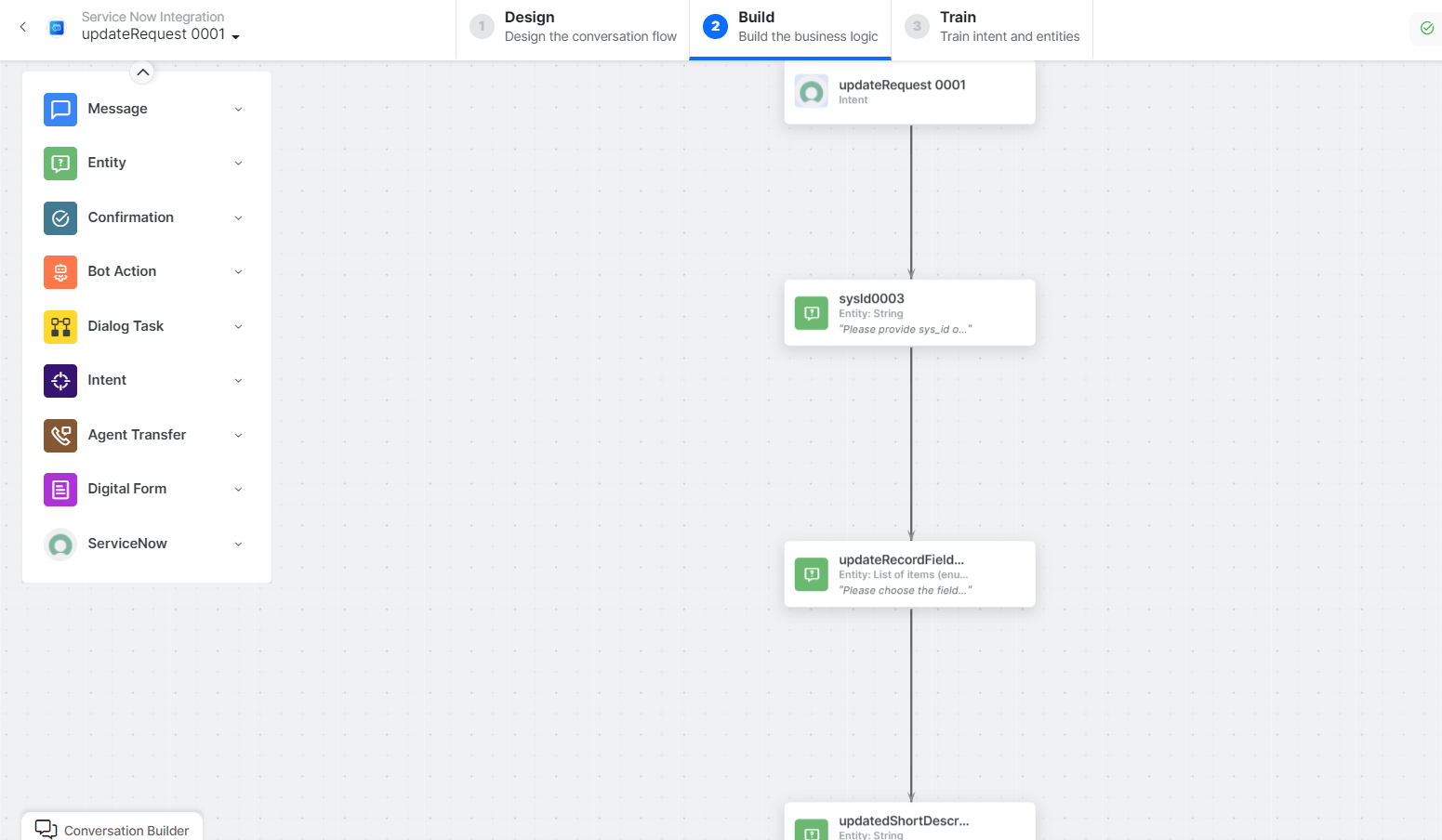 * **Update Request** - User intent to update a request.
* **SysId**, **updateRecordFields**, **updatedShortDescription**, **updatedDescription** - Entity nodes for update details.
* **prepareUpdatePayloadScript** - Bot action script to update a request.
* **updateRequestService** - Bot action service to update a request.
* **Update Request** - User intent to update a request.
* **SysId**, **updateRecordFields**, **updatedShortDescription**, **updatedDescription** - Entity nodes for update details.
* **prepareUpdatePayloadScript** - Bot action script to update a request.
* **updateRequestService** - Bot action service to update a request.
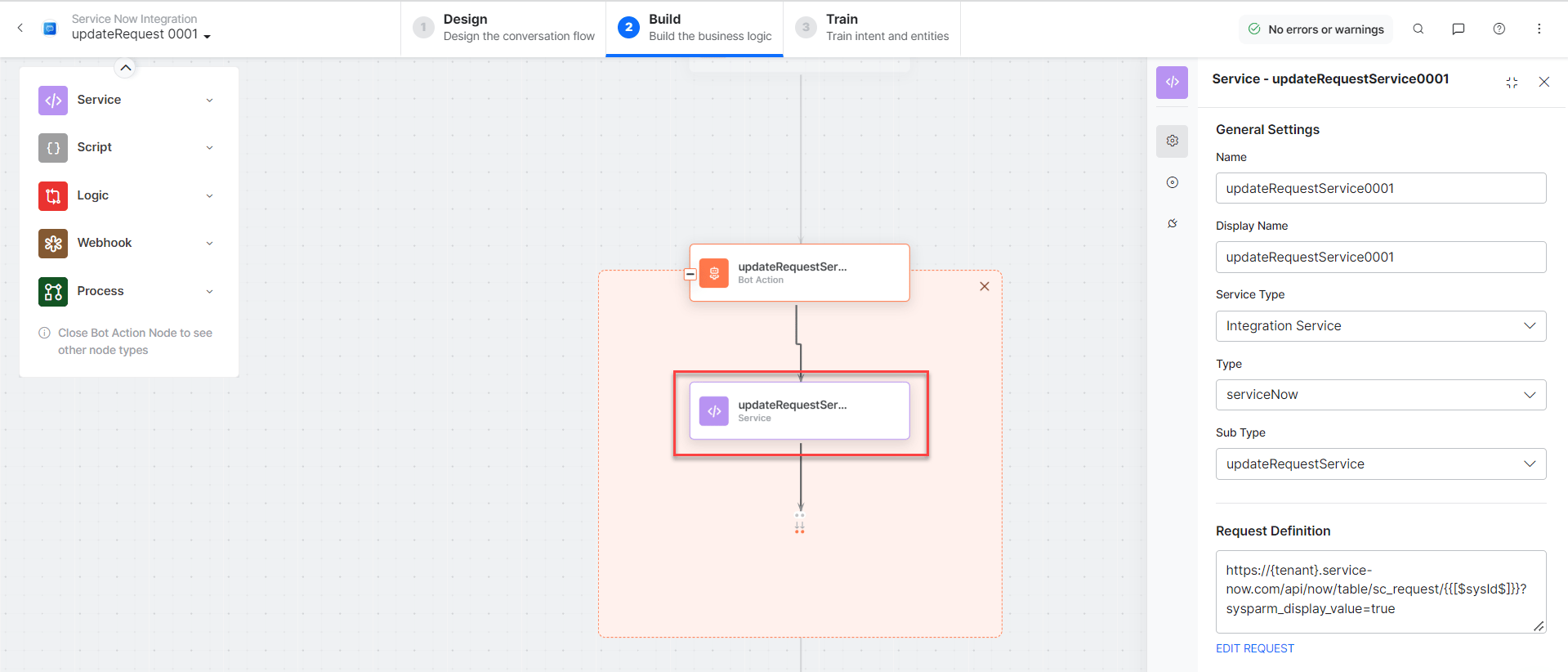 * **updateRequestMessage** - Message node to display responses.
3. Click **Talk to Bot** and follow the prompts to update a request.
***
### List All Requests
1. Install the template from [ServiceNow Action Templates](/ai-for-service/integrations/actions/configuring-the-servicenow-action#step-2-install-the-servicenow-action-templates).
2. The **List All Requests** dialog task is added with the following components:
* **updateRequestMessage** - Message node to display responses.
3. Click **Talk to Bot** and follow the prompts to update a request.
***
### List All Requests
1. Install the template from [ServiceNow Action Templates](/ai-for-service/integrations/actions/configuring-the-servicenow-action#step-2-install-the-servicenow-action-templates).
2. The **List All Requests** dialog task is added with the following components:
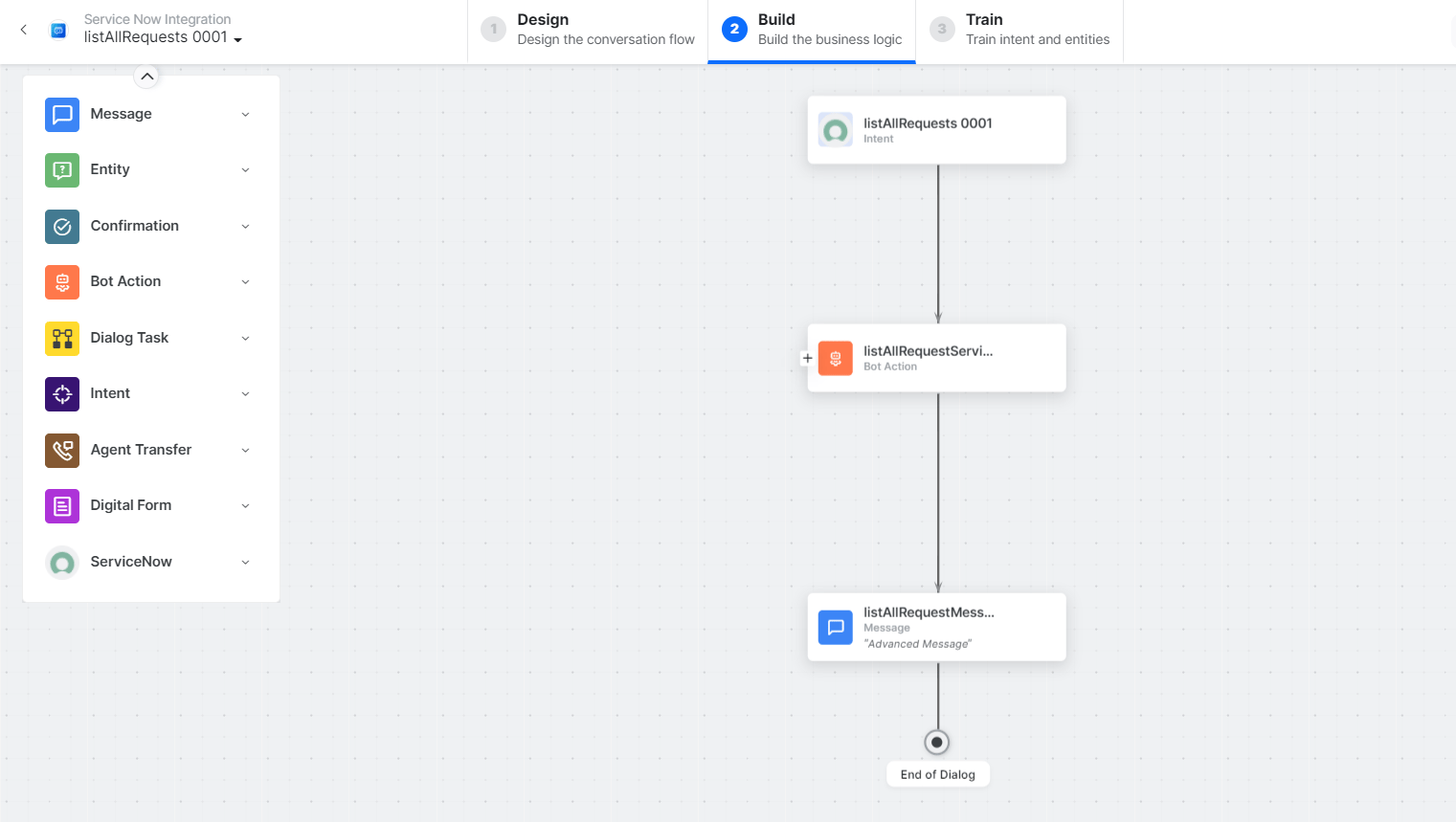 * **List All Requests** - User intent to list all requests.
* **listAllRequestsService** - Bot action service to fetch all requests.
* **List All Requests** - User intent to list all requests.
* **listAllRequestsService** - Bot action service to fetch all requests.
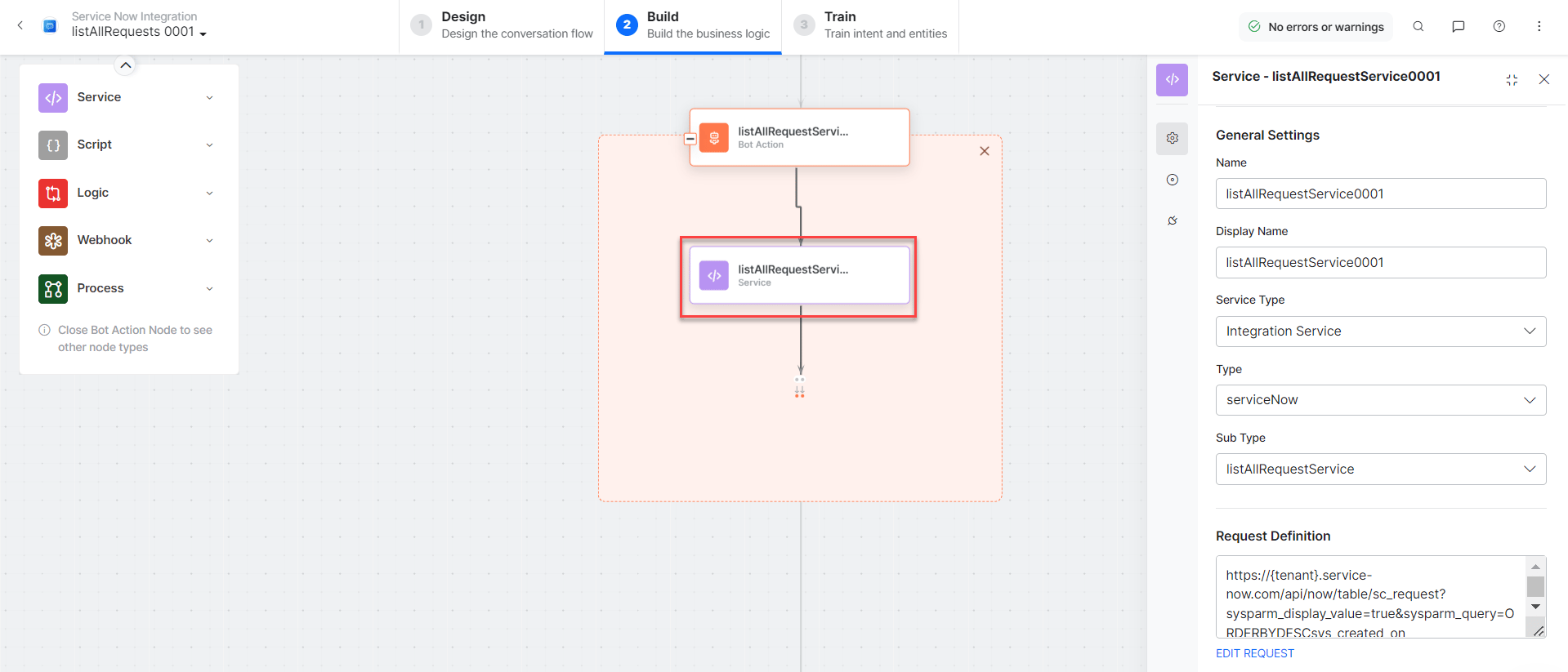 * **listAllRequestsMessage** - Message node to display responses.
3. Click **Talk to Bot** and follow the prompts to view all requests.
***
### Find a Request
1. Install the template from [ServiceNow Action Templates](/ai-for-service/integrations/actions/configuring-the-servicenow-action#step-2-install-the-servicenow-action-templates).
2. The **Find a Request** dialog task is added with the following components:
* **listAllRequestsMessage** - Message node to display responses.
3. Click **Talk to Bot** and follow the prompts to view all requests.
***
### Find a Request
1. Install the template from [ServiceNow Action Templates](/ai-for-service/integrations/actions/configuring-the-servicenow-action#step-2-install-the-servicenow-action-templates).
2. The **Find a Request** dialog task is added with the following components:
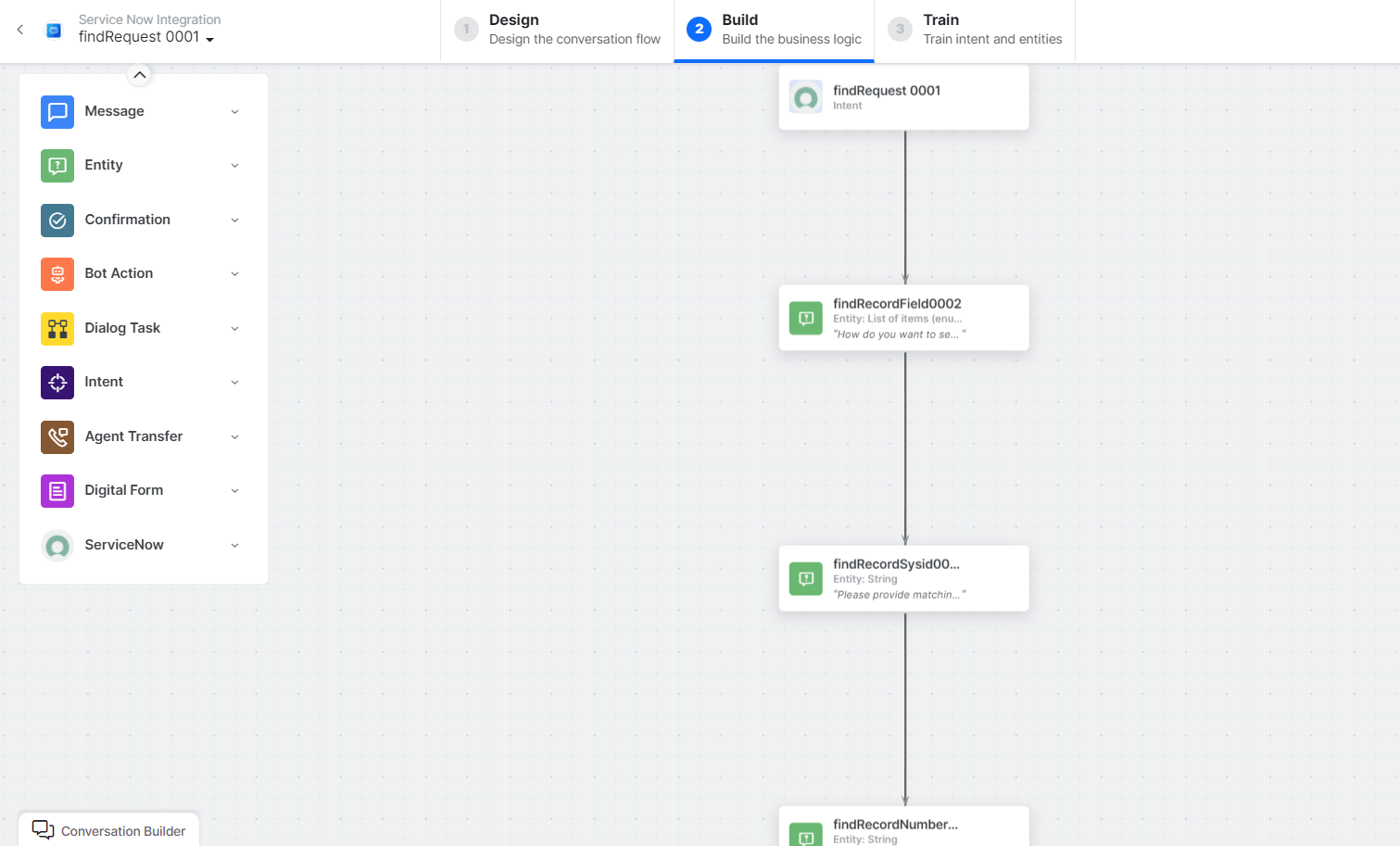 * **Find Request** - User intent to find a request.
* **findRecordFields**, **findRecordSysId**, **findRecordNumber**, **findShortDescription**, **findDescription** - Entity nodes for finding a request.
* **prepareSearchingFieldScript** - Bot action script to prepare search fields.
* **findRequestService** - Bot action service to search requests.
* **Find Request** - User intent to find a request.
* **findRecordFields**, **findRecordSysId**, **findRecordNumber**, **findShortDescription**, **findDescription** - Entity nodes for finding a request.
* **prepareSearchingFieldScript** - Bot action script to prepare search fields.
* **findRequestService** - Bot action service to search requests.
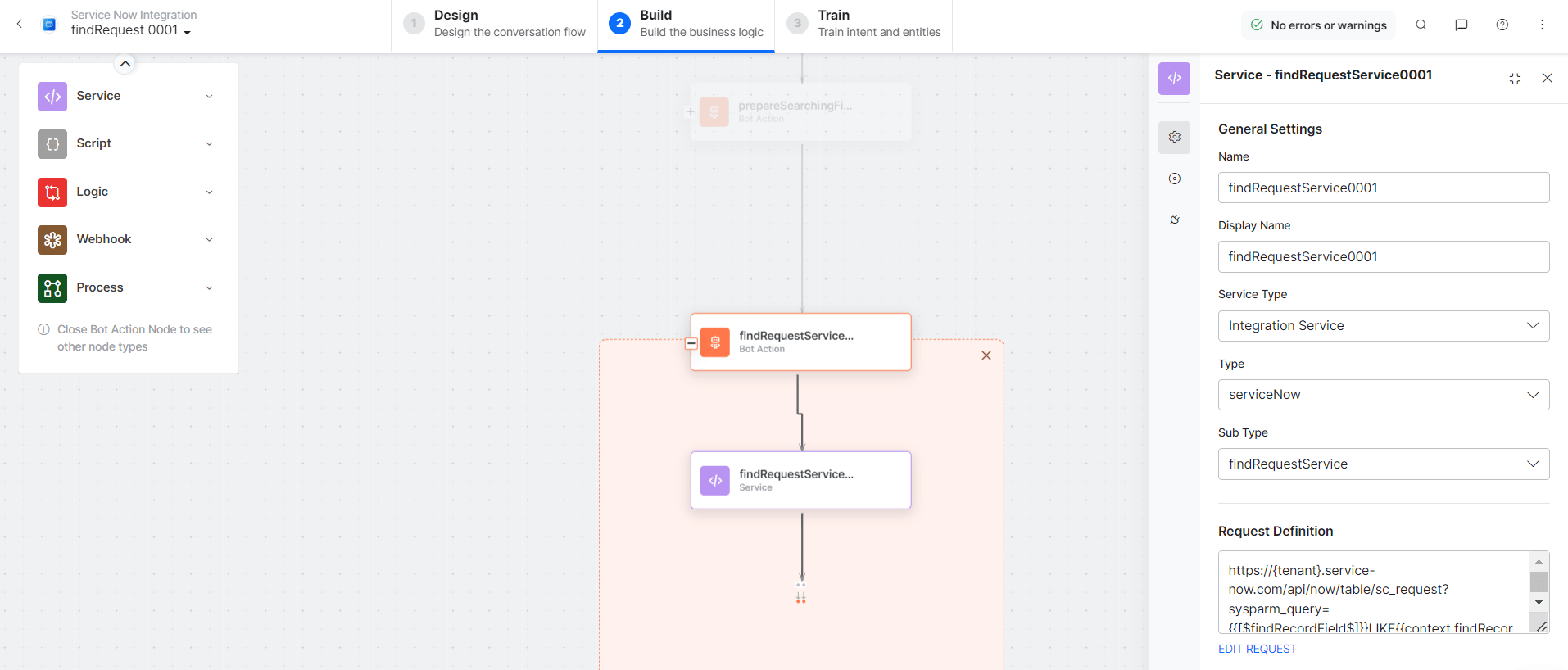 * **findRequestMessage** - Message node to display responses.
3. Click **Talk to Bot** and follow the prompts to find a request.
***
### Delete a Request
1. Install the template from [ServiceNow Action Templates](/ai-for-service/integrations/actions/configuring-the-servicenow-action#step-2-install-the-servicenow-action-templates).
2. The **Delete a Request** dialog task is added with the following components:
* **findRequestMessage** - Message node to display responses.
3. Click **Talk to Bot** and follow the prompts to find a request.
***
### Delete a Request
1. Install the template from [ServiceNow Action Templates](/ai-for-service/integrations/actions/configuring-the-servicenow-action#step-2-install-the-servicenow-action-templates).
2. The **Delete a Request** dialog task is added with the following components:
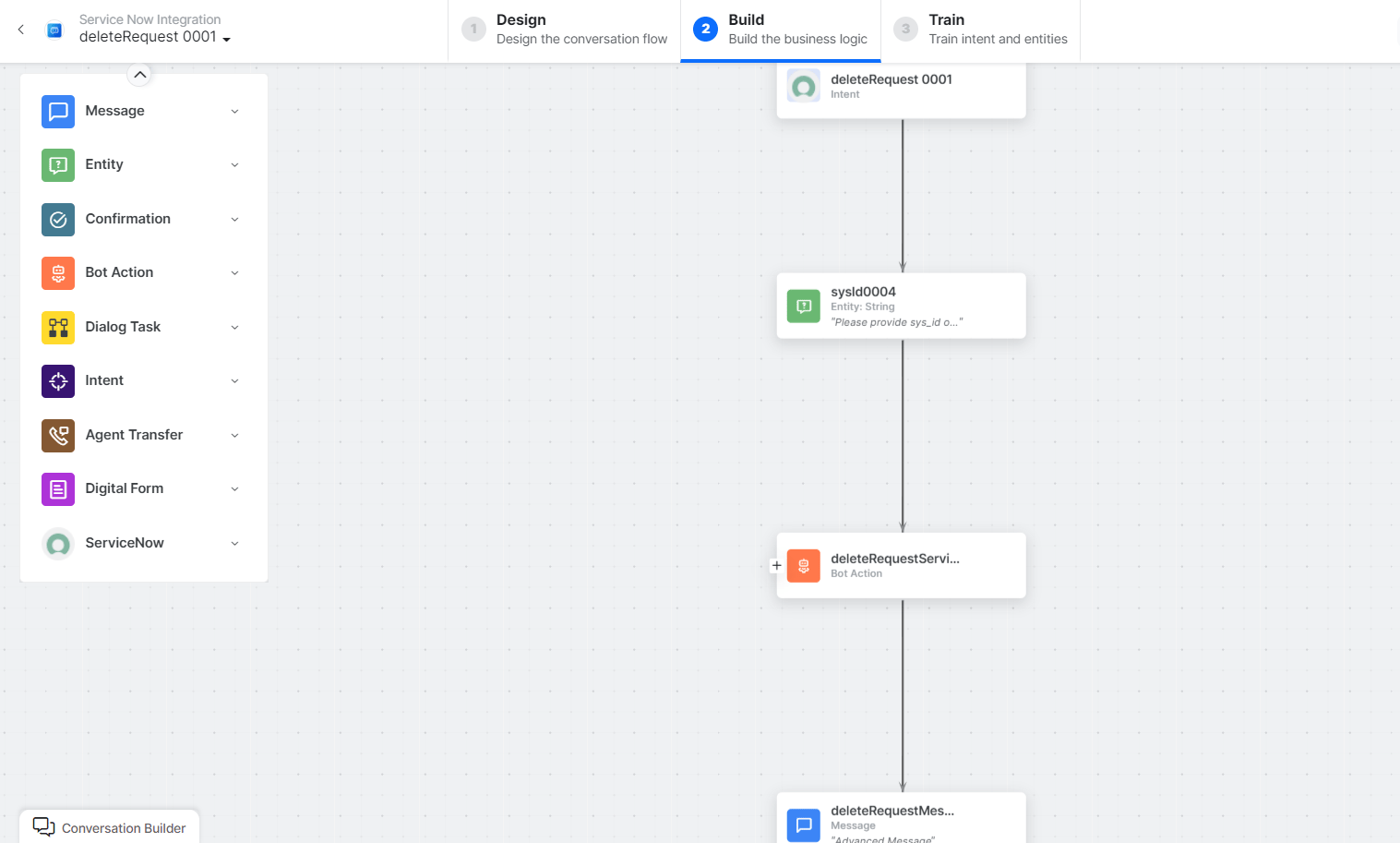 * **Delete Request** - User intent to delete a request.
* **SysId** - Entity node for the request ID.
* **deleteRequestService** - Bot action service to delete a request.
* **Delete Request** - User intent to delete a request.
* **SysId** - Entity node for the request ID.
* **deleteRequestService** - Bot action service to delete a request.
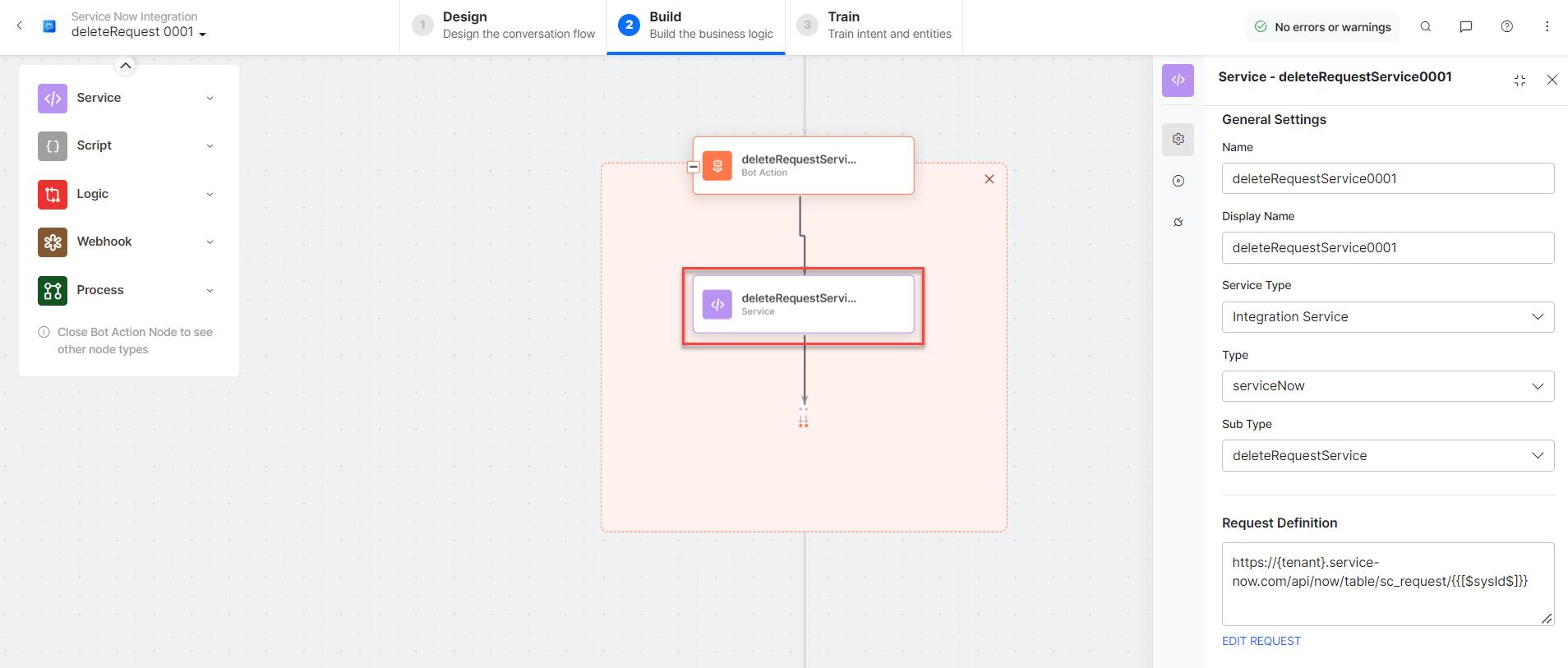 * **deleteRequestMessage** - Message node to display responses.
3. Click **Talk to Bot** and follow the prompts to delete a request.
If you enter an incorrect ID, the **404 - No Record Found** error message is displayed.
* **deleteRequestMessage** - Message node to display responses.
3. Click **Talk to Bot** and follow the prompts to delete a request.
If you enter an incorrect ID, the **404 - No Record Found** error message is displayed.