

Key Capabilities
Calibration Sessions provide the following capabilities.Prerequisites
Before creating a Calibration Session, confirm that you have the following:Access Calibration Sessions
Navigate to Quality AI > AutoQA > Calibration Sessions.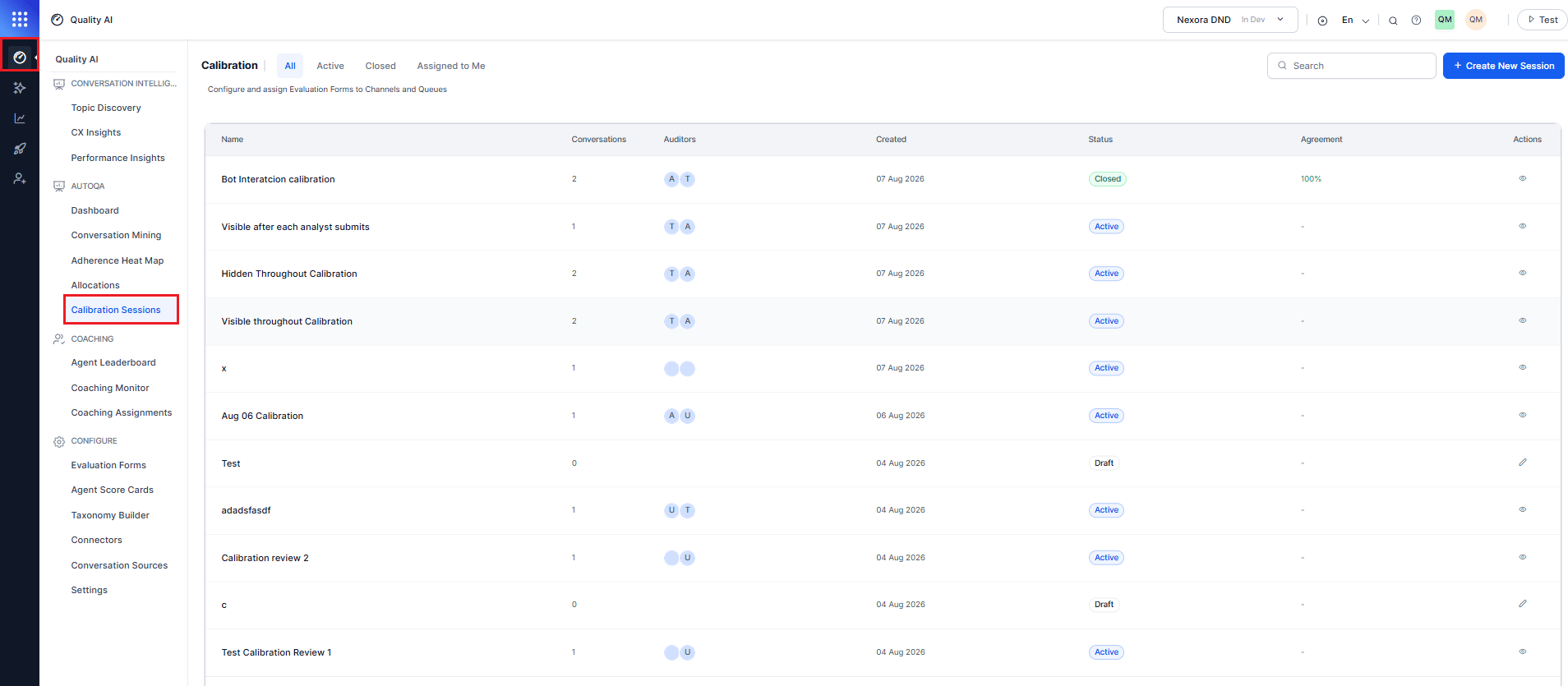
- Calibration Managers can access the management experience.
- Users with QA functionalities access+ can access the participant experience through Assigned to Me and Closed, even without Calibration Manager permission.
- A Calibration Manager who is also assigned as a participant retains management access and can additionally use Assigned to Me for personal participant assignments.
Navigation and Tab Visibility
The Calibration navigation item is available to users with QA functionalities access+, even without Calibration Manager permission. The following table defines tab and control visibility: Users without Calibration Manager permission have a participant-only experience consisting of Assigned to Me and Closed. They can’t access All, Active, management-scoped Closed content, or management actions.
Roles and Participation
Permissions determine which parts of Calibration a user can access. Session participation determines whether the user receives participant-specific scoring access.Calibration Sessions Landing Page
The Calibration Sessions landing page provides access to calibration sessions based on the user’s permissions and participation.- When no calibration sessions exist, All displays:
No Calibration Sessions — Create a session to start calibrating auditor scoring. - Use Search to find a session by name.
- Select + Create New Session to create a session when available.
- The page includes four tabs: All, Active, Closed, and Assigned to Me.
All
The All tab displays calibration sessions within the user’s available scope.Available Actions
- View: Opens session details or reports. Active and Closed sessions open in read-only or monitoring mode.
- Edit: Available for Draft sessions to continue configuration.
- Draft Actions: Cancel, Save as Draft, and Next are available during Draft configuration.
Active
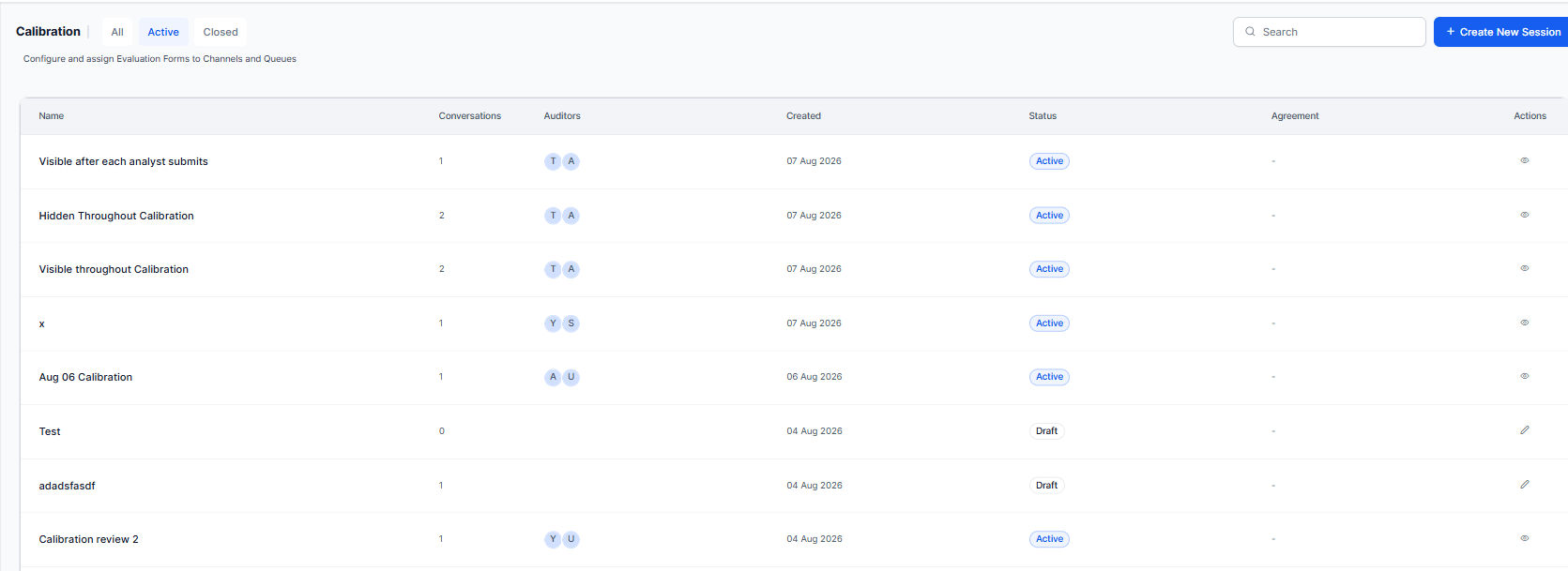
The Active tab is available to Calibration Managers and displays Active sessions within their management scope. Opening an Active session enables the manager to monitor participant progress, review scoring activity, access Debrief View, resolve scoring differences, and close the session. The Active tab lists calibration sessions that are in progress.Available Actions
- View: Opens the Active session in read-only or monitoring mode to review current calibration results and progress.
- Session Management Actions: Provides additional actions based on the user’s permissions.
Active Session View
When a user opens an Active session, the page displays:- Session Details: Session name, conversation count, auditor count, creation date, conducted-by user, and current status.
- Submission Progress: Overall submitted evaluations and each auditor’s scoring progress.
- Conversation-Level Summary: Conversation details, including:
- Handled By: Agent associated with the conversation.
- Flow or Queue: Flow or queue associated with the conversation.
- Conversation ID: Unique conversation identifier.
- Date: Conversation date.
- Duration: Conversation duration.
- AutoQA Score: Automated quality-assurance score.
Session Views
Closed
The Closed tab provides access to completed calibration sessions based on the user’s permissions.Participant Closed View
For participant-facing users, each session displays:
Select View Report to open the read-only Calibration Session Report.
When no applicable sessions exist, the tab displays:
No closed calibration sessions yet.
Assigned to Me
The Assigned to Me tab provides the participant entry point for calibration scoring. It’s available to Calibration Managers assigned as participants and to users with QA functionalities access+. For users without Calibration Manager permission, the tab remains visible even when no sessions are assigned. Assigned to Me displays only Active calibration sessions in which the logged-in user participates. It excludes Draft sessions, Closed sessions, and sessions the user manages without participating.Session Details
Each session displays:Available Actions
- View: Opens the participant’s assigned conversations.
- Score Now: Opens the first unscored conversation in Calibration Mode.
- Submitted: When the participant submits all assigned evaluations, Score Now changes to an inactive Submitted state.
Calibration View
The participant’s view displays: Handled By, Flows/Queues, Conversation ID, Duration, AutoQA Score, Status, and Score Now.Score Now
Each conversation card displays Score Now when the participant has conversations remaining to score. Selecting Score Now opens the corresponding conversation in Calibration Mode. After the participant submits all assigned evaluations, the action changes to an inactive Submitted state. Calibration Mode keeps participant scores hidden from other participants during scoring.
No calibration sessions are assigned to you yet.
Session Status
Calibration Session Workflows
Calibration Sessions help QA teams identify and resolve scoring differences by having multiple participants independently evaluate the same conversations. The experience supports two complementary workflows:Management Workflow
The Calibration Manager creates and configures the session, selects the conversations and evaluation form, and assigns participants. After participants submit their evaluations, the manager uses Debrief View to compare scores, review disagreements, establish Reference Scores, add Resolution Notes, and close the session.Participant Workflow
Participants with QA functionalities access+ access the Calibration experience through Assigned to Me and Closed. Assigned to Me provides access to their assigned Active sessions, where they score conversations in Calibration Mode, track personal progress, and submit evaluations. Calibration Mode keeps peer participant scores hidden during scoring. After the manager closes the session, participants can access Closed and select View Report to review the read-only Calibration Session Report. A Calibration Manager assigned as a participant can perform both workflows.Create a Calibration Session
Select + Create New Session to start a calibration exercise.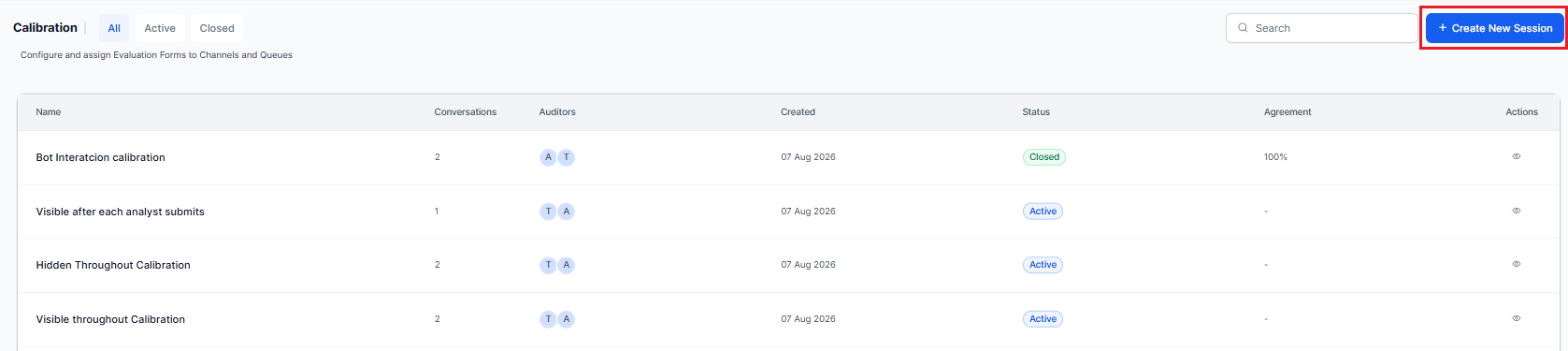
Step 1: General
Define the session configuration.- Enter a Name for the calibration exercise.
- Enter a Description with instructions or context for participating analysts.
- Turn on Analyst Justification > Mandatory when participants must add a comment before submitting a metric score.
- Select an AutoQA Visibility option.
- Select the Evaluation Form participants use to score the conversations.
- Select Next, or Save as Draft to continue later.
AutoQA Visibility
The Calibration Manager can control when analysts see AutoQA recommendations during calibration. The available options are: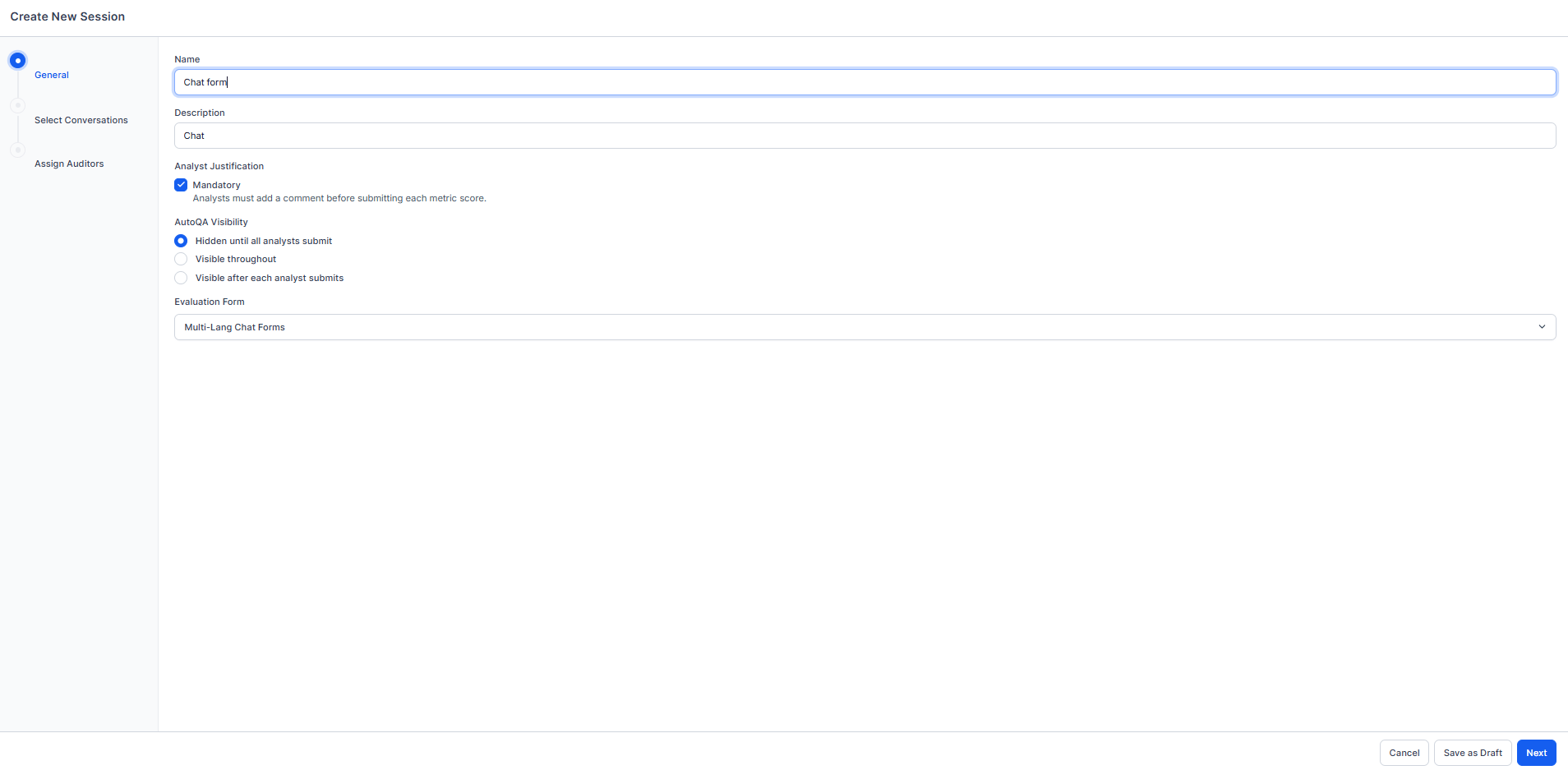
Step 2: Select Conversations
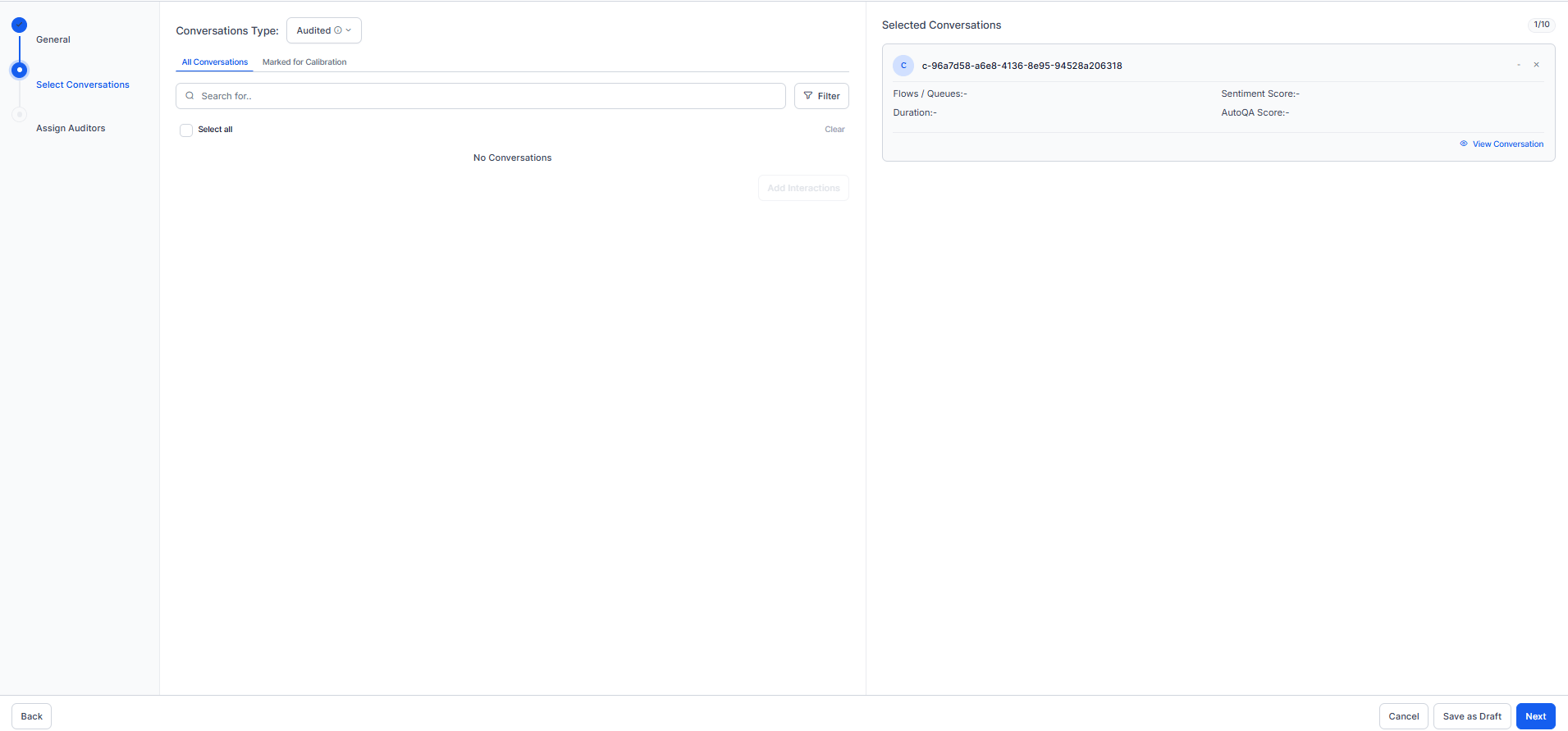
Select the conversations for participants to evaluate.- Select a Conversation Type to define which conversations are available to add.
- Audited: Displays audited conversations that are already audited.
- Unaudited: Displays conversations that aren’t audited.
- Select a conversation source tab:
- All Conversations: Conversations that match the selected filters.
- Marked for Calibration: Conversations that analysts or supervisors previously flagged using Mark for Calibration on the audit screen. See Mark a Conversation for Calibration.
- Use the Search field to find specific conversations.
- Select Filter to narrow the list of available conversations.
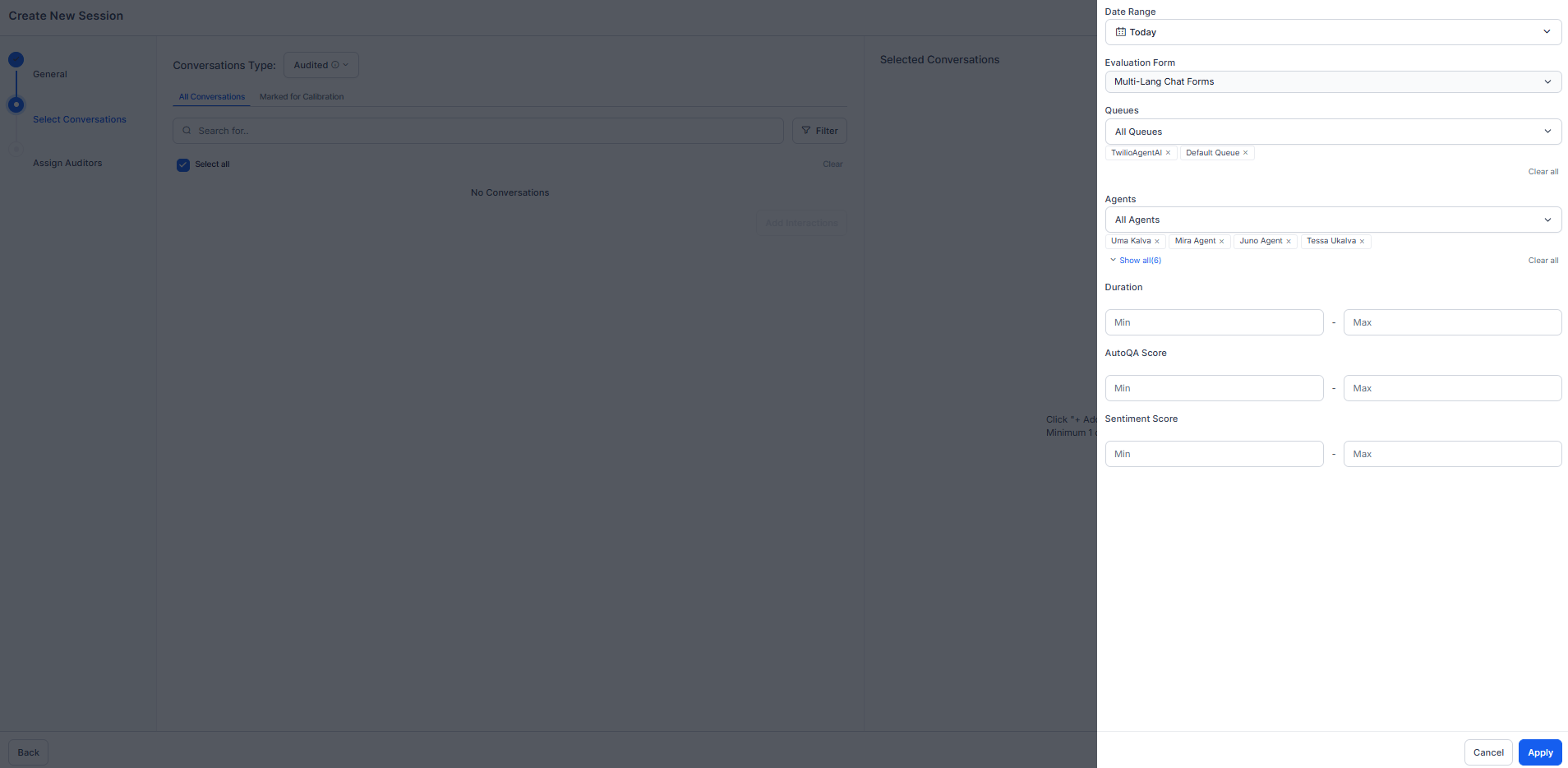
- Configure the required filters and select Apply.
- Select individual conversations or Select all.
- Select Add Interactions to add it to the Selected Conversations panel.
- Select View Conversation to preview a conversation, or remove a conversation from the selection. Select at least one conversation to proceed.
- Select Next.
Conversation Filters
The filter panel helps narrow conversations before adding them to the session.
Select Apply to apply the filter.
Mark a Conversation for Calibration
Supervisors and auditors can flag a conversation for calibration directly from the standard audit screen, without opening the Calibration workflow first.- Open a conversation on the audit screen.
- Select the more options Ellipsis (⋮) in the header.
- Select Mark for Calibration.
Step 3: Assign Auditors
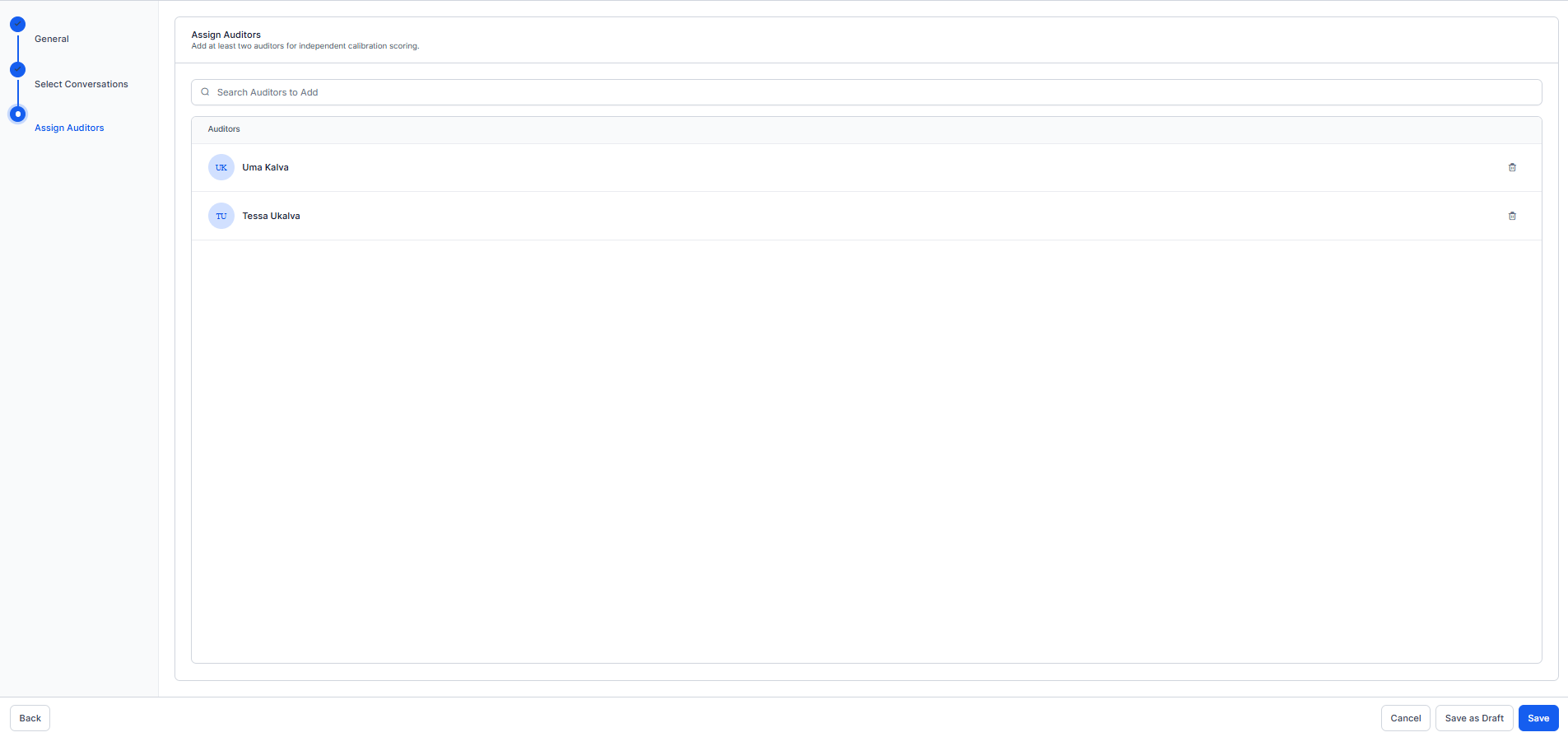
Assign the QA Analysts who can evaluate every selected conversation independently.- Use Search Auditors to Add to find participants.
- Select one or more participants.
- Review the selected participants listed in the Auditors section.
- Select Create and Notify Participants to activate the session.
- Alternatively, select Save as Draft to continue configuring the session later.
- Select Save to save the current configuration.
Monitor an Active Session
Opening an active session from the landing page displays the manager’s monitoring view. The session header displays the Created Date, Auditors avatar stack, Conducted by, and Status.Submission Progress
Submission Progress displays the overall participant submission status and individual participant progress. Each participant card displays the participant’s name, number of Conversations Scored, and a progress bar. A participant card reaches 100% and turns green when all assigned conversations are submitted.Conversation-Level Summary
The Conversation-Level Summary lists the conversations included in the session.
If the logged-in manager is a participant, Score Now is available for the manager’s pending participant assignments. For more details, see Manager as Participant.
The Flows or Queues column displays the Experience Flow for conversations handled by an AI Agent, and the queue for conversations handled by a Human Agent.
Calibration Evaluation
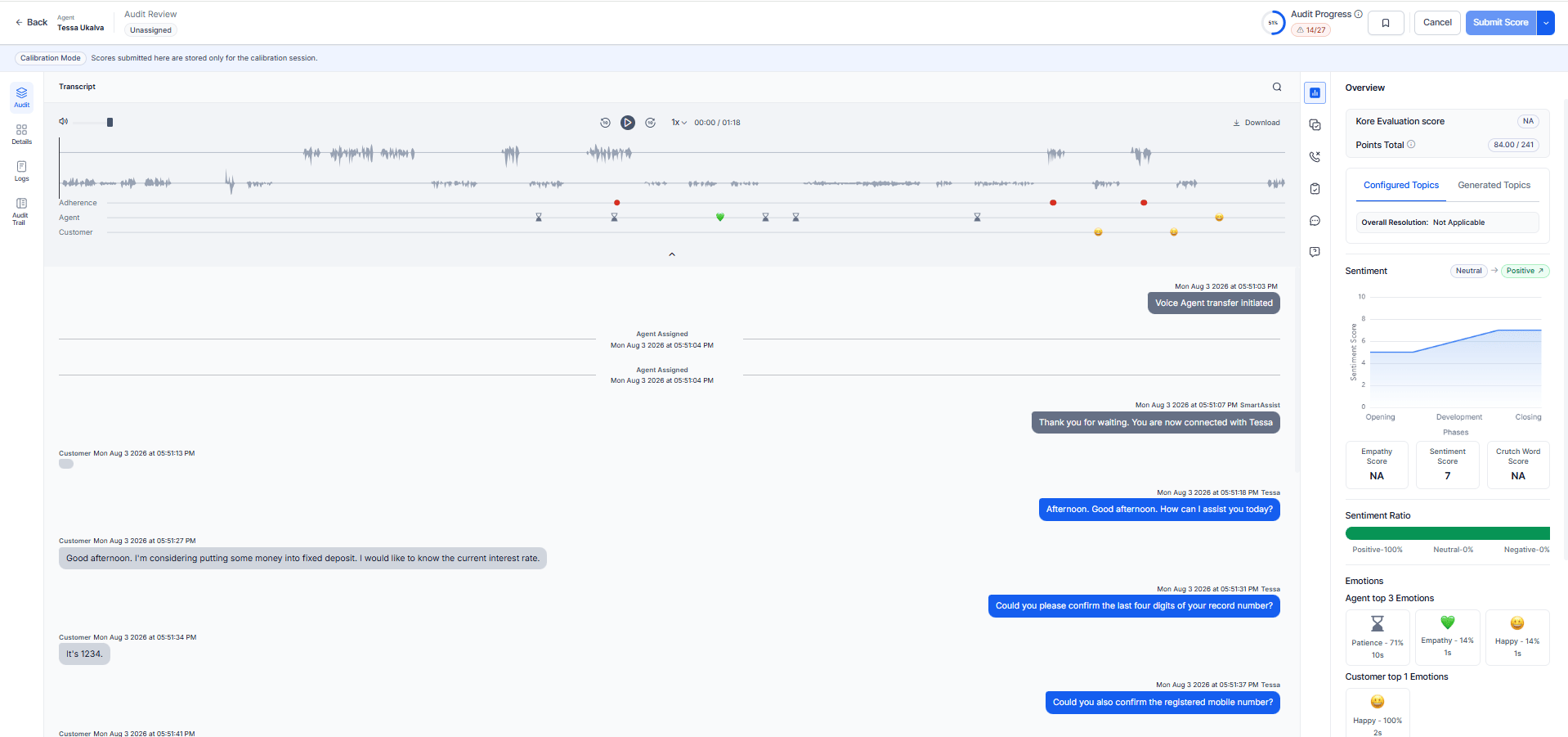
Calibration Mode is the scoring experience for QA Analysts participating in a Calibration Session. It uses the selected evaluation form and keeps peer scores hidden so analysts can independently evaluate each conversation. A Calibration Mode indicator identifies that the analyst is completing a calibration evaluation rather than a production audit. During calibration:- Peer scores remain hidden.
- AutoQA visibility follows the session’s configured AutoQA Visibility setting.
- Analysts evaluate each metric independently.
- Add comments when Analyst Justification has the Mandatory option enabled.
- Audit Progress displays evaluation completion status.
- Analysts can’t modify an evaluation after submission.
- Calibration Session conversations aren’t routed to the agent for review, acknowledgement, or dispute.
Complete a Calibration Evaluation
- Open an assigned Calibration Session.
- Select a pending conversation.
- Review the conversation transcript.
- Evaluate each metric using the selected evaluation form.
- Add notes to provide additional scoring context.
- Review the completed evaluation.
- Confirm that the evaluation is final.
- Select Submit Score.
Calibration Mode Options
Participants can:- Review the Agent and Audit Review details.
- View Audit Progress.
- Bookmark the conversation.
- Cancel scoring.
- Submit Score.
Manager as Participant
When a Calibration Manager participates in a session, the manager can use Assigned to Me and Score Now to complete their participant evaluation while retaining management capabilities. The manager’s participant status operates independently of other participants. After the manager submits their evaluation, Open Debrief becomes available according to the applicable debrief rules. The manager can access Open Debrief without waiting for other participant assignments to change.Available Actions
- View: Opens the read-only Calibration Session Report.
- Export CSV: Exports available calibration results.
Session Report
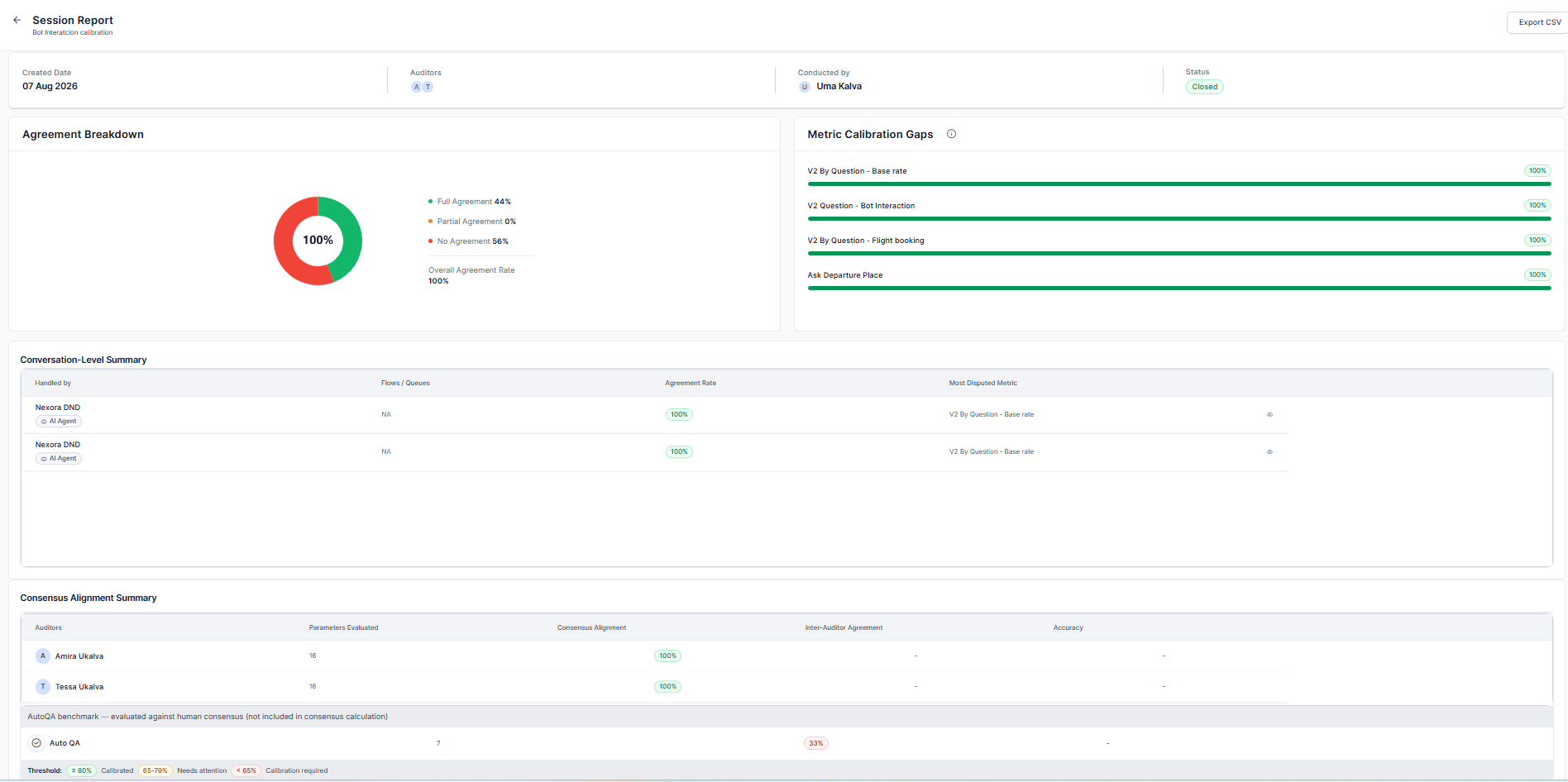
The Closed session report includes: Agreement Breakdown, Metric Calibration Gaps, Conversation-Level Summary, Consensus Alignment Summary*, Conversation-level comparison details, and Final calibration results. For more information, see Calibration Session Report.Audit Allocations as a Secondary Access Path
Existing Calibration access in Audit Allocations remains available to eligible users as a secondary path to calibration work. Assigned to Me remains the primary entry point for participant scoring.Existing Calibration Access
Existing calibration sessions, scoring records, reports, and agreement calculations remain unchanged. A Calibration Manager who does not participate continues to use All, Active, and Closed management views.Capability Access Summary
Debrief View
Debrief View is a management function that allows the Calibration Manager to compare participant evaluations and resolve scoring differences. Debrief View is available only to Calibration Managers according to the applicable debrief rules. It is not available to non-manager participants. For a Calibration Manager who is also a session participant, Open Debrief becomes available after the manager submits their own participant evaluation, according to the applicable debrief rules. The manager can then review participant evaluations, compare scoring differences, and establish the Reference Score. Debrief View is available only to Calibration Managers and isn’t available to non-manager participants. The view opens from a conversation in the session and provides a metric-by-metric comparison of participant evaluations. Depending on the available data, the comparison can include: Participant Scores, Participant Notes, AutoQA information (when available), Reference Score, Resolution Notes, and Accuracy, when Reference Scores are available. The Calibration Session Report uses the same comparison grid structure when the manager selects View for a conversation in the Conversation-Level Summary.Debrief View Components
The Participant Summary displays participant scoring and alignment information when available.
For example, for the Resolution Effectiveness metric, the comparison grid displays each participant’s Adhered, Not Adhered, or N/A response, the AutoQA Verdict when available, and the metric’s Agreement Rate.
At the bottom of Debrief View, the Participant Summary displays Metrics Scored, Aligned with Consensus (%), and Accuracy for each participant.
Review a Disagreement
- Open Debrief View after all required participant evaluations are submitted.
- Select a conversation.
- Review participant scores for each metric.
- Identify metrics where the scores differ.
- Review participant notes and AutoQA AI Justification, when available.
- Determine the appropriate Reference Score.
- Add Resolution Notes explaining the decision.
- Resolve all required disagreements before proceeding.
- Review the final calibration results.
Reference Score
The Reference Score is the Calibration Manager’s final determination for a metric after reviewing participant evaluations and supporting evidence. It represents the expected scoring outcome for the calibration exercise and is used to calculate individual participant accuracy.Close a Calibration Session
The Calibration Manager closes the session after completing the required calibration review. Before closing the session, the manager should:- Review all analyst scores.
- Resolve the required scoring differences.
- Set Reference Scores.
- Add Resolution Notes.
- Review the calibration results.
- Close the session.
- The session status changes to Closed.
- Final calibration results become available.
- Participants can access the read-only Calibration Session Report from the Closed session.
- Calibration Managers can access the report for sessions within their management scope.

Calibration Session Report
Closing a session generates a read-only Calibration Session Report, which is available to the Calibration Manager and all participating QA Analysts. The report summarizes calibration outcomes, analyst alignment, scoring consistency, and areas that require additional calibration. The report header displays the session name, date closed, conducted by, participants, and conversation count.Report Sections
Conversation-Level Comparison
Select the view icon on a Conversation-Level Summary row to expand the row inline and reveal the metric-by-analyst comparison grid directly beneath it, without leaving the report. This expanded grid uses the same structure as Debrief View.Accuracy
In the reviewed report data, Accuracy measures how well an analyst’s scores match the final Reference Scores established by the Calibration Manager during Debrief. For example, if an analyst’s scores match the Reference Scores for 8 out of 10 metrics, their accuracy is 80%. If the Calibration Manager hasn’t established Reference Scores, the report can’t calculate Accuracy.Export the Report
Select Export CSV to download the calibration results as a CSV file.Exported CSV Fields
The exported CSV contains calibration results from the report.
Participants can use the report to compare their evaluations with the final Reference Scores and review Resolution Notes for resolved scoring differences. When AutoQA results are available, the report also compares them with human consensus to show how closely AutoQA aligns with human evaluators.
Calibration Results and Formulas
The system calculates calibration results after participant evaluations are available and Reference Scores are established where required.Variables
Use distinct variables to avoid ambiguity.
For each metric:
A + B + D = N
Metric Agreement Rate
A metric reaches consensus when more than half of the participants select the same verdict. If no verdict receives more thanN / 2 responses, classify the metric as No Consensus.
For metrics with consensus:
Otherwise, the system labels the metric No Consensus and excludes it from further calculations.
The system computes the Metric Agreement Rate only when the metric reaches consensus.
Session Agreement Rate
The Session Agreement Rate averages the agreement rates for all metrics that reach consensus. The system excludes metrics labeled No Consensus. sum of all metric agreement rates / number of consensus metricsAgreement Distribution
The system groups metrics into the following agreement categories:Session N/A Rate
The Session N/A Rate measures the proportion of metric responses that analysts marked N/A.Auditor Agreement Rate (Aligned with Consensus)
For each analyst, the proportion of their verdicts that matched the consensus verdict, excluding No Consensus metrics from both the numerator and denominator.Auditor N/A Rate
The Auditor N/A Rate measures the proportion of metrics for which an analyst selected N/A. The Participant Summary flags an analyst when their N/A rate exceeds the session average by more than 15 percentage points.Auditor Inter-Auditor Agreement (Cohen’s Kappa)
Measures whether an analyst’s alignment with the group consensus reflects genuine agreement rather than shared scoring bias, using the three verdict categories (Adhered, Not Adhered, and N/A).
Where:
P_o = the analyst’s Auditor Agreement Rate.
P_chance = the probability the analyst and the consensus would match by chance, using each side’s verdict distribution.
The report displays Kappa only when the analyst scored 10 or more consensus metrics, and shows a dash otherwise.
Kappa Interpretation
Per-Conversation Agreement Rate
The Conversation-Level Summary calculates the agreement rate for each conversation using the same method as the Session Agreement Rate, scoped to that conversation.Per-Analyst Accuracy
A recommended calculation for individual analyst accuracy is: For example, if an analyst’s scores match the Reference Score for 42 of 50 metrics: This result helps the Calibration Manager identify analysts who consistently score differently from the established team standard.Most Contested Metric
The Most Contested Metric is the metric with the lowest agreement rate, shown per conversation and at the session level. When two metrics share the lowest rate, the report displays the one that appears first in the evaluation form.Metric Calibration Gaps — Thresholds
The Metric Calibration Gaps panel sorts metrics ascending by agreement rate, lowest first, and applies these thresholds across the Calibration module.AutoQA in Calibration Calculations
AutoQA appears in the Consensus Alignment Summary as a reference row. It isn’t included in consensus or agreement calculations based on human analyst verdicts.- Consensus calculation: Human analyst verdicts determine consensus. The system excludes the AutoQA verdict from N and the A, B, and C counts.
- AutoQA Consensus Alignment: Uses the Auditor Agreement Rate formula and treats AutoQA as an additional participant. The system compares its verdict with the human-only consensus.
- AutoQA Cohen’s Kappa: Computed using the Auditor Kappa formula, treating AutoQA as an additional analyst, with the consensus distribution drawn from human analysts only.
AutoQA evaluated against human consensus; not included in consensus calculation.
Calibration Session Lifecycle
A Calibration Session follows a structured workflow from setup to reporting. When a Calibration Manager participates in a session, the manager follows the same Score and Submit stages as other participants while continuing management responsibilities. See Manager as Participant.